
How to put multiple links in one QR code
A QR code opens one address per scan. Send each visitor to the right link with Smart Rules, or point the code at a page of buttons. Steps for both.

A QR code opens one address per scan, so a code "with multiple links" is really one short address that leads to more than one place. You can build it two ways: CodeQR picks the link for each visitor automatically, or the visitor picks from a page of buttons. CodeQR does the first with Smart Rules. For the second, you point the code at a page of your own.
Which one do you need
| What you want | Who picks | How to do it in CodeQR |
|---|---|---|
iPhone users go to the App Store, Android users to Google Play | CodeQR | Smart Rules by Device |
Each country opens its own page | CodeQR | Smart Rules by Country |
Each visitor sees the page in their language | CodeQR | Smart Rules by Language |
A share of scans goes to each page | CodeQR | Smart Rules with Split traffic (A/B test) |
Menu, website and Instagram as buttons to tap | The visitor | A page of your own, opened by a dynamic code |
With Smart Rules the visitor never sees a choice. They scan and land on one page.
Availability
- Plan: Smart Rules are on Business and above (pricing). To try them, choose Business under PLAN TO TRIAL in the plan step of onboarding, then click Start Free Trial. The selector starts on Pro, and a workspace gets one trial.
- Codes: dynamic QR codes of type URL. Short links have the same section. A static code can't use rules, because its destination is written into the image.
- Simpler needs: if you only want iPhone, Android or country destinations, iOS Targeting, Android Targeting and Geographic Targeting are available from Starter.
Send each visitor to the right link
This example sends iPhone and Android users to the app stores, Spanish speakers on other devices to a Spanish page, and everyone else to the home page.
- Open QR Codes and click Create QR Code.
- In Select QR Code format, choose Dynamic and click Continue.
- In Select QR Type, keep URL.
- In Destination URL, paste the page for anyone no rule catches, for example
https://example.com/home. - Turn on Smart Rules.
- Set the first rule to Device, is, iOS, and paste the App Store link in its Destination URL.
- Click Add rule and do the same for each other link.
- Click Create QR Code.
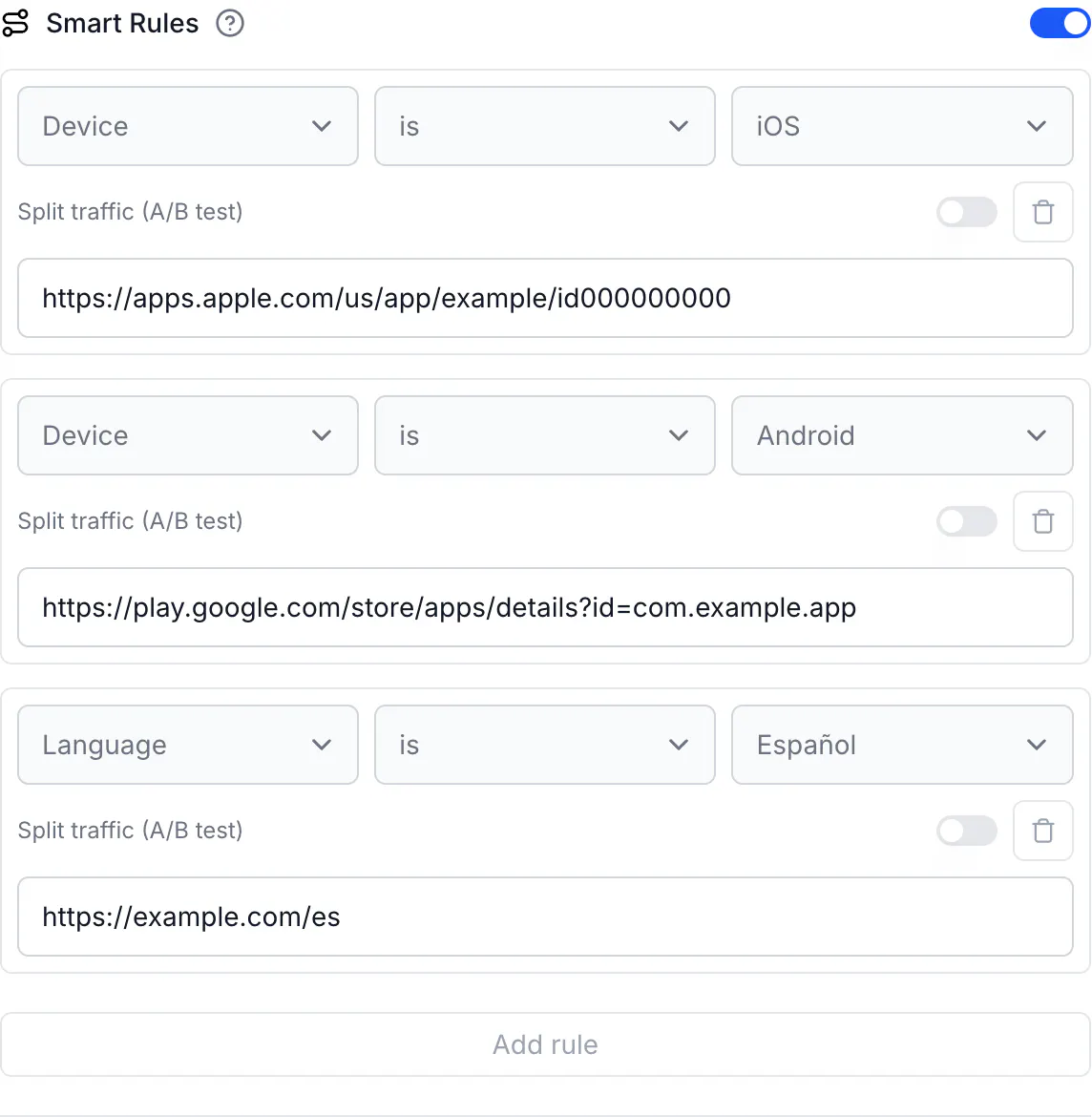
Rules run from top to bottom and the first match wins. In this example, a Spanish speaker on an iPhone goes to the App Store, because the iOS rule comes first.
For a short link instead of a code, use the same Smart Rules section in the link builder.
Let the visitor choose from buttons
CodeQR doesn't have a page type that lists links as buttons. Pages are forms: a contact form, feedback, a newsletter signup and a digital business card, which shows your contact details and social profiles.
To offer a choice, build the page on your own website or in a link-in-bio tool, then point a dynamic QR code at it. This works on every plan, including Free. If you move the page later, change the destination and the printed code keeps working.
Limits
- Up to 20 rules per code.
- One condition per rule. To combine two, see Redirect by country and device together.
- A split sends traffic to 2 to 4 pages, with weights that add up to 100.
- Language rules cover ten languages. See Make a multi-language QR code.
Do the same via API
Send rules when you create the code:
curl -X POST https://api.codeqr.io/qrcodes \
  -H "Authorization: Bearer codeqr_xxxxxxxxxxxxxxxxxxxxxxxx" \
  -H "Content-Type: application/json" \
  -d '{
    "type": "url",
    "static": false,
    "domain": "go.example.com",
    "key": "get-started",
    "url": "https://example.com/home",
    "rules": [
      { "attribute": "device", "operator": "equals", "value": "iOS", "url": "https://apps.apple.com/us/app/example/id000000000" },
      { "attribute": "device", "operator": "equals", "value": "Android", "url": "https://play.google.com/store/apps/details?id=com.example.app" },
      { "attribute": "language", "operator": "equals", "value": "es", "url": "https://example.com/es" }
    ]
  }'
Through MCP, create_link and update_link accept rules. The QR code tools don't, so use the API or the editor for a code.
Verify it works
Scan the code with an iPhone and with an Android phone. To test from a computer, send a phone's user agent and read where the code redirects:
curl -sI -A "Mozilla/5.0 (iPhone; CPU iPhone OS 18_0 like Mac OS X)" https://go.example.com/get-started | grep -i '^location'
# location: https://apps.apple.com/us/app/example/id000000000
The URLs tab in the code's Analytics then lists scans per destination.
Common questions
No. One scan opens one page. Tools sold as "multi-link" or "multi-URL" codes either choose one destination for the visitor or open a page of buttons.