
One QR code for multiple business locations
Use one QR code for multiple locations: CodeQR sends each scan to the page for the visitor's state, city or country. Setup steps, limits and how to test.
One QR code can serve multiple locations: CodeQR reads where the visitor is when they scan and sends them to the page for their state, city or country. You print one code or share one link, and each location keeps its own page. Two locations in the same city can't be told apart.
Which attribute fits
Location comes from the visitor's IP address. CodeQR does not measure distance, so a rule matches a place you name. It does not look for the nearest location.
| Attribute | Fits | How reliable |
|---|---|---|
Country | Locations in different countries | Reliable |
Region (state) | Locations in different states or provinces | Approximate |
City | One location per city | Approximate |
A VPN, a corporate network or a mobile carrier can place a visitor somewhere else. A visitor with no known location goes to Destination URL, so make that a page that lists all your locations.
Availability
- Plan: Smart Rules are on Business and above (pricing). To try them, choose Business under PLAN TO TRIAL in the plan step of onboarding, then click Start Free Trial. The selector starts on Pro, and a workspace gets one trial.
- Before you print: codes created during a no-card trial stay on the free short domains. Create the code you will print after checkout.
- Codes: dynamic QR codes of type URL. Short links have the same section.
Send each visitor to their location
This example sends visitors in Texas, Colorado and Alabama to the page of the location in that state. Everyone else lands on a page that lists all locations.
- Open QR Codes and click Create QR Code.
- In Select QR Code format, choose Dynamic and click Continue.
- In Select QR Type, keep URL.
- In Destination URL, paste the page that lists all your locations, for example
https://example.com/locations. - Turn on Smart Rules.
- Set the first rule to Region (state), is,
TX, and paste the Dallas page in its Destination URL. - Click Add rule and do the same for
COandAL. - Click Create QR Code.
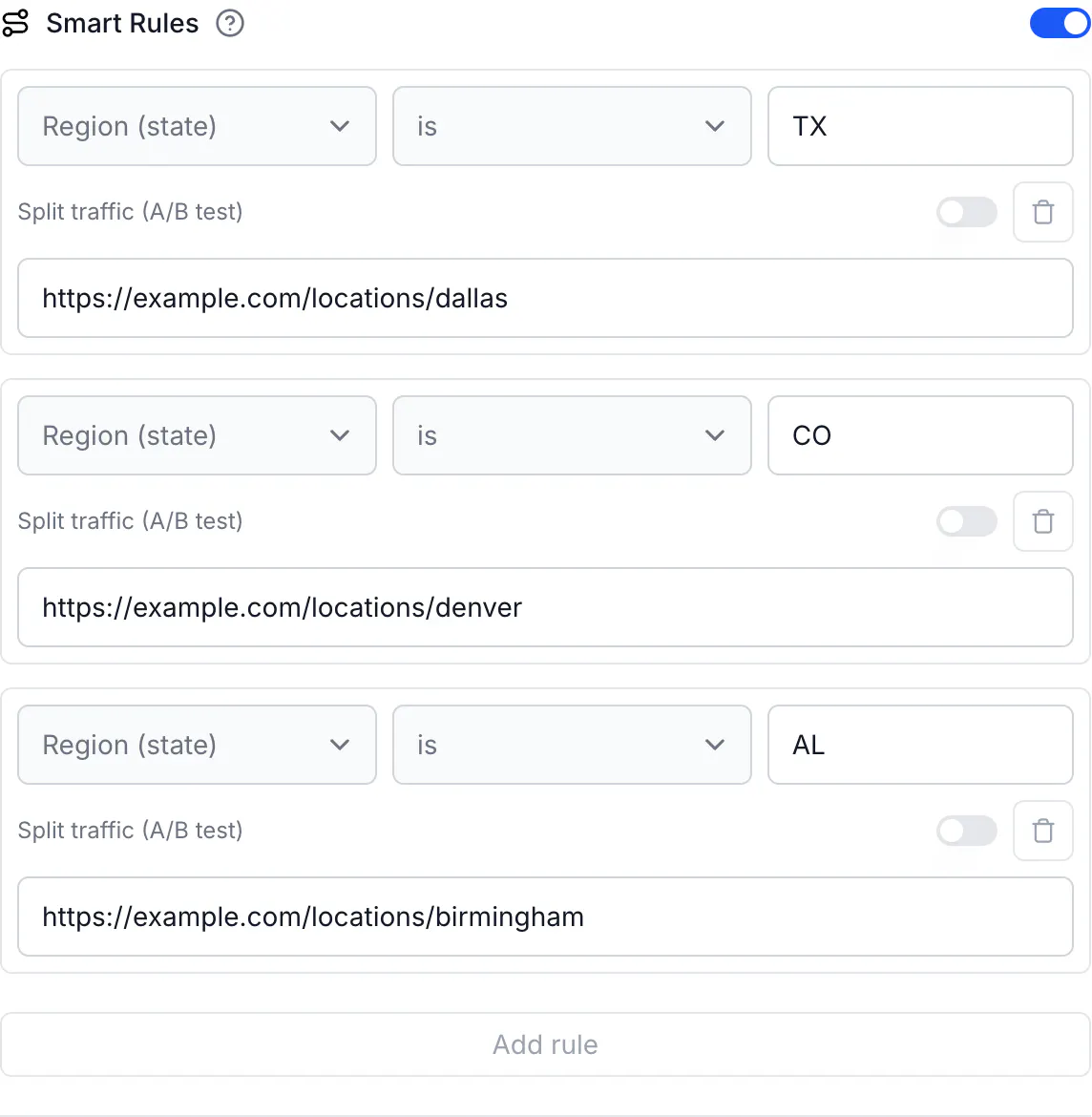
Rules run from top to bottom and the first match wins. Each rule holds one condition, and you can add up to 20 rules. For a city rule, choose City instead and type the city name.
For a short link instead of a code, use the same Smart Rules section in the link builder.
What to watch for
Two locations in the same city
Rules cannot separate them: location data is approximate at city level, and a rule matches a city name, not a street. Print one code per location. If the code collects Google reviews, see Split a Google review QR code across locations and the QR code for Google reviews page.
The same state code in two countries
Region (state) takes the state code, and the code is not tied to a country. In a test, a rule for AL meant for Alabama also matched a visitor in Alagoas, Brazil.
- If your business is in one country, this does not affect you.
- If it sells in more than one, put a Country rule first. Rules run in order and the first match wins, so a first rule of Country, is not, United States sends everyone outside the United States to an international page, and the state rules below it only see US visitors. In the same test, this kept the visitor in Alagoas out of the Alabama rule.
A rule holds one condition. For a way to combine two, see Redirect by country and device together.
City spelling
A City rule must match the name the location data uses, accents included. Capital letters do not matter, so denver matches Denver, but Sao Paulo does not match São Paulo. A neighboring city does not match either: a rule for Denver does not catch a visitor in Aurora. Add a rule for each city you serve.
Keep a default for everyone else
Destination URL is the page for every visitor no rule catches. Point it at a page that lists all locations, not at one branch, so a visitor from an unlisted place can still pick theirs.
When a printed location changes
The printed code does not change. If a location closes, open the code, edit that rule's Destination URL to another location's page or to the page that lists all locations, and click Save QR Code. The next scan follows it. See Change a QR code destination after printing.
Do the same via API
Send rules when you create the code:
curl -X POST https://api.codeqr.io/qrcodes \
  -H "Authorization: Bearer codeqr_xxxxxxxxxxxxxxxxxxxxxxxx" \
  -H "Content-Type: application/json" \
  -d '{
    "type": "url",
    "static": false,
    "domain": "go.example.com",
    "key": "find-us",
    "url": "https://example.com/locations",
    "rules": [
      { "attribute": "region", "operator": "equals", "value": "TX", "url": "https://example.com/locations/dallas" },
      { "attribute": "region", "operator": "equals", "value": "CO", "url": "https://example.com/locations/denver" },
      { "attribute": "region", "operator": "equals", "value": "AL", "url": "https://example.com/locations/birmingham" }
    ]
  }'
Through MCP, create_link and update_link accept rules. The QR code tools don't, so use the API or the editor for a code.
Verify it works
Location depends on the network, so test where your customers scan. Scan the code with a phone in each area, on mobile data and on Wi-Fi, since the two can place the phone differently. After real scans, open the code's Analytics and the URLs tab, which lists scans per destination, to see which location pages people received.
From a terminal, this shows where the code sends the network the command runs on:
curl -sI https://go.example.com/find-us | grep -i '^location'
Common questions
It sends them to the location you matched to their state, city or country. CodeQR does not calculate distance, so write a rule for each place you serve.