
Change a QR code destination after printing
Edit the destination URL of a dynamic QR code already printed on menus, packaging, or posters. Live at the next scan — no reprint, same image.

At the end of this guide, the QR code you already printed opens a new page. You do not print anything again: the image encodes a short link, and you only change where that link goes.
Availability
- Plan: all plans, for dynamic codes. A static code cannot be re-pointed — its content is inside the image (see the difference).
- Where: QR Codes → card menu ⋮ → Edit → Destination URL. Also
PUT /qrcodes/{qrcodeId}and the MCP toolupdate_qrcode.
Before you start
- Confirm the code is dynamic: the card shows the Dynamic badge and a scan counter. Static cards show Static and no counter.
- The new URL, for example
https://example.com/menu-v2. It must be a fullhttps://URL. - Do not change the Domain or the key of a printed code — they are drawn in the image. In the editor the Domain select is locked while editing for that reason.
Steps
- Open QR Codes and find the code. Use the search box or Filter if the list is long.
- Open the card menu (⋮) and click Edit (or press
Ewith the card focused). - In Destination URL, replace the old address with the new one.
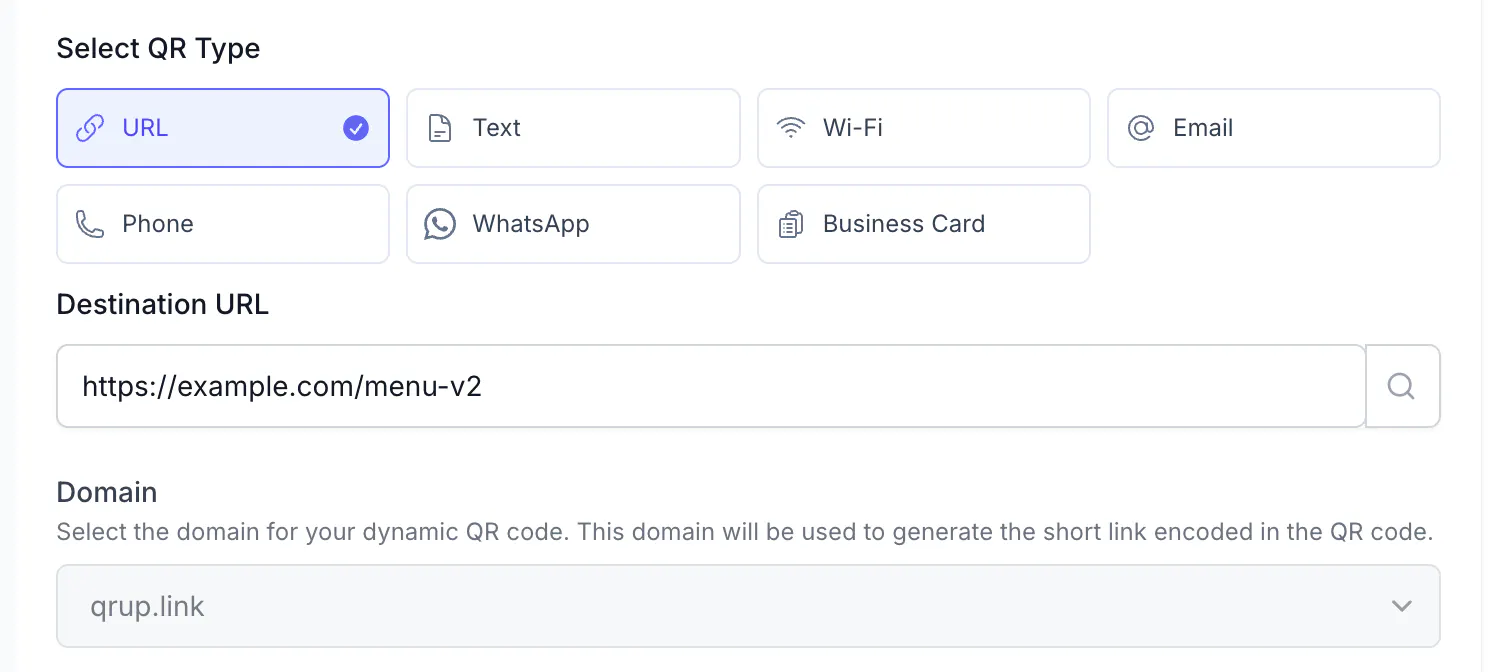
- Leave Design untouched if the code is already printed. Colors, pattern, and frame only change the image you export next; scanning is not affected.
- Click Save QR Code.
The change is effective immediately: CodeQR rewrites the short link entry on save, and the redirect itself is a 302, so browsers do not remember the old destination.
The same through the API
PUT https://api.codeqr.io/qrcodes/{qrcodeId} with the fields you want to change. Get the id from the card (Copy QR ID) or from GET /qrcodes/info?domain=…&key=….
Request:
curl -X PUT https://api.codeqr.io/qrcodes/cmsx875y30001je433cy0ltlh \
  -H "Authorization: Bearer codeqr_xxxxxxxxxxxxxxxxxxxxxxxx" \
  -H "Content-Type: application/json" \
  -d '{ "url": "https://example.com/menu-v2" }'
Response (200 OK, abbreviated) — same key and shortLink, new url, new updatedAt:
{
  "id": "cmsx875y30001je433cy0ltlh",
  "domain": "qrup.link",
  "key": "iVx0OCFyDn79-qr",
  "url": "https://example.com/menu-v2",
  "static": false,
  "type": "url",
  "title": "Cafe menu",
  "shortLink": "https://qrup.link/iVx0OCFyDn79-qr",
  "createdAt": "2026-08-17T12:44:30.555Z",
  "updatedAt": "2026-08-17T12:45:42.383Z"
}
With the MCP server, ask your AI client to update the QR code destination; it calls update_qrcode with qrcodeId and url. In Make, use the CodeQR Make an API Call module with method PUT, URL /qrcodes/{id}, and the same JSON body. Details in Create QR codes with the API, MCP, and automations.
Verify it works
- Scan the printed code again with your phone: the new page opens.
- From a terminal, the short link answers with the new
location:
curl -sI -A "Mozilla/5.0 (iPhone; CPU iPhone OS 17_5 like Mac OS X)" \
  https://qrup.link/iVx0OCFyDn79-qr | grep -iE "^HTTP|^location"
# HTTP/2 302
# location: https://example.com/menu-v2
- In Analytics, scans keep accumulating on the same code — the history is not reset by a destination change.
Troubleshooting
My phone still opens the old page
Test in a private window or on a second phone before assuming the change failed. Some browsers reuse a page from their own cache when you reload the destination itself; the redirect from the short link is not cached. If the code was created elsewhere and re-pointed with a permanent redirect on your side, that redirect can be cached by the browser — CodeQR uses a temporary redirect for this reason. See Fix a QR code that does not scan or opens the wrong page.
The card says Static and there is no Destination URL to edit
The image contains the URL itself. Open Edit and use Turn this into a dynamic QR code, then export and print the new image; copies already printed keep opening the old URL. See Choose between dynamic and static QR codes.
The Domain select is disabled
By design while editing: the domain is part of what is printed. To move a code to another domain, create a new code and reprint.
The API returns 422 "custom: url: Invalid URL"
The url is not a valid absolute URL. Include the scheme (https://) and encode spaces.
The API returns 409 "Duplicate key: This QR Code already exists."
You sent a key that another QR code in the workspace already uses. Omit key when you only want to change the destination.