
Create a dynamic QR code you can edit after printing
Create a dynamic QR code in CodeQR — it encodes a short link, so you can change the destination after printing and see every scan in Analytics.

By the end of this guide you will have a dynamic QR code that opens your page, that you can point somewhere else later without reprinting anything, and that counts every scan in Analytics.
Availability
- Plan: all plans. Monthly QR code allowance: Free 5, Starter 150, Pro 1,000 dynamic plus unlimited static, Business 5,000 dynamic plus unlimited static (pricing). On Free and Starter, static codes count toward the same allowance.
- Where: QR Codes → Create QR Code. The same code can be created with the API and the MCP server.
Before you start
- The URL the code should open, for example
https://example.com/menu. - Know what the image will contain: a dynamic QR code encodes a short link such as
https://qrup.link/iVx0OCFyDn79-qr, not your URL. When someone scans it, CodeQR redirects them to the destination you set. That is what makes the destination editable and the scans countable. - The logo in the middle of the code is your workspace logo (Settings → General). On the Free plan the code always carries the CodeQR mark; paid plans can hide it. See Add your logo, colors, and a frame to a QR code.
Steps
- Open QR Codes and click Create QR Code.
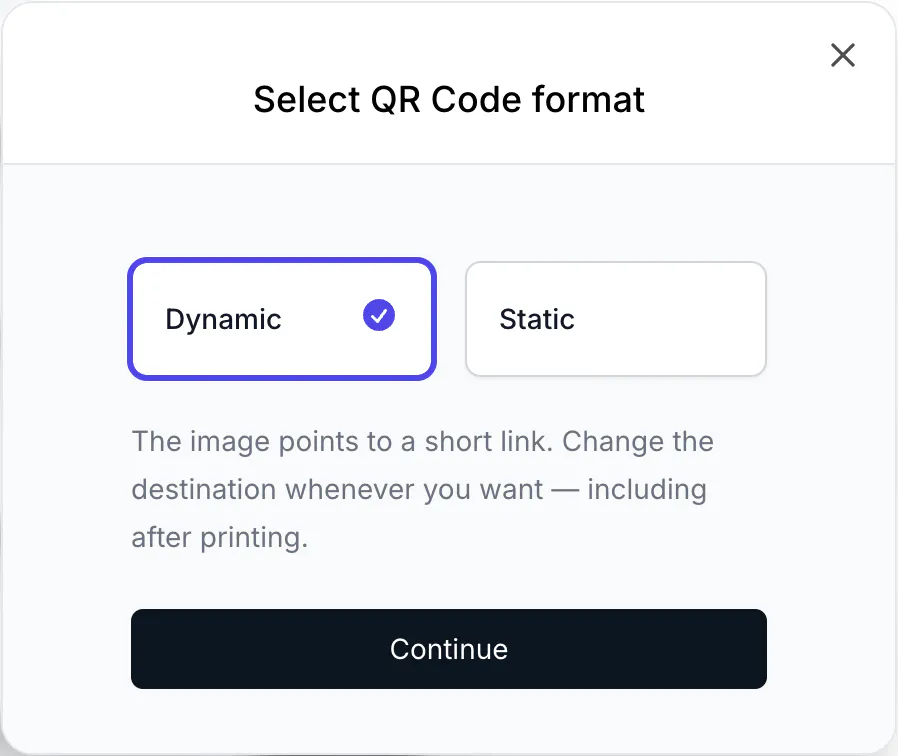
- In Select QR Code format, choose Dynamic and click Continue. Static is selected by default; if you keep it, the content is baked into the image and cannot be edited later.
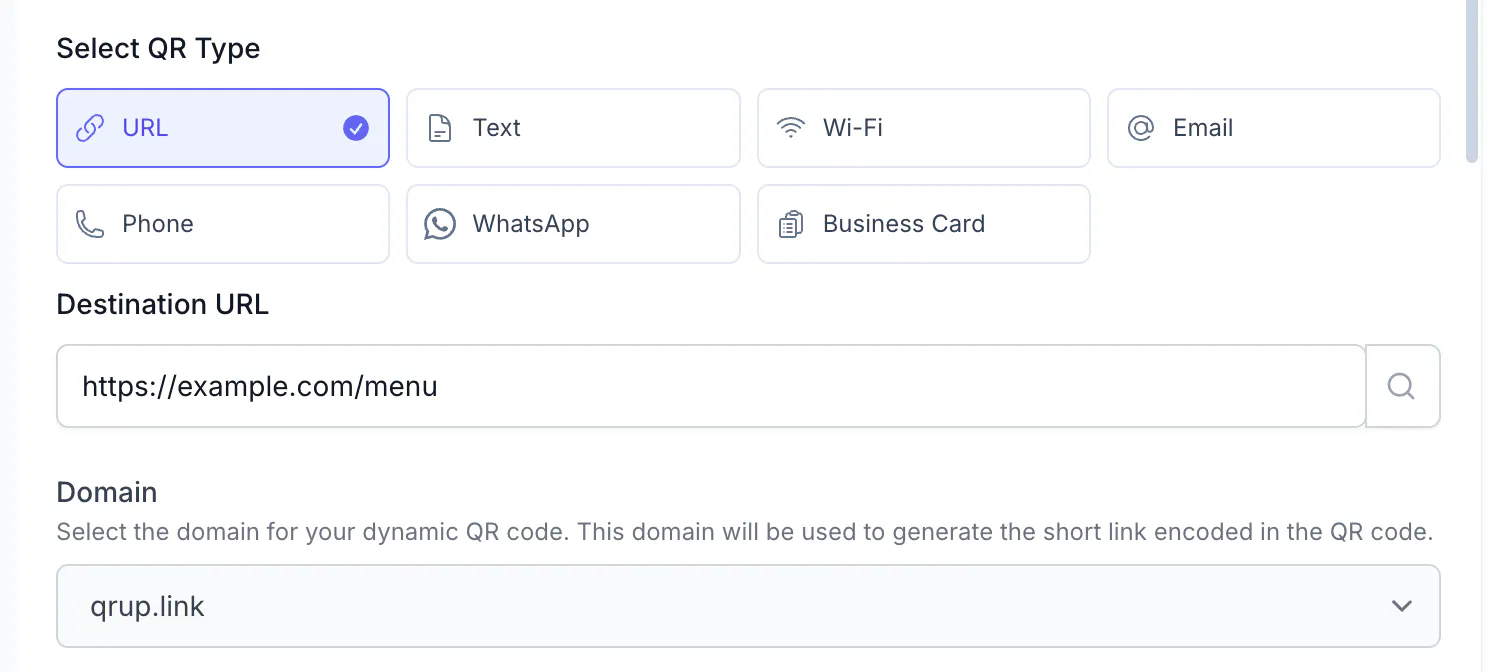
- In Select QR Type, keep URL.
- In Destination URL, paste the page the code should open, for example
https://example.com/menu. - In Domain, keep the suggested domain. It is the domain of the short link the image will encode; workspaces with a custom domain can pick it here.
- Under Design, leave the defaults for now, or set colors, size, pattern, and a frame — see Add your logo, colors, and a frame to a QR code.
- Under Optional, give the code a Title (for example
Cafe menu) so you find it later, and pick a Folder or tags if you use them. - Click Create QR Code. The code is saved and the preview opens with the download options.
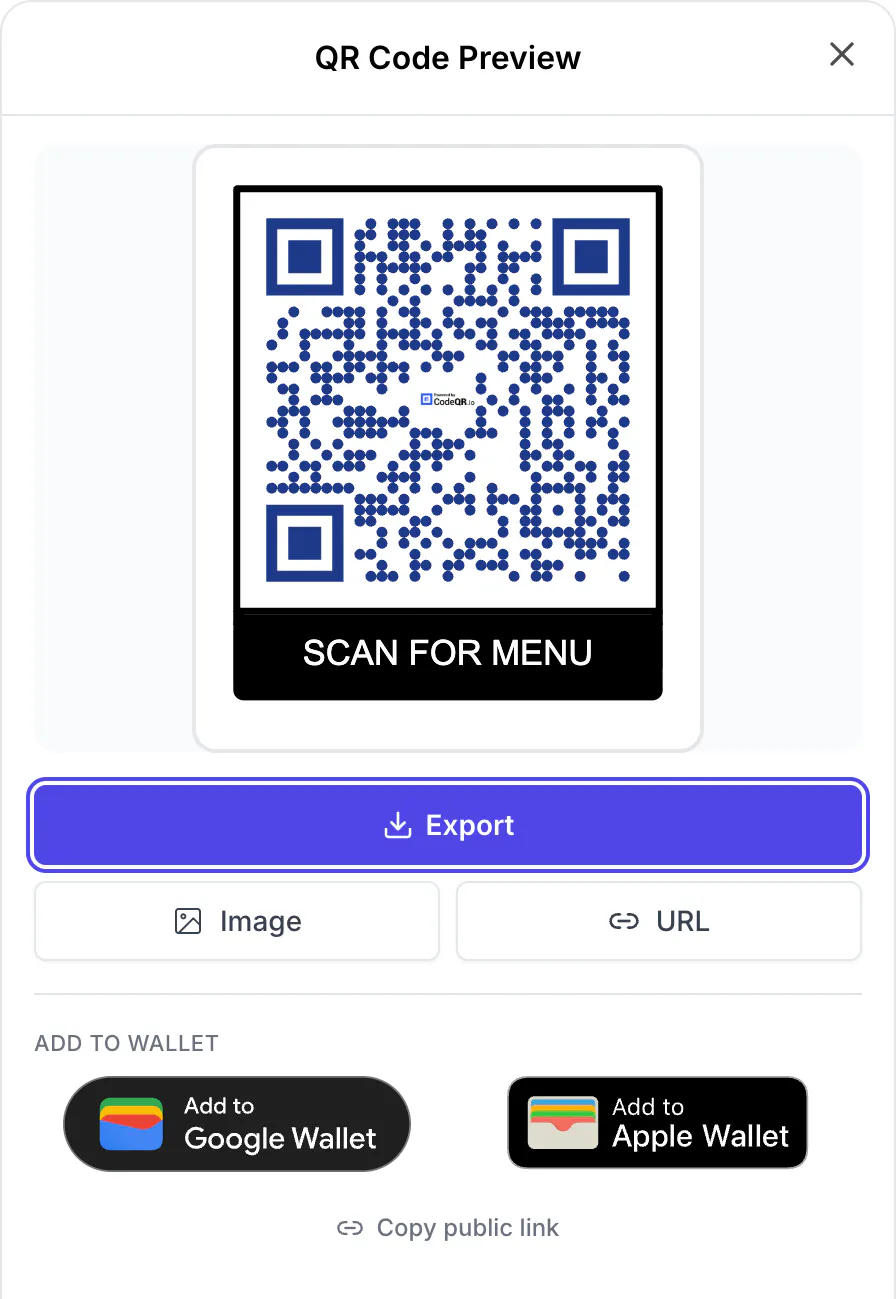
- Click Export and choose SVG for print or PNG for screens. See Download and print a QR code at the right size before sending anything to a printer.
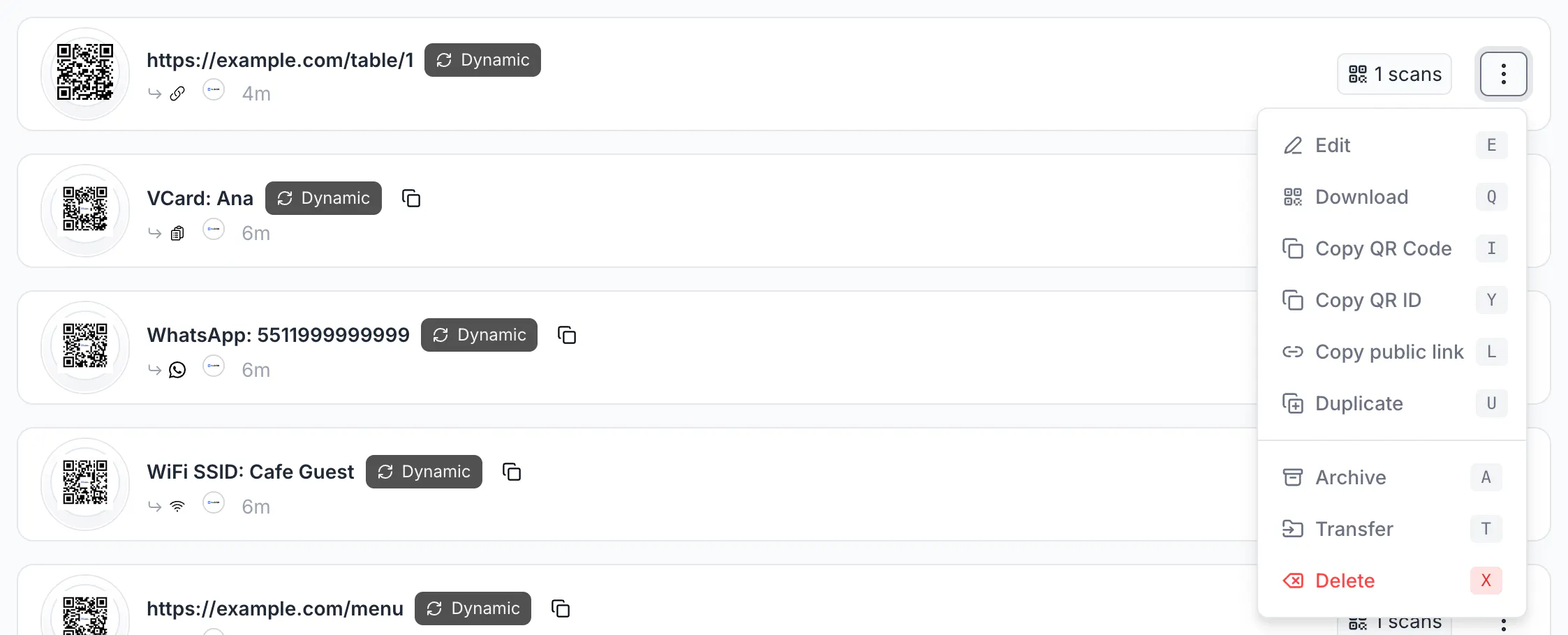
The new code appears at the top of QR Codes with the Dynamic badge, its destination, and a scan counter. The card menu (⋮) has Edit, Download, Copy QR Code, Copy QR ID, Copy public link, Duplicate, Archive, Transfer, and Delete.
The same through the API
POST https://api.codeqr.io/qrcodes with type, url, and static: false. Authenticate with a Bearer token created in Settings → API Keys. domain and key are optional; without them CodeQR picks the workspace domain and a random key ending in -qr.
Request:
curl -X POST https://api.codeqr.io/qrcodes \
  -H "Authorization: Bearer codeqr_xxxxxxxxxxxxxxxxxxxxxxxx" \
  -H "Content-Type: application/json" \
  -d '{
    "type": "url",
    "url": "https://example.com/menu",
    "title": "Cafe menu",
    "static": false
  }'
Response (200 OK, abbreviated — the object has the same fields as the editor):
{
  "id": "cmsx875y30001je433cy0ltlh",
  "domain": "qrup.link",
  "key": "iVx0OCFyDn79-qr",
  "url": "https://example.com/menu",
  "static": false,
  "type": "url",
  "title": "Cafe menu",
  "image": "https://res.cloudinary.com/dhnaggn4g/image/upload/v1786970667/qrup.link/iVx0OCFyDn79-qr.png",
  "size": 1024,
  "level": "M",
  "fgColor": "#000000",
  "bgColor": "#ffffff",
  "showLogo": true,
  "scans": 0,
  "shortLink": "https://qrup.link/iVx0OCFyDn79-qr",
  "createdAt": "2026-08-17T12:44:30.555Z"
}
image is the PNG preview; shortLink is what the image encodes. With the MCP server, ask your AI client to create a QR code and it calls create_qrcode with url. Bulk creation, updates, and automations are in Create QR codes with the API, MCP, and automations.
Verify it works
- Point your phone camera at the code on screen. The destination opens.
- Without a phone, request the short link from a terminal. A dynamic code answers with a
302to the destination:
curl -sI -A "Mozilla/5.0 (iPhone; CPU iPhone OS 17_5 like Mac OS X)" \
  https://qrup.link/iVx0OCFyDn79-qr | grep -iE "^HTTP|^location"
# HTTP/2 302
# location: https://example.com/menu
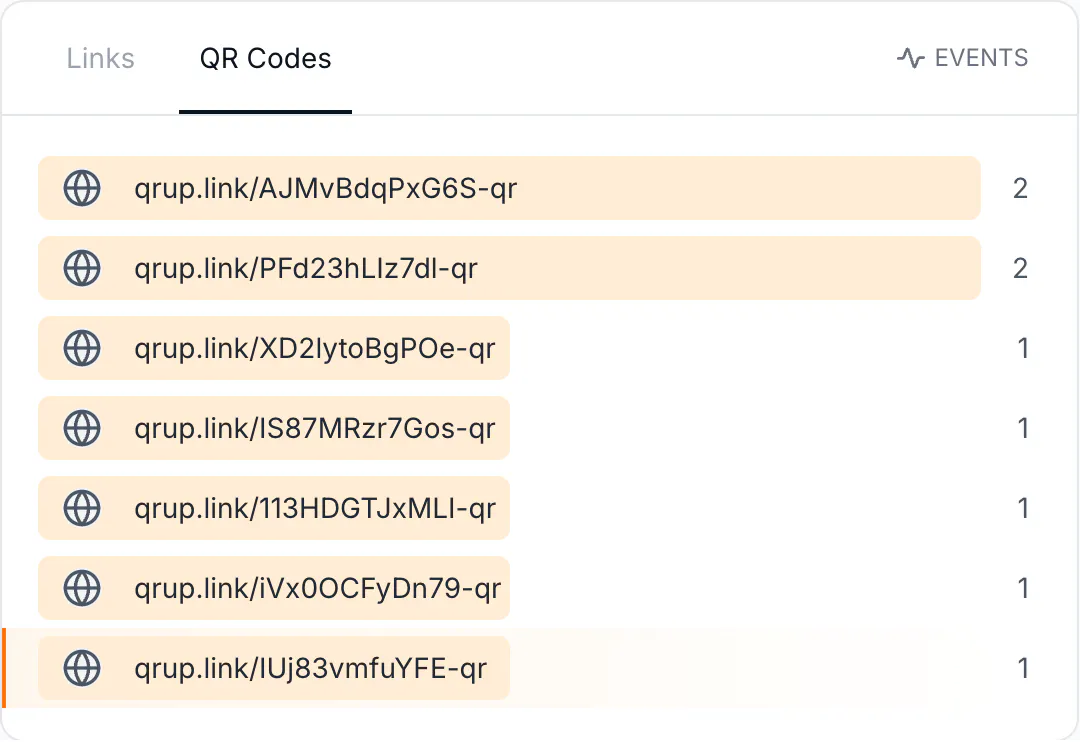
- Back in QR Codes, the card shows 1 scans. In Analytics, the Scans tile and the QR Codes tab of the top card list the code with its count. Link-preview robots (WhatsApp, Slack, Facebook) are redirected but not counted, and the same phone scanning again within five minutes counts once.
Troubleshooting
The Create QR Code button is disabled with "You have reached your QR Code limit"
The workspace used its monthly allowance for the plan. Delete codes you no longer need or upgrade in Settings → Billing. On Pro and above, static codes do not count.
The code has a CodeQR logo in the middle
That is the default logo when the workspace has no logo of its own, and it is always there on the Free plan. Upload a logo in Settings → General, or set Remove Logo to Yes in the editor on a paid plan. See Add your logo, colors, and a frame to a QR code.
I need to change where the code goes
Open the card menu, click Edit, change Destination URL, and click Save QR Code. Printed copies keep working because the image encodes the short link, not the destination. See Change a QR code destination after printing.
I created a static code by mistake
Open it with Edit and use Turn this into a dynamic QR code. Codes you already printed keep the old content, because a static image carries the URL itself. See Choose between dynamic and static QR codes.
The scan opens https://codeqr.io/not-found
The code was deleted, or the short link was mistyped. A deleted dynamic code cannot be restored: create a new one and reprint.