
Add your logo, colors, and a frame to a QR code
Put your workspace logo in the middle of a QR code, set foreground and background colors, pick a pattern, and add a Scan me frame that still scans.

At the end of this guide your QR code carries your logo in the middle, your brand colors, the module pattern you like, and a frame with a call to action — and it still scans from the distance you need.
Availability
- Plan: colors, size, and the basic pattern and shape on all plans. Remove Logo, frames, the Circle shape, and the Triangles, Stars, and Hearts patterns need a paid plan; on Free the code always shows the CodeQR mark and no frame.
- Where: the Design section of the QR code editor (Create QR Code or card menu ⋮ → Edit). Design fields are also accepted by the API (
fgColor,bgColor,size,pattern,shape,frame,frameText,frameColor,frameTextColor,frameTextStyles,showLogo).
Before you start
- The logo shown in the middle of every QR code is the workspace logo. Upload it once in Settings → General; there is no per-code upload. Workspaces without a logo show the CodeQR mark until you upload one or set Remove Logo to Yes.
- The logo covers about 15 % of the code side and the modules under it are removed; the editor raises error correction to the highest level to compensate. Keep the logo simple and high-contrast — a busy logo hides data the code needs.
- Colors: keep dark modules on a light background. Light modules on a dark background are read inconsistently by phone cameras, and low contrast is the most common reason a printed code fails.
Steps
- Open QR Codes and click Create QR Code, or open the card menu (⋮) → Edit on an existing code.
- Scroll to Design. Under Logo, leave Remove Logo on No to keep the workspace logo, or set it to Yes to export a plain code (paid plans).
- Set Foreground Color (the modules) and Background Color as hex values, for example
#1e3a8aon#ffffff. Tick Transparent under the background only when the code will sit on a light surface — the surface then becomes the background. - Pick a Size. 1024px (Default) covers screens and small prints; go up for large formats (see Download and print a QR code at the right size).
- Choose a shape — None, Square, or Circle — to draw an outline around the code in the foreground color.
- Choose a pattern for the modules: Squares, Circles, Diamonds (all plans) or Triangles, Stars, Hearts (paid plans). The three finder squares in the corners always keep their standard shape.
- In Frame template, pick one of the five frames to add a bar with text below or above the code, or keep ✕ for none. When a frame is selected, fill in Frame Text (up to 200 characters, for example
SCAN FOR MENU), Frame Color, Frame text color, and, under Typography, Font family and Text style (size and bold or italic).
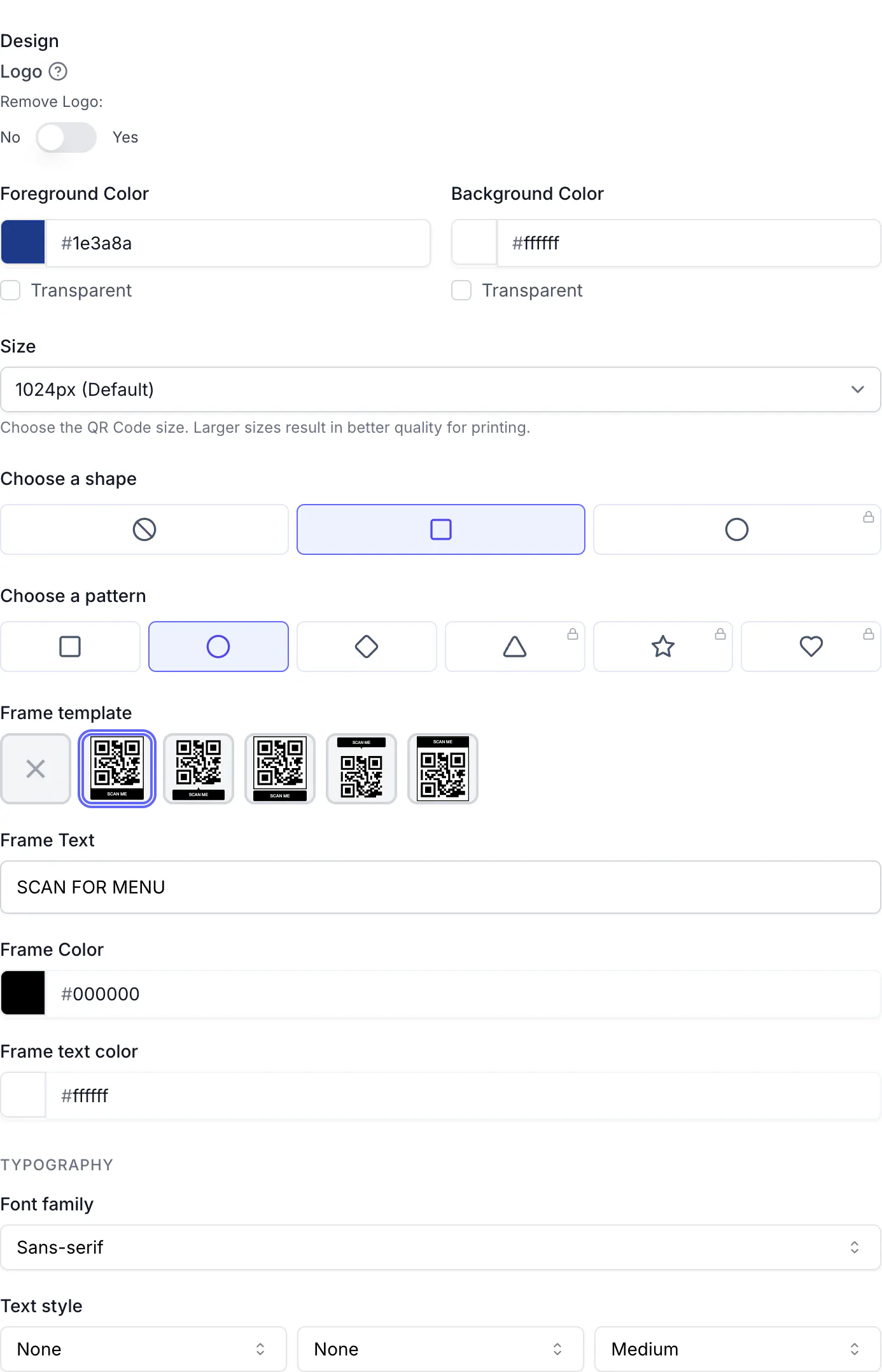
- Watch the QR Code Preview on the right while you change options, then click Create QR Code or Save QR Code.
- Click Export in the preview to download the designed code (SVG for print).
Design changes never affect what the code encodes: a printed dynamic code keeps working after you restyle it, and the new look applies to the next export.
The same through the API
Send the design fields on POST /qrcodes or PUT /qrcodes/{qrcodeId}. Values are validated: size between 128 and 5000, frameText up to 200 characters, colors as hex (invalid values fall back to black and white).
Request:
curl -X PUT https://api.codeqr.io/qrcodes/cmsx875y30001je433cy0ltlh \
  -H "Authorization: Bearer codeqr_xxxxxxxxxxxxxxxxxxxxxxxx" \
  -H "Content-Type: application/json" \
  -d '{
    "fgColor": "#1e3a8a",
    "pattern": "circles",
    "frame": "frame-1",
    "frameText": "SCAN FOR MENU",
    "size": 2000
  }'
Response (200 OK, abbreviated):
{
  "id": "cmsx875y30001je433cy0ltlh",
  "key": "iVx0OCFyDn79-qr",
  "size": 2000,
  "fgColor": "#1e3a8a",
  "bgColor": "#ffffff",
  "pattern": "circles",
  "shape": "none",
  "frame": "frame-1",
  "frameText": "SCAN FOR MENU",
  "showLogo": true,
  "shortLink": "https://qrup.link/iVx0OCFyDn79-qr"
}
Accepted values: pattern = default, circles, diamond, triangle, stars, hearts; shape = none, square, circle; frame = none, frame-1, frame-2, frame-3, frame-5, frame-6; frameTextStyles = { "family": "sans" | "sans-condensed" | "serif" | "serif-elegant" | "mono", "size": "s" | "m" | "l" | "xl", "weight": "normal" | "bold", "style": "normal" | "italic" }. showLogo: false hides the logo (paid plans). Codes created through the API keep error correction M unless you send "level": "H" — do that whenever the code carries a logo. The MCP create_qrcode tool accepts fgColor, bgColor, size, and level only.
Verify it works
- Export the code and scan the file on screen with a phone; then print a proof and scan it again from the intended distance.
- Test at least one iPhone and one Android. If a colored code scans on one and not the other, increase contrast or go back to black on white.
- Confirm the scan in QR Codes (card counter) or Analytics → QR Codes tab.
Troubleshooting
The code shows a CodeQR mark instead of my logo
Upload the workspace logo in Settings → General and export again. On the Free plan the mark is fixed ("Customizing your QR Code logo is available on any paid plan.").
Remove Logo, frames, or some patterns are locked
They need a paid plan. The lock icon on Circle, Triangles, Stars, and Hearts marks paid options; on a paid workspace they are selectable even though the icon is shown.
The code stopped scanning after I added a logo or changed colors
Too much of the pattern is covered or the contrast dropped. Reset Foreground Color to a dark value on a light background, keep the logo small, and avoid transparent backgrounds over dark surfaces. Details in Fix a QR code that does not scan or opens the wrong page.
The frame text is cut off
Frame Text is limited to 200 characters and wraps to at most four lines, shrinking the font as needed. Shorten the text or use a shorter call to action such as SCAN ME.
The API answers "Invalid size."
size must be between 128 and 5000. Use one of the editor values (256, 512, 1024, 1500, 2000, 3000, 4000, 5000) to match the app.