
Download and print a QR code at the right size
Export a QR code as SVG, PNG, or JPEG, pick the pixel size, and print it at a size and contrast that scans — with the public link and Wallet passes.

At the end of this guide you have the QR code file a printer or a designer needs, at a size that scans from the distance your audience will be, plus the public link and Wallet passes for digital use.
Availability
- Plan: downloads on all plans. Add to Google Wallet and Add to Apple Wallet need the Business plan or above and aren't available during a trial.
- Where: the preview that opens after Create QR Code; later, the card menu ⋮ → Download (or press
Q), or click the small code on the card.
Before you start
- Decide the size on the Design section before exporting: Size goes from 256px to 5000px (Maximum), default 1024px. PNG and JPEG are exported at exactly that pixel size; SVG scales without loss whatever you pick.
- Know where it will be scanned from. Rule of thumb used across the industry: the code should be about one tenth of the scanning distance (30 cm away → 3 cm; 3 m away → 30 cm), and never smaller than 2 × 2 cm.
Steps
- Open QR Codes, open the card menu (⋮) and click Download. The QR Code Preview opens.
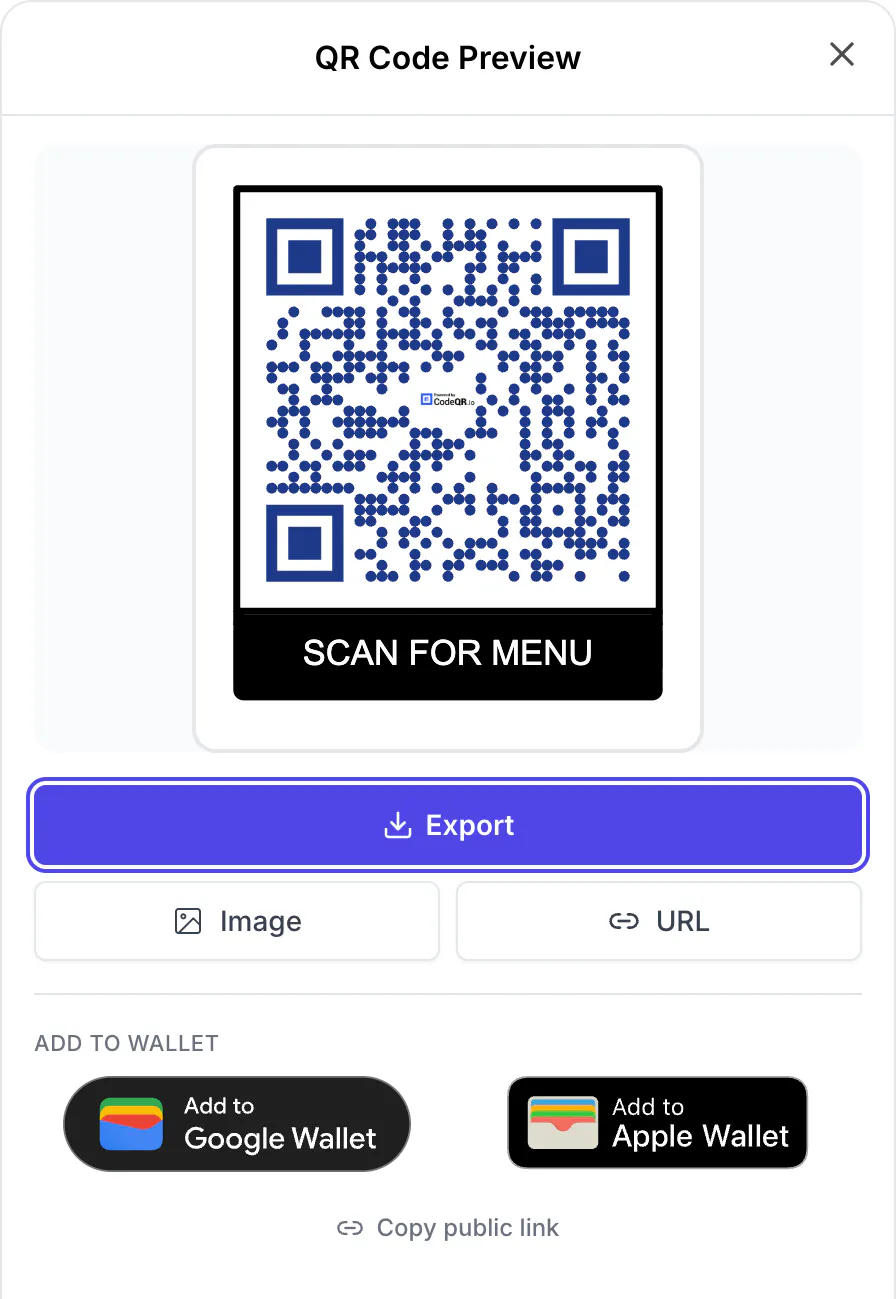
- Click Export and pick a format: - SVG — vector, for print shops, designers, and any size. Preferred for anything printed. - PNG — raster at the pixel size set in Design, for screens, documents, and home printers. - JPEG — raster, smaller file, no transparency; avoid for print because compression softens the edges of the modules.
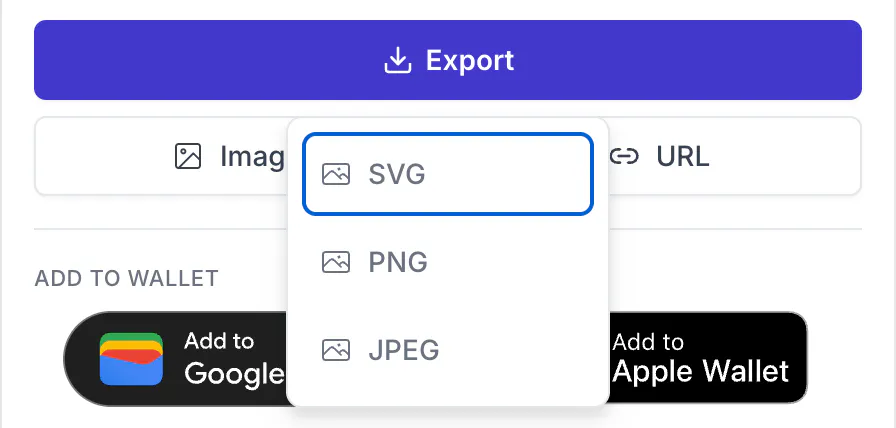
- Save the file. The name is the short link key (for example
iVx0OCFyDn79-qr.svg). - Use the other buttons when they fit the job: - Image copies the PNG to the clipboard to paste into a document or a chat. - URL copies the image address
https://api.codeqr.io/qr?url=https://qrup.link/iVx0OCFyDn79-qr— embed it in an email or a web page and it always shows the current image. - Copy public link copieshttps://qrup.link/pass/iVx0OCFyDn79-qr, a public page that displays the code so people can scan it from another screen. Opening that page is not counted as a scan.
Print size
The pixel size only matters for PNG and JPEG. Printers work in dots per inch; at 300 dpi the physical size is pixels ÷ 300 × 2.54 cm:
- 1024px (Default) — At 300 dpi: 8.7 cm · At 150 dpi: 17.3 cm
- 2000px — At 300 dpi: 16.9 cm · At 150 dpi: 33.9 cm
- 3000px — At 300 dpi: 25.4 cm · At 150 dpi: 50.8 cm
- 5000px (Maximum) — At 300 dpi: 42.3 cm · At 150 dpi: 84.7 cm
Above 3000px the editor warns that PNG files get heavy; use SVG instead of going bigger. Print at 100 % scale, never "fit to page" on a code that was sized on purpose.
Keep a clear margin around the code — the printed equivalent of at least four modules — and do not let text, borders, or cut lines touch it. Keep dark modules on a light background; light-on-dark codes are read inconsistently by phones. If you use a frame, the frame is exported as part of the image with its own padding.
Add the code to Apple Wallet or Google Wallet
On Business and above (not during a trial), Add to Google Wallet and Add to Apple Wallet in the preview create a pass that carries the same code. For a dynamic code the pass encodes the short link, so it keeps working when you change the destination — the pass itself never needs reissuing. Passes are available for URL, Business Card, Email, Phone, Wi-Fi, and Text codes; not for Pix. Visitors of a Wi-Fi or Business Card code also see ADD TO WALLET buttons on the page that opens when they scan.
The same through the API
Every QR code object has an image field with the stored PNG (rendered at up to 1024 px) — see it in the response of POST /qrcodes or GET /qrcodes/info?domain=qrup.link&key=iVx0OCFyDn79-qr. The public image endpoint returns the same image:
curl -sI "https://api.codeqr.io/qr?url=https://qrup.link/iVx0OCFyDn79-qr" | grep -iE "^HTTP|content-type|cache-control"
# HTTP/2 200
# content-type: image/png
# cache-control: public, max-age=3600
Codes created with POST /qrcodes/bulk return "image": null; the endpoint above still renders them. There is no SVG export in the API — export SVG from the app. To download the list of codes (not the images), use Export as CSV at the top of QR Codes.
Verify it works
- Print a proof on the final material and scan it from the intended distance with two different phones (one iPhone, one Android). The destination should open on both.
- Scan it under the light of the real place — glossy paper and glass reflect.
- Check the scan in QR Codes: the card counter increases and Analytics lists it under the QR Codes tab.
Troubleshooting
The printed code looks blurry or pixelated
A small PNG was enlarged. Set a larger Size in Design and export again, or export SVG and let the printer scale it.
The print shop asks for a vector or a CMYK file
Send the SVG. If they insist on a raster, export PNG at 3000px or more. Keep the modules pure black on white; colored codes need the contrast rules in Add your logo, colors, and a frame to a QR code.
The file has a CodeQR mark in the middle
The workspace has no logo, or the plan is Free. See Add your logo, colors, and a frame to a QR code.
The frame text is cut or wraps too much
Frame Text takes up to 200 characters and shrinks the font to fit four lines. Shorten the call to action or pick a larger Text style size.
The Wallet buttons are missing or disabled
They need the Business plan or above and a supported code type; Pix codes have no pass. The button explains why it is disabled: "Wallet passes are available on the Business plan and higher." During a trial it says "Wallet passes aren't available during the trial. They unlock when you complete checkout."