
Fix a QR code that does not scan or opens the wrong page
Why a printed QR code does not scan, opens the old page, an expired or password page, or codeqr.io/not-found, and why scans do not show — and the fix.

Use this article when a CodeQR code created in your workspace does not read on a phone, reads but opens something other than what you expect, or reads fine but the scan does not appear in the app. Each symptom below has the cause and the fix.
Availability
- Applies to codes created in CodeQR (QR Codes in your workspace or through the API). Codes generated elsewhere and pointed at a CodeQR short link only follow the "wrong page" and "not counting" sections.
- The checks use the card, the editor, Analytics, and a terminal command you can run from any computer.
First, find out which of the three problems you have
- Open the file you exported (⋮ → Download → Export) on a screen and scan it with a phone. If it opens the right page, the code itself is fine and the problem is in printing (section 1) or in what you scanned.
- Request the short link from a terminal and read the answer:
curl -sI -A "Mozilla/5.0 (iPhone; CPU iPhone OS 17_5 like Mac OS X)" \
  https://qrup.link/iVx0OCFyDn79-qr | grep -iE "^HTTP|^location|^x-pathname"
HTTP/2 302+location: https://…— the code is live and points there (section 2 if that is not the page you expect).HTTP/2 200+x-pathname: /password/…/qrcode— password page.x-pathname: /expired/…/qrcode— expiration date passed.x-pathname: /<domain>/pass/<key>— content page of a Wi-Fi, vCard, or text code (expected).HTTP/2 302+location: https://codeqr.io/not-found— the code does not exist (deleted, or the key is mistyped).
- If it opens the right page but the count does not move, go to section 3.
1. The printed code does not scan
It scans on the screen but not on paper
The print is too small, too far, or too soft. Rules that hold across scanners: at least 2 × 2 cm, and a side of about one tenth of the scanning distance (30 cm → 3 cm; 3 m → 30 cm). Export SVG or a PNG at 2000px or more, print at 100 % scale, and print a proof before the run. See Download and print a QR code at the right size.
It is blurry or pixelated on paper
A small PNG was enlarged by the designer or the printer. Export SVG, or set a larger Size in Design and export PNG again.
It stopped scanning after I added a logo, colors, or a pattern
Low contrast, inverted colors (light modules on a dark background), a logo covering too much, or a fancy pattern on a small print. Open Edit, set Foreground Color back to a dark value on a light Background Color, keep the logo, and export again; if it still fails, use the Squares pattern and no shape. Details in Add your logo, colors, and a frame to a QR code.
The code has no white space around it
Text, borders, or the edge of a sticker touching the modules confuse the reader. Keep a clear margin around the code equal to at least four modules — do not let cut lines or captions touch it. Frames exported by CodeQR already carry their own padding.
It scans on some phones and not others
Glossy or curved surfaces, low light, or a light-on-dark design. Test with an iPhone and an Android in the real place. Older Android cameras are the most sensitive to inverted colors and low contrast.
It reads, but the phone shows nothing
Many cameras only show a banner with the link — the visitor has to tap it. Print a short call to action next to the code (a frame with Frame Text such as SCAN ME) and, for QR codes that open a URL, make sure the destination is a normal https:// page.
2. It opens something else
It opens the old page after I changed the destination
- Test in a private window or on another phone. The redirect from the short link is temporary (
302) and is not cached; a browser can still show its own cached copy of the destination page itself. - Check you edited the right code: the card shows the destination under the title.
- If the card shows Static, the URL is inside the image; convert it and reprint — see Choose between dynamic and static QR codes.
It opens a different page depending on the phone or the country
The code has Smart Rules, iOS Targeting, Android Targeting, or Geographic Targeting set (Business and Starter features). Open Edit and review those sections; the first matching rule wins, and visitors that match nothing get the Destination URL. See How Smart Rules choose a destination.
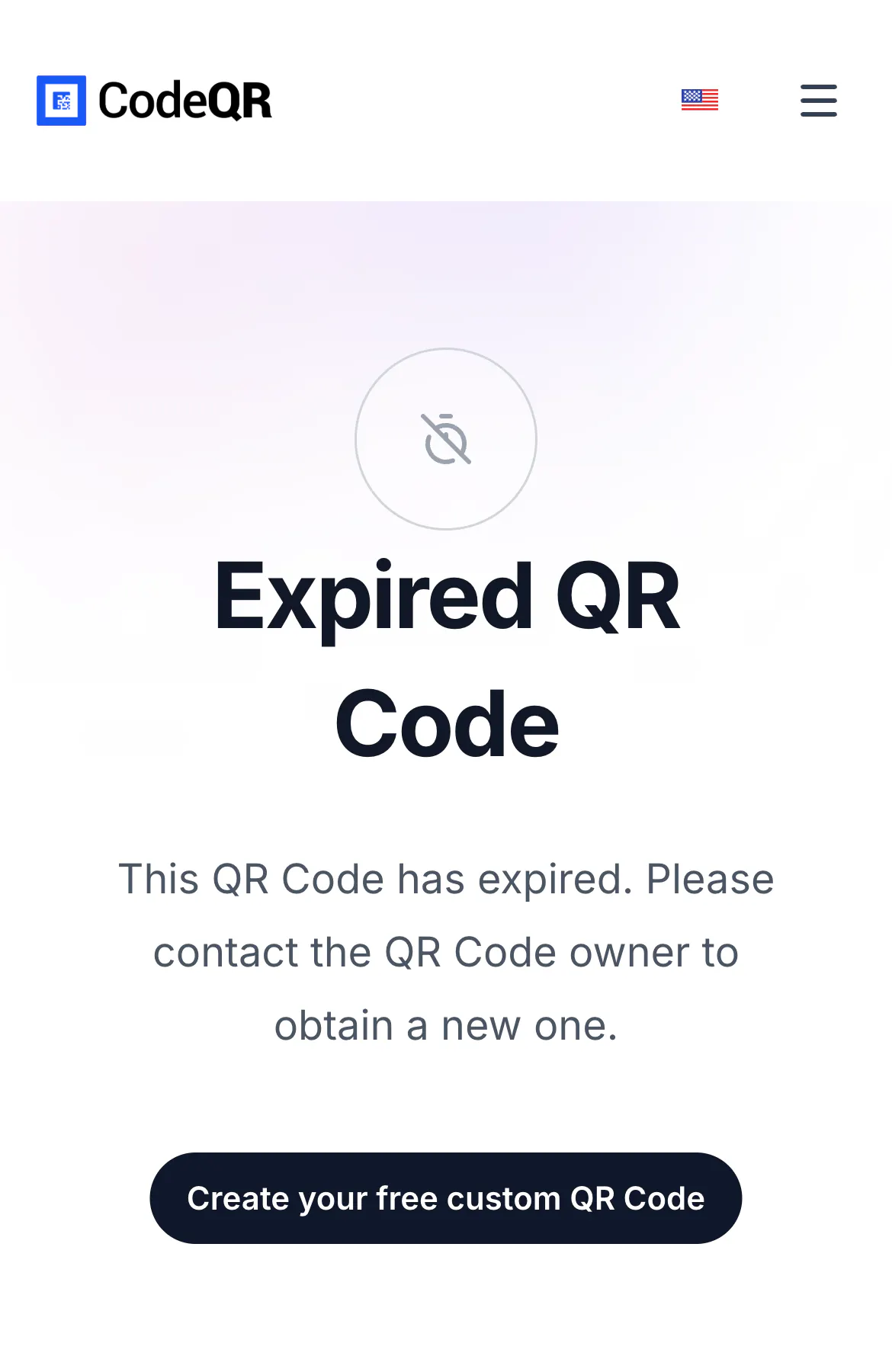
It opens a page that says "Expired QR Code"
The Expiration Date on the code has passed and no expiration URL was set. Open Edit, remove or extend the date, or set the URL visitors should get instead. The change is immediate.
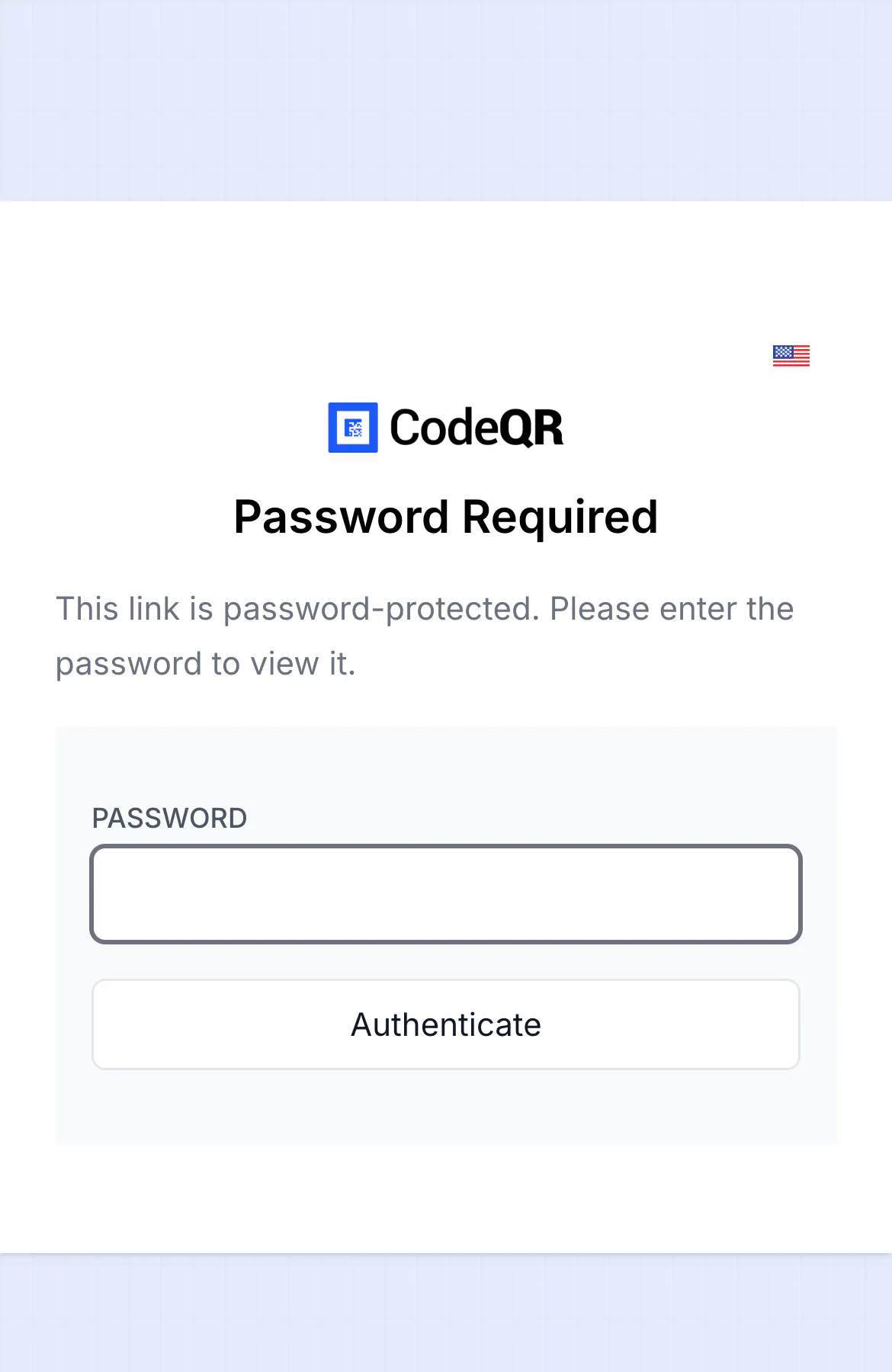
It opens a page that says "Password Required"
The code has Password Protection on. Share the password with the audience or remove it in Edit. Visitors who never enter the password are not counted as scans.
It opens https://codeqr.io/not-found
The code was deleted, or the short link on the print is not the one in the app (a code recreated after a delete gets a new key). Deleted codes cannot be restored — create a new one and reprint. Workspaces with a custom domain can set a not found URL on the domain to send these visitors somewhere useful.
It shows a form before the page
Pre-redirection form is on (Business). That is expected; see Capture leads with a form before the redirect.
It opens the home page of the domain instead of the Pix charge
The code is a dynamic Pix code created through the API. Pix codes must be static: create it again with "static": true (the editor only offers Pix in the static format).
The archived code still works
Archiving hides the code from the default list; it does not stop it. To stop a printed code, set an Expiration Date a few minutes ahead (with an expiration URL if you want to send people somewhere else), or delete the code.
The preview in WhatsApp or Slack shows a different page than the phone
Preview robots fetch the short link the moment you paste it and follow the redirect like a desktop visitor without cookies; people who tap the link are redirected normally. Those robots are not counted as scans.
3. The scans do not show up
The counter stays at 0
- The card shows Static: static codes are never counted. Convert and reprint.
- You scanned the same code with the same phone within five minutes: repeat scans by the same visitor in that window count once.
- You used the file's public link (
https://<domain>/pass/<key>) or the preview page: opening those pages is not a scan. - The scan was done by a preview robot or with
?codeqr-no-track=1in the link. - The visitor stopped at the password page.
Analytics shows fewer scans than the card, or than yesterday
- Check the interval selector (24h, 7d, 30d, …) and any Filter applied. The card counter is the lifetime total; Analytics shows the selected period.
- Retention depends on the plan (Free 30 days, Starter 90 days, Pro 1 year): older scans fall out of the reports.
Google Analytics shows fewer visits than CodeQR shows scans
CodeQR counts at the redirect; Google Analytics counts a page view only after the page loads and its script runs, and it drops visitors who blocked scripts, refused cookies, or left before the load. Compare the same period, and expect the scan count to be the higher one.
An event on shared Wi-Fi counted fewer scans than people
More than 100 new visitors from the same IP address within five minutes are treated as automated traffic and dropped. Large venues on a single network can undercount; there is no setting to change this.
Verify it works
After a fix, run the terminal command from the top of the article again and confirm the location or x-pathname you expect, then scan with a phone. In QR Codes, the counter increases by one; in Analytics, the QR Codes tab lists the code with the new scan.