
How to Import QR Codes from a CSV File
Learn how to easily import your QR Codes from a CSV file into CodeQR. Perfect for bulk QR Code creation or migrating from other providers.


You can import your existing QR Codes into CodeQR via our CSV import feature. This is useful if you have a large number of QR Codes to create or if you want to migrate from another provider.
Step 1: Prepare Your CSV File
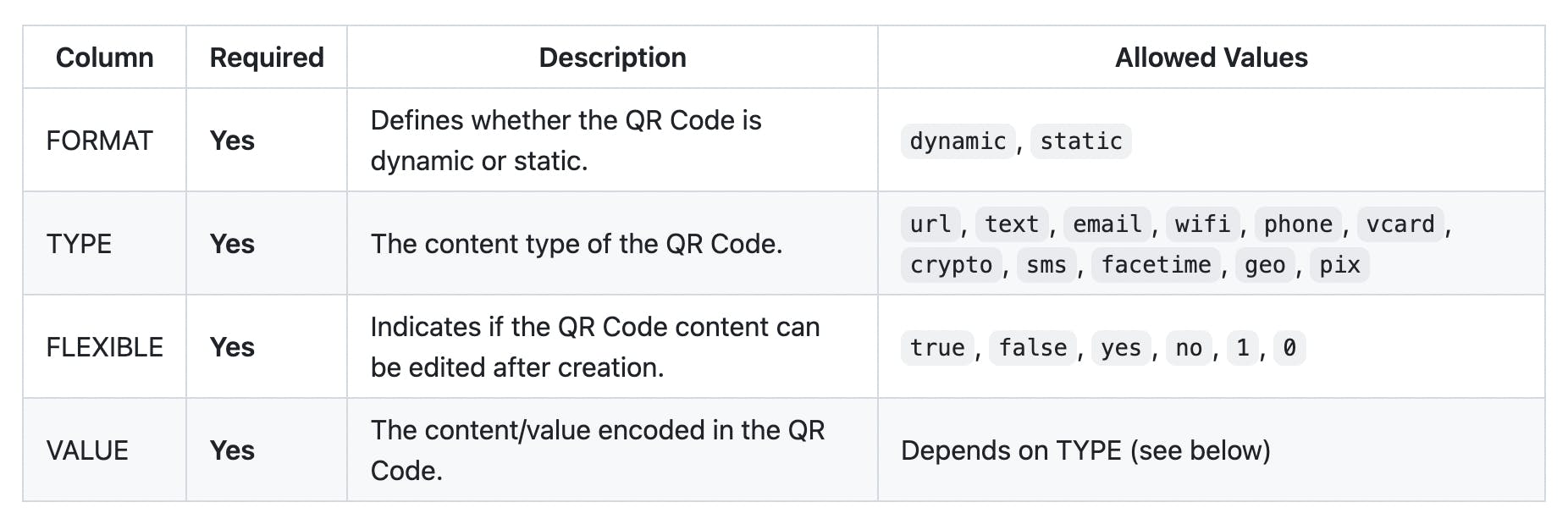
Before uploading, make sure your CSV file is formatted correctly. Your CSV file should have the following columns:
Required Columns
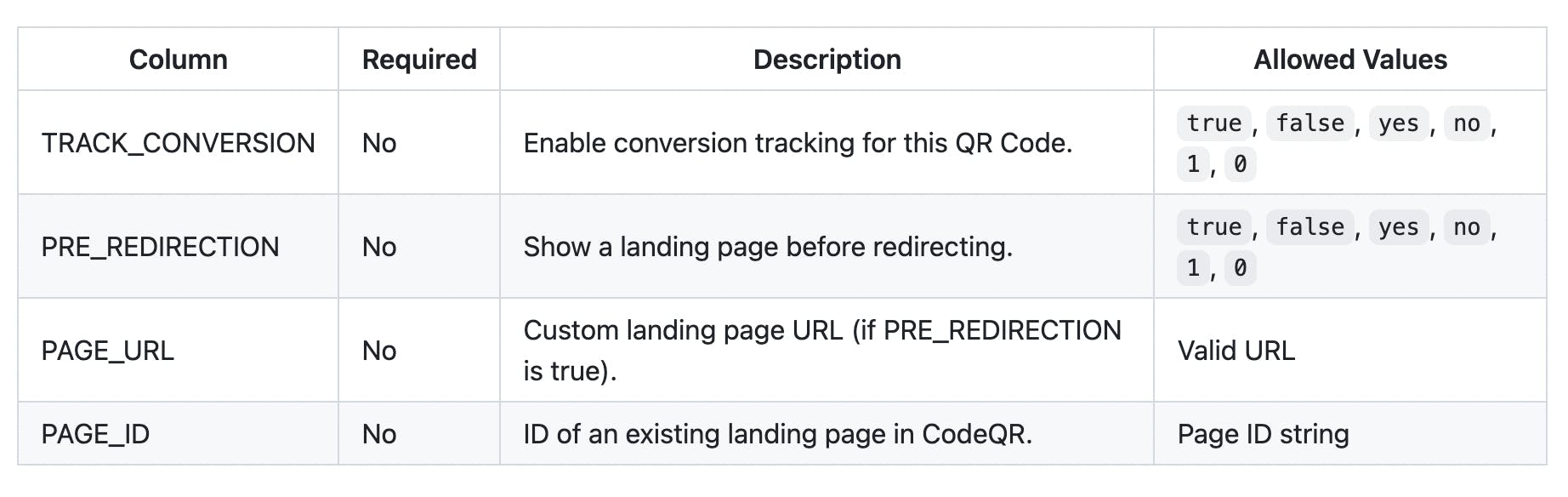
Optional Columns
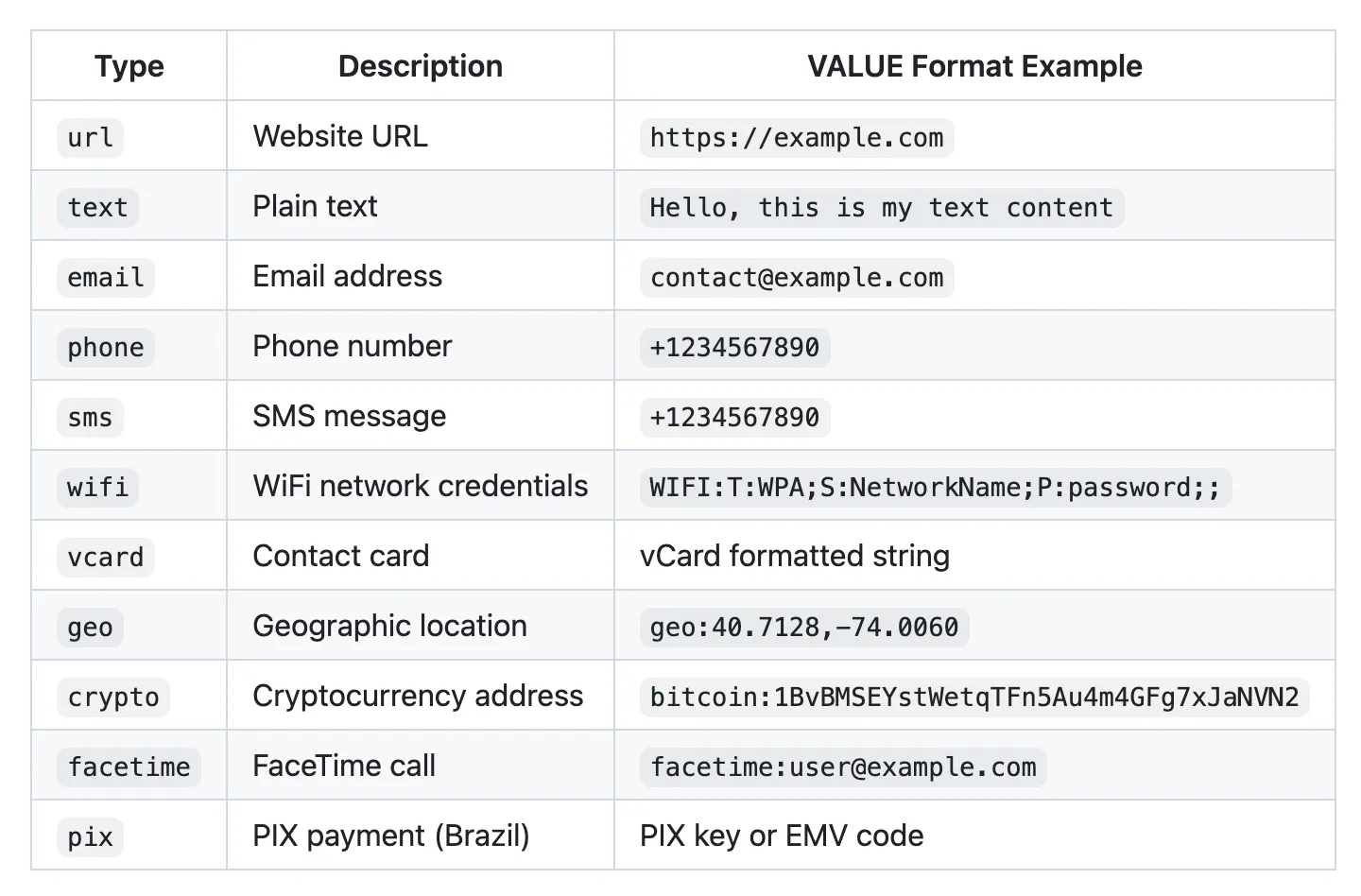
Understanding QR Code Types
Each QR Code type expects a specific format for the VALUE column:
Dynamic vs Static QR Codes
Understanding the difference between dynamic and static QR Codes is important:
Static QR Codes (FORMAT: static)
- The content is encoded directly in the QR Code
- Cannot be changed after creation
- FLEXIBLE must be false
- VALUE is required and contains the actual content
Dynamic QR Codes (FORMAT: dynamic)
- The QR Code points to a short URL that redirects to your content
- Content can be changed at any time without reprinting the QR Code
- FLEXIBLE must be true
- VALUE can be empty (will be set up later) or contain the initial destination
CSV Format Notes
- Use semicolon (;) or comma (,) as delimiter - both are supported
- Wrap values in quotes if they contain special characters or commas
- All boolean values accept: true, false, yes, no, 1, 0
- Column names are case-insensitive during mapping
Sample CSV Files
Example 1: Static QR Codes
FORMAT,TYPE,FLEXIBLE,VALUE
static,url,false,https://example.com/page1
static,phone,false,+1234567890
static,text,false,Hello World
static,email,false,contact@company.com
Example 2: Dynamic QR Codes
FORMAT,TYPE,FLEXIBLE,VALUE,TRACK_CONVERSION
dynamic,url,true,https://example.com/promo,true
dynamic,vcard,true,,false
dynamic,url,true,https://shop.example.com,true
Example 3: Mixed with Optional Features
FORMAT,TYPE,FLEXIBLE,VALUE,TRACK_CONVERSION,PRE_REDIRECTION,PAGE_URL
static,url,false,https://example.com/docs,false,false,
dynamic,url,true,https://example.com/landing,true,true,https://mypage.com/welcome
dynamic,vcard,true,,false,false,
You can also download a sample CSV file directly from the import modal.
Step 2: Open the Import Modal
From your QR Codes dashboard, click on the dropdown arrow next to the Create QR Code button and select Import from CSV.
Step 3: Upload Your CSV File
The import modal will open with a file upload area. You can either:
- Click to browse and select your CSV file, or
- Drag and drop your CSV file into the upload area
Note: The maximum file size is 2MB.
You can also click Download sample CSV to get a template file with the correct format.
Step 4: Map Your Columns
After uploading, CodeQR will automatically detect the columns in your CSV file and attempt to map them to the corresponding fields. You can review and adjust the mappings as needed.
Required Mappings
Make sure to map all four required columns:
- Format → Your FORMAT column
- Type → Your TYPE column
- Flexible → Your FLEXIBLE column
- Value → Your VALUE column
Optional Features
You can enable additional features by toggling the switches:
- Conversion Tracking: Map a column to enable/disable conversion tracking per QR Code
- Pre-Redirection Page: Map columns for pre-redirection settings (PRE_REDIRECTION, PAGE_URL, PAGE_ID)
Select Domain
Choose the domain for your imported QR Codes from the dropdown. All QR Codes will be created under this domain.
Once you've reviewed the mappings, click Confirm import.
Step 5: Review Import Summary
After confirming, you'll see a summary showing how many QR Codes are ready to be imported. You can:
- Click Start import to begin the import process
- Click Delete if you want to cancel and start over
Step 6: View Your Imported QR Codes
Once the import is complete, you'll be redirected to your QR Codes dashboard where you can see all your newly imported QR Codes.
Troubleshooting
Common Validation Errors
If your CSV contains invalid data, you'll see validation errors before the import proceeds. Common issues include:
ErrorCauseSolutionInvalid FORMAT valueFORMAT is not dynamic or staticUse only dynamic or staticInvalid TYPE valueTYPE is not one of the allowed content typesCheck the allowed types list aboveInvalid FLEXIBLE valueBoolean value not recognizedUse true, false, yes, no, 1, or 0Required field is emptyA required column (FORMAT, TYPE, FLEXIBLE, VALUE) is emptyFill in all required fieldsInvalid URLURL format is incorrectMake sure URLs start with http:// or https://FLEXIBLE/FORMAT mismatchStatic QR with FLEXIBLE=true or Dynamic with FLEXIBLE=falseStatic must have FLEXIBLE=false, Dynamic must have FLEXIBLE=true
Rules to Remember
- Static QR Codes: FORMAT=static requires FLEXIBLE=false and a non-empty VALUE
- Dynamic QR Codes: FORMAT=dynamic requires FLEXIBLE=true (VALUE can be empty)
- URL types: When TYPE=url, the VALUE must be a valid URL
Tips for Successful Imports
- Test with a small file first: Start with a few QR Codes to verify your format is correct
- Use consistent formatting: Keep boolean values consistent throughout (all true/false or all 1/0)
- Validate URLs: Ensure all URLs are complete and valid
- Check special characters: Wrap values containing commas or quotes in double quotes
- Match FORMAT and FLEXIBLE: Remember that static QR Codes need FLEXIBLE=false and dynamic need FLEXIBLE=true
Frequently Asked Questions
Yes! Dynamic QR Codes can be updated at any time from your dashboard. Static QR Codes cannot be modified after creation.