
Redirect by country and device together
A Smart Rule has one condition, so to redirect by country and device you chain two links. Setup steps, and what a chain costs in clicks and links.

To redirect by country and device, chain two links. A Smart Rule has one condition, so you can't write "US and iPhone" in a single rule. Instead, a rule on your first code or link sends a country to a second short link, and that link's own rules choose by device.
Check whether you need both
Rules run from top to bottom and the first match wins. That often removes the need for a chain. "German speakers get the German page, everyone else goes by device" is two rules in one list: a Language rule for German first, then Device rules below it. No second link is involved.
You need a chain when the destination for a device depends on the country, for example when iPhone users in the US and in Germany should reach different pages. One list can't say that, because each rule reads one condition.
Availability
- Plan: Smart Rules are on Business and above (pricing). To try them, choose Business under PLAN TO TRIAL in the plan step of onboarding, then click Start Free Trial. The selector starts on Pro, and a workspace gets one trial.
- Before you print: codes created during a no-card trial stay on the free short domains. Create the code you will print after checkout.
- Items: a short link, or a dynamic QR code of type URL, can be the first item. The second item is a short link.
Set up the chain
This example gives US and German visitors their own second link, each choosing by device. Everyone else goes to a global page.
Create the second links first, because the first item needs their addresses. These steps build the US one. Repeat them for Germany with de-visitors.
- Open Links and click Add Link.
- In Destination URL, paste the page for anyone no rule catches, for example
https://example.com/us. In Short Link, set the address, for exampleus-visitors. - Turn on Smart Rules.
- Set the first rule to Device, is, iOS, and paste the App Store link in its Destination URL.
- Click Add rule, choose Device, is, Android, and paste the Google Play link.
- Click Create link.
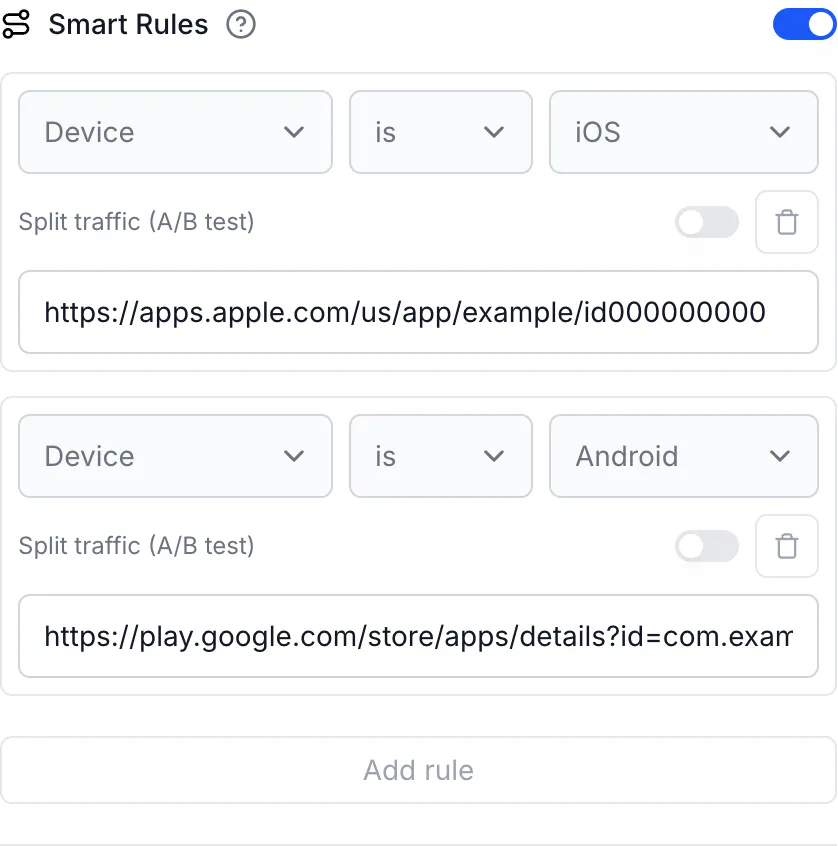
Now create the item people will scan or click. For a QR code, open QR Codes, click Create QR Code, choose Dynamic, and keep URL in Select QR Type. For a short link, use Add Link again.
- In Destination URL, paste the page for every other country, for example
https://example.com/global. - Turn on Smart Rules.
- Set the first rule to Country, is, United States, and paste
https://go.example.com/us-visitorsin its Destination URL. - Click Add rule, choose Country, is, Germany, and paste
https://go.example.com/de-visitors. - Click Create QR Code or Create link.
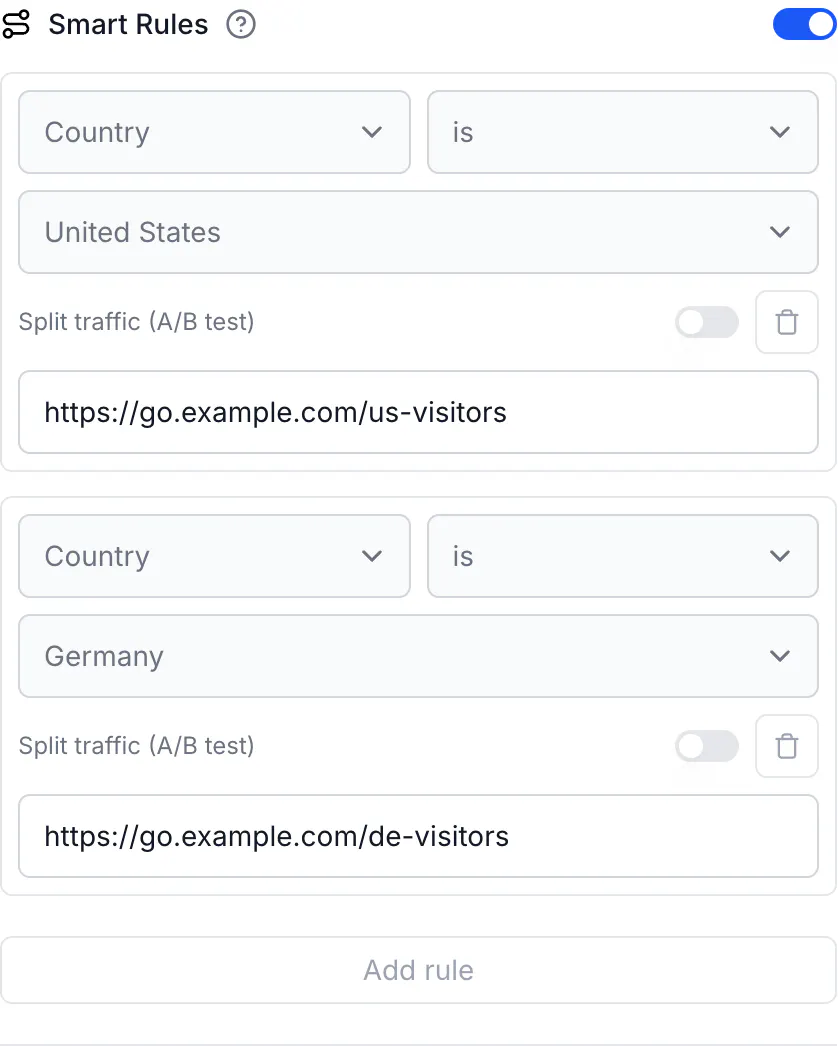
Country comes from the visitor's IP address. A VPN, a company network or a mobile carrier can place someone in another country.
What a chain costs
- One visit counts twice. The first item records a click or scan, and the second link records another. Workspace counters go up on both.
- Read final destinations on the second link. In the URLs tab of Analytics, the first item lists the second link's address as the destination, and the second link lists the final page.
- Each second link is a link in your workspace like any other, so it counts toward your plan's links.
Query parameters pass through: a ?utm_source=flyer added to the first address reaches the second link and the final page.
What to watch for
- Never point a rule at its own short link. CodeQR accepts the save, and visitors get a redirect loop in the browser.
- Each link or code holds up to 20 rules, one condition each.
- Every destination in a rule goes through the same safety scan as the main one.
Do the same via API
Create the second link, then the first item that points to it:
curl -X POST https://api.codeqr.io/links \
  -H "Authorization: Bearer codeqr_xxxxxxxxxxxxxxxxxxxxxxxx" \
  -H "Content-Type: application/json" \
  -d '{
    "domain": "go.example.com",
    "key": "us-visitors",
    "url": "https://example.com/us",
    "rules": [
      { "attribute": "device", "operator": "equals", "value": "iOS", "url": "https://apps.apple.com/us/app/example/id000000000" },
      { "attribute": "device", "operator": "equals", "value": "Android", "url": "https://play.google.com/store/apps/details?id=com.example.app" }
    ]
  }'
curl -X POST https://api.codeqr.io/qrcodes \
-H "Authorization: Bearer codeqr_xxxxxxxxxxxxxxxxxxxxxxxx" \
-H "Content-Type: application/json" \
-d '{
"type": "url",
"static": false,
"domain": "go.example.com",
"key": "print",
"url": "https://example.com/global",
"rules": [
{ "attribute": "country", "operator": "equals", "value": "US", "url": "https://go.example.com/us-visitors" },
{ "attribute": "country", "operator": "equals", "value": "DE", "url": "https://go.example.com/de-visitors" }
]
}'For a short link as the first item, post the same rules to https://api.codeqr.io/links. Through MCP, create_link and update_link accept rules. The QR code tools don't, so use the API or the editor for a code.
Verify it works
Test the second link from a computer with a phone's user agent and read where it redirects:
curl -sI -A "Mozilla/5.0 (iPhone; CPU iPhone OS 18_0 like Mac OS X)" https://go.example.com/us-visitors | grep -i '^location'
# location: https://apps.apple.com/us/app/example/id000000000
A terminal sends no country, so test the first item from a phone in the country you set, or ask a colleague there to scan or click. Then open Analytics on both items and compare the URLs tabs.
Common questions
No. A rule has one condition. Chain two links, or order your rules so the first match gives the result you want.