
Split a Google review QR code across locations
Send one printed QR code to two Google review pages, 70/30 or any share. See when a split fits, what Google's policy says, and how to set it up in CodeQR.

One printed QR code can send customers to the Google review pages of two locations, for example 70% to a new location and 30% to the established one. CodeQR does this with a traffic split. Google expects a review to come from a real experience with the business being reviewed, and a split sends people to a location by chance, so check first that it fits your case.
Decide if you need a split
- If each location has its own counter, receipt or invoice, print one code per location, each with that location's review link. The customer reviews the place that served them, and you don't need rules or a paid plan.
- If your locations are in different states or countries, send visitors by Region (state) or Country. See One QR code for multiple business locations.
- If one piece of print is shared by locations that serve the same customers, such as a flyer or a van decal, a split fits.
A rule by City won't separate two locations in the same city. Location comes from the visitor's IP address, which is approximate at that level.
What Google's policy says
From Google's Prohibited & restricted content page, read on November 4, 2026:
"a review or rating should reflect an actual experience with a business, and be genuine and unbiased."
The same page says Google does not allow merchants to "Solicit or encourage the posting of content that does not represent a genuine experience" or to "Discourage or prohibit negative reviews, or selectively solicit positive reviews from customers".
Google's pages don't mention splitting a link between two locations, so CodeQR can't tell you how Google will treat it. Our reading of that text: don't send a customer to review a location they never used, and don't use rules to send only happy customers to Google.
Google can remove reviews it finds in violation and restrict a profile, for example so that it "will not be able to receive new reviews or ratings for set period of time".
Availability
- Plan: Smart Rules are on Business and above (pricing). To try them, choose Business under PLAN TO TRIAL in the plan step of onboarding, then click Start Free Trial. The selector starts on Pro, and a workspace gets one trial.
- Before you print: codes created during a no-card trial stay on the free short domains. Create the code you will print after checkout.
- Codes: dynamic QR codes of type URL.
Get each location's review link
Google gives you the link in each Business Profile:
- Go to the Business Profile of the first location.
- Select Read Reviews, then Get more reviews.
- Select Copy to copy the review link.
- Repeat for the second location.
That screen also offers a QR code. Copy the link instead, because the code you print is the one you create in CodeQR.
Set up the split
- Open QR Codes and click Create QR Code.
- In Select QR Code format, choose Dynamic and click Continue.
- In Select QR Type, keep URL.
- In Destination URL, paste the review link of the location that should get all the scans if you turn the split off later.
- Turn on Smart Rules.
- In the first rule, open the attribute list and choose All traffic. Two Variant URL fields appear.
- Paste one review link in each field and set the weights, for example
70and30. They must add up to 100. - Click Create QR Code.
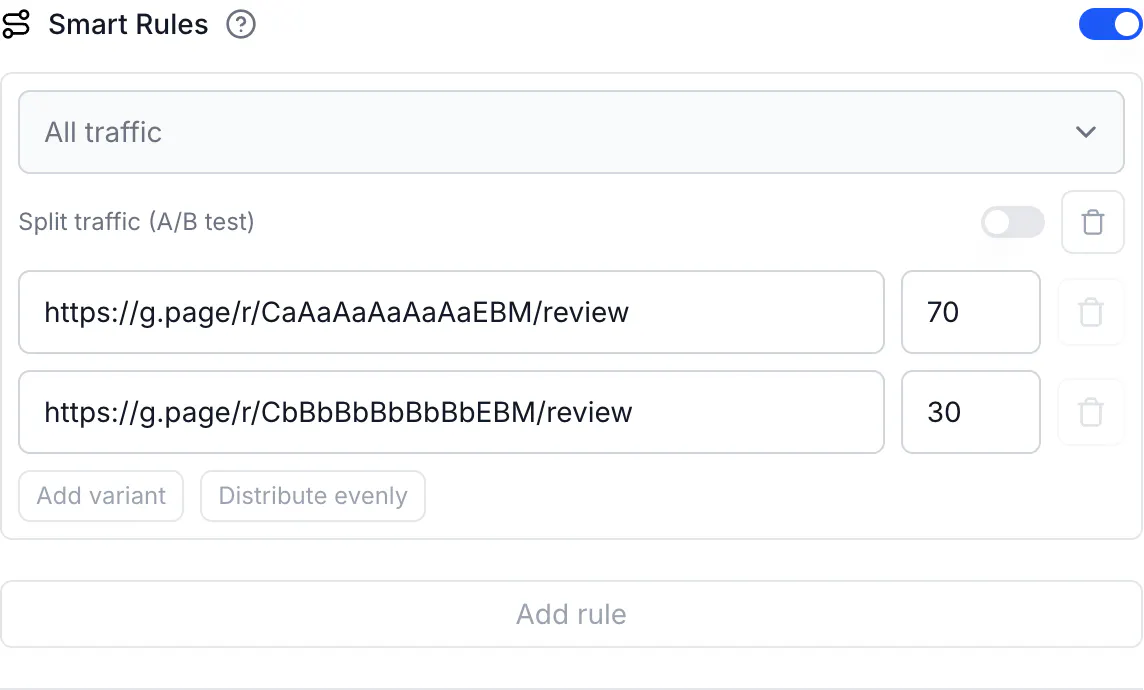
On an All traffic rule, the Split traffic (A/B test) switch looks off, but a rule with no condition always splits.
What to expect
The share is approximate: in a test with 300 new visitors at 70/30, 215 went to the first link and 85 to the second. A returning visitor lands on the same page for 1 hour, or for 30 days with Conversion tracking on.
The URLs tab in the code's Analytics shows scans per review link. CodeQR doesn't know whether someone left a review. Google shows those in each Business Profile.
Change or end the split
The printed code stays the same either way.
- To change the share, edit the weights and click Save QR Code. A returning visitor may move to the other page.
- To use one location only, turn off Smart Rules and click Save QR Code. Every scan then goes to Destination URL, so check that it holds the link you want. A weight of 0 isn't accepted.
Do the same via API
curl -X POST https://api.codeqr.io/qrcodes \
  -H "Authorization: Bearer codeqr_xxxxxxxxxxxxxxxxxxxxxxxx" \
  -H "Content-Type: application/json" \
  -d '{
    "type": "url",
    "static": false,
    "domain": "go.example.com",
    "key": "review-us",
    "url": "https://g.page/r/CaAaAaAaAaAaEBM/review",
    "rules": [
      { "split": [
        { "url": "https://g.page/r/CaAaAaAaAaAaEBM/review", "weight": 70 },
        { "url": "https://g.page/r/CbBbBbBbBbBbEBM/review", "weight": 30 }
      ] }
    ]
  }'
To end the split, update the code with { "rules": null }. The MCP QR code tools don't accept rules.
Verify it works
Open the short link several times in private windows, since each new window counts as a new visitor. From a terminal, each request without a cookie is a new visitor, and the same cookie always gets the same page:
for i in 1 2 3 4 5 6; do curl -sI https://go.example.com/review-us | grep -i '^location'; done
curl -sI -b "cq_id=testvisitor0001" https://go.example.com/review-us | grep -i '^location'
Common questions
Google's pages don't mention it. They ask that a review reflect an actual experience with the business and forbid selectively asking for positive reviews. A split fits only when both locations serve the same customers. When a customer knows which location served them, use one code per location.