
Share a digital business card by QR code
Put your name, role and contact details on a page whose QR code saves you to someone's phone, and capture their details back in the same visit.

A digital business card is a page holding your details, with a button that saves them straight into the other person's phone — and a short form underneath that captures theirs. One scan, both directions.
Availability
- Plan: every plan, within the page limit: Free 1, Starter 5, Pro 20, Business 100.
- Where: Pages → Create new page → New form → Digital Business Card.
Steps
- Open Pages and select Create new page, then New form.
- Choose Digital Business Card, name it and select Create page.
- Open My card and fill in what you want to hand over: Full name, Job title, Company, Phone, Email, Website, Photo URL and, with Add social media, your profiles.
- Select Save.
- In Form Content, set the Title, Description and Button text of the part that captures the other person.
- Turn on the switch to the right of the page name to publish it.
- Copy the address under the page name and make a dynamic QR code with it — see Create a dynamic QR code. Printed on a card, a badge or a phone case, it keeps working when your job title changes.
What the other person sees
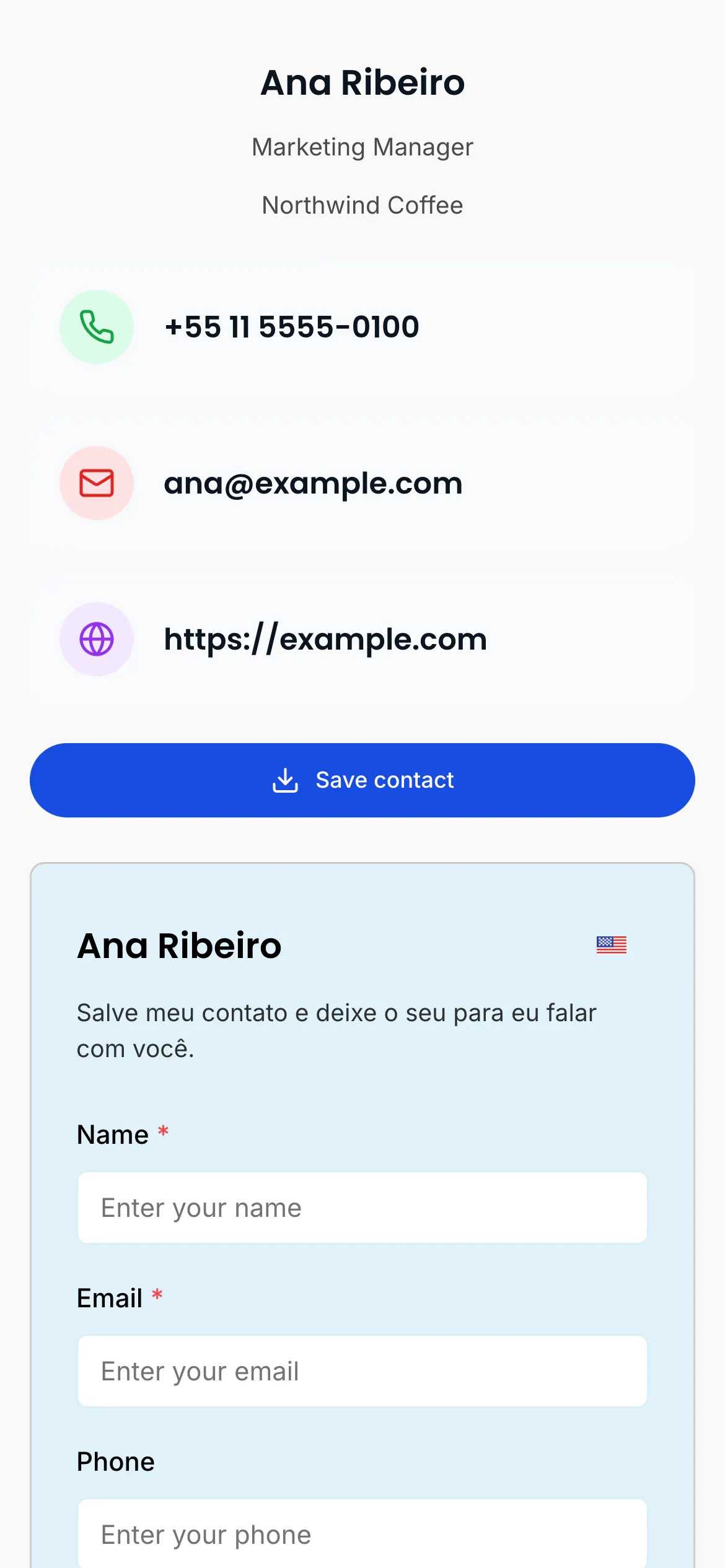
Your details at the top, then Save contact, which downloads a contact file their phone opens straight into its address book — no app, no account. Below it, the form that sends you their details.
Fill in the photo
Photo URL takes a link to an image that is already online, not an upload. Use a picture you host yourself or a profile image with a stable address. Left empty, the card shows no photo and no placeholder.
Get their details too
The form under the card is a normal CodeQR form: rename its fields, mark what is required, and read everything under Responses — Read and export your form responses.
At an event this is the part that matters. Save contact helps them; the form is what leaves you with a list afterwards. Keep it to a name and an email so it can be filled in while standing.
Verify it works
Open the address on a phone that is not yours. Select Save contact and confirm the entry lands in the phone's address book with your name and number. Then send the form and check that the entry appears in Responses.
Troubleshooting
The card shows no photo
Photo URL is empty or points at an image that is not publicly reachable. Paste the address into a private window: if the image does not open there, it will not open on the card.
Save contact does nothing
Some in-app browsers — Instagram, TikTok, LinkedIn — block the download of a contact file. The way out is to open the page in the phone's real browser; most in-app browsers have an "open in browser" item in their menu.
The details are wrong after you changed them
The page updates immediately, but a contact already saved to someone's address book does not. They have to scan again and save again. This is why a job title on the page beats one printed on paper, and why the code should be dynamic.
The form below your details goes unnoticed
At an event people tap Save contact and walk away. Give the form a title that asks for something — Leave your details and I will send the deck beats Contact. Two fields, and the ask stays visible on one screen.