
Track NFC tags and change their link anytime
Write a CodeQR link on an NFC tag, change where it leads after the tag is locked, and see NFC taps apart from QR scans and clicks.

At the end of this guide your NFC tags open a CodeQR QR code or link that you can point somewhere else even after the tags are locked, and every tap shows up apart from QR scans and clicks.
Availability
- Plan: every plan records taps, offers Copy link for the chip and shows the Channel tab. The Referrers list starts on Starter, the UTM report on Pro, and your own domain on Starter.
- Where: the card menu (⋮) of a QR code, link or Page → Copy link for the chip, or press
Nwith the menu open. Results are in Analytics, in the Referrers card, and in Events.
How it works
An NFC tag stores one web address. When a phone reads the tag, it opens that address like any other link. The address you write is the item's short link with ?nfc=1 at the end, for example https://go.example.com/abc123-qr?nfc=1. CodeQR sees the marker, records the visit as an NFC tap, and sends the visitor to the destination with nfc=1 still in the URL.
Because the tag holds a CodeQR address, you can change the destination at any time, even after the tag is locked. CodeQR doesn't sell, write or lock tags; you do that with a phone app or a tag supplier.
Before you start
- Use a dynamic QR code or a link. Static QR codes have no chip link, because their content is fixed and their scans aren't counted.
- Fill in the destination first. On a flexible QR code or link that is still waiting for its destination, the action is greyed out, since whoever opened that address first would decide where it leads.
- Prefer your own domain. A short domain such as
go.example.comkeeps the address short and shows your brand. See Connect your own domain to CodeQR. - Choose the tag. An NTAG213 tag holds a URL of about 130 characters, more than a chip link needs. On metal, use an on-metal tag or leave a gap of 3 to 6 mm.
- Keep an iPhone and an Android phone at hand for testing. iPhone XS and later read tags in the background; Android phones need NFC turned on.
Steps
- Create one item per tag or per placement, such as a table, a wall display or a product sample. Choose a QR code when a printed code sits next to the tag: its scans then count as QR scan and its taps as NFC tap, on the same item. Give it a title that says where it sits.
- Add your UTM parameters in the item's UTM Builder, for example UTM Source
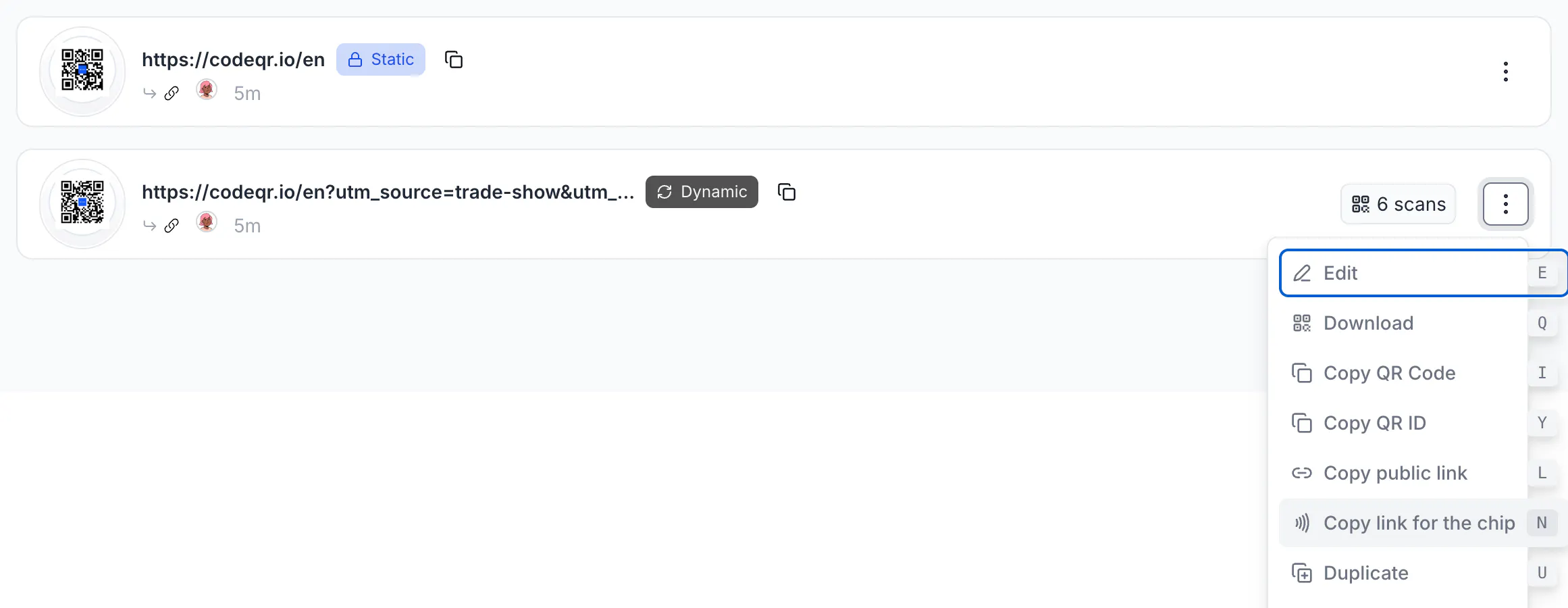
trade-showand UTM Campaignspring-expo. The UTM report reads them from the item. - Open the card menu (⋮) and click Copy link for the chip. The message Chip link copied! appears, and the clipboard holds the short link with
?nfc=1.
- Write the link to the tag as a URL record, with a free app such as NXP TagWriter or NFC Tools. Both can write a list of links from a CSV file, one tag at a time. For a large batch, send the list of chip links to a tag supplier.
- Test each tag before you lock it. Tap it with an iPhone at the top edge of the phone and with an Android phone at the middle of the back, and check that the right page opens.
- Lock the tag. Locking is permanent and stops anyone from rewriting it. You can still change where it leads from the item in CodeQR.
- Mark the spot with the NFC symbol and a short line such as "Tap or scan", and print the item's QR code next to it for phones that don't read NFC.
Read the results
- Open Analytics. To look at one tag, filter by its QR code or link.
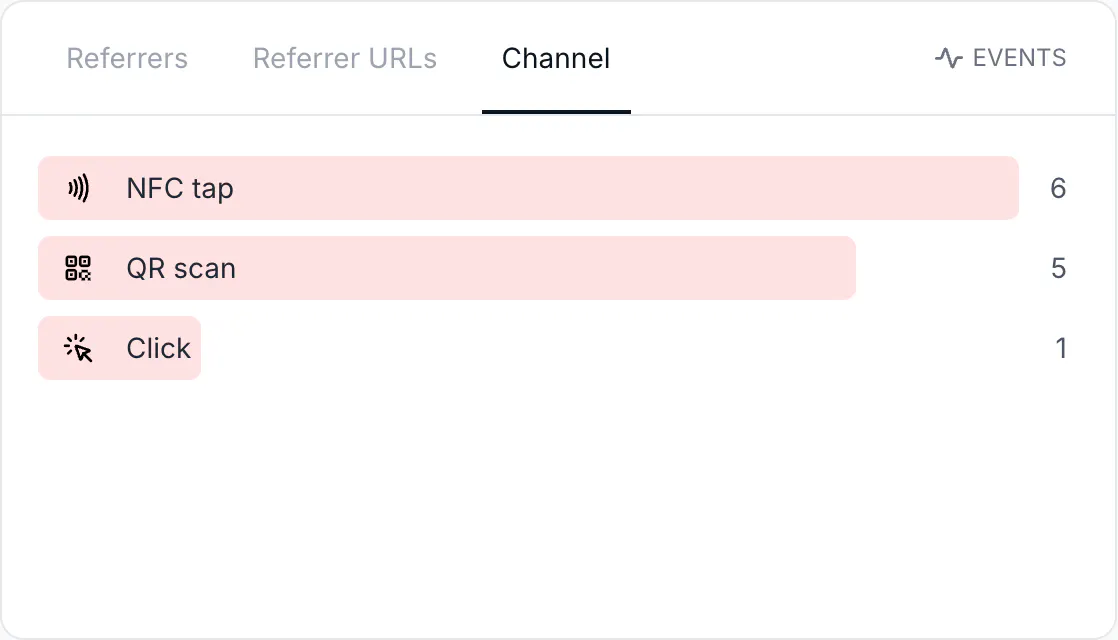
- In the Referrers card, open the Channel tab. It shows NFC tap, QR scan and Click. NFC tap is always listed; QR scan and Click appear when they are above zero. The tab only appears once the selected period has at least one tap, so you won't see it before the first tag is read.
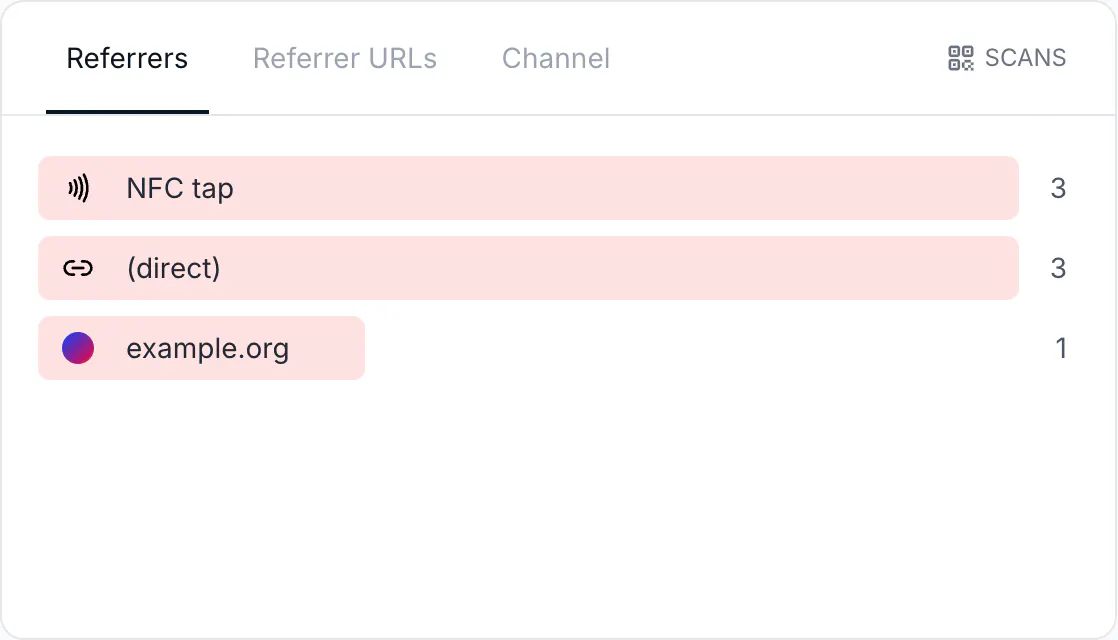
- Open the Referrers tab. Taps appear as NFC tap, with an NFC icon. Click the row to filter the page by taps.
- Open Events. The Event column shows NFC tap for each tap, across the whole workspace; to look at one QR code, use the Analytics filter from step 1. The CSV export adds a
triggercolumn withnfc,qrorlink.

- Switch to Leads or Sales to see how many taps converted. The Channel tab stays while the period has taps, with NFC tap at 0 when none of them led to a lead or a sale.
In the totals at the top of Analytics, a tap on a QR code counts under Scans and a tap on a link counts under Clicks. On the Free plan, where the Referrers list needs an upgrade, the card opens on the Channel tab.
Send visitors to a form
To collect contact details at a stand, point the tag at a CodeQR Page with a form. Open the Page's menu (⋮) and click Copy link for the chip. If the Page is still a draft, the message reminds you to publish it: a draft Page doesn't open from the tag. Sending visitors on to your website after they submit the form needs the Pro plan or above.
Do the same through the API
To build the chip link yourself, add ?nfc=1 to the item's short link, https://<domain>/<key>. Don't use the qrCode image the API returns for a link, because its scans count as clicks.
To read taps per channel, on any plan, call GET https://api.codeqr.io/analytics?event=clicks&groupBy=trigger&qrcodeId=<id>&interval=24h with an API key from Settings → API Keys that has the analytics.read scope. The response lists nfc, qr and link:
[{"trigger":"qr","clicks":4,"leads":0,"sales":0,"saleAmount":0},{"trigger":"nfc","clicks":3,"leads":0,"sales":0,"saleAmount":0}]groupBy=referers returns taps under the referrer nfc (Starter and above; the Free plan gets 403), and adding referer=nfc to any other query keeps only taps. The webhook events carry data.interaction.trigger with nfc, qr or link: link.clicked and qrcode.scanned on Business and above, lead.created and sale.created on Pro and above.
See tag visits in Google Analytics
Your website receives nfc=1 together with the item's UTM parameters, so the page address GA4 records for a tag visit carries nfc=1. To see taps as their own medium, add a UTM parameter to the chip link before you write it, for example https://go.example.com/abc123-qr?nfc=1&utm_medium=nfc. CodeQR passes it on and it replaces the item's own value for those visits. GA4 puts utm_medium=nfc under "Unassigned" unless you add it to a custom channel group.
What the numbers mean
- CodeQR can't prove that a phone touched the tag. It labels a visit as an NFC tap because the URL carries
?nfc=1, so someone who copies the chip link and opens it on a computer is counted as a tap too. When the chip link is opened from a web page, the visit is listed under that page in Referrers instead. Don't use the tap count to hand out prizes or confirm attendance. - A tap is counted only when the page opens. On iPhone, and on Android 17, the visitor has to tap a notification first, so a phone that read the tag without opening the notification is left out. The same browser opening the same item again within 5 minutes counts once, and bots are left out too.
- Only
nfc=1counts.nfc=true, ornfc=1together withqr=1, count as an ordinary scan or click, so write the copied link as it is. - A QR code that holds a Page's address counts as a click. To count printed scans of a Page as QR scan, create a CodeQR QR code that opens the Page and print that one.
- A link's QR code counts as a click. The QR code you download for a link in the dashboard, and the
qrCodeimage the API returns for a link, both open the link, so their scans show as Click. Use a QR code item when you want scans counted on their own. - UTM parameters on the chip link don't show as Source in CodeQR. They reach your website and GA4, but the UTM report shows the item's own parameters, or
(not set)if the item has none. - The Channel tab appears after the first tap in the selected period. Until then, the Referrers card has only Referrers and Referrer URLs.
Verify it works
- Copy the chip link of a test item and open it on your phone, or tap the tag you wrote.
- Reload Analytics and open the Referrers card. The Channel tab is there with NFC tap 1. If it isn't yet, wait a few minutes and reload.
- From a terminal,
curl -sI "https://go.example.com/abc123-qr?nfc=1"answersHTTP/2 302with alocationthat is your destination withnfc=1added. This request counts as a tap as well.
Troubleshooting
The item is flexible and doesn't have a destination yet. Fill in the destination, save, and the action becomes available. Pointing the tag at an empty flexible item would let the first person who opens it decide where it leads.