

To make a QR code for your resume, generate a dynamic URL QR code that points to your portfolio, LinkedIn profile, or a hosted PDF of your CV, then place the small image in your resume header or footer. A dynamic code lets you change the destination after printing and shows you how many recruiters scanned it.
What it's for
A resume QR code turns a printed or PDF resume into a doorway to your fuller work. A recruiter holding a paper copy can scan it and land on your portfolio, LinkedIn, or a detailed CV in seconds — no typing a long URL. More than 100 million U.S. smartphone users scanned a QR code in 2025, so the gesture is familiar to the people reading your application.[^1] This page covers the URL QR code type, since your resume points to a web link.
How to create your qr code for resume
- Pick the link your resume QR code should open. Choose one destination that shows your work best — a portfolio, a LinkedIn profile, or a hosted PDF of your full CV. One clear link beats three competing ones on a resume.
- Generate a dynamic URL QR code. Paste your link into the CodeQR generator and keep the code dynamic. A dynamic code uses a short link, so you can repoint it later — swap a stale portfolio URL for a new one without reprinting a single page.
- Design it to read cleanly. Add your initials or a small logo, set a dark code on a light background, and add frame text such as "Scan for portfolio" so the reader knows the payoff before scanning.
- Add UTM tags for tracking. Use the UTM builder to tag the destination URL per application. This separates a scan from Acme Corp from a scan from a recruiting agency in your reports.
- Turn on scan analytics. With conversion tracking you can see total scans, timing, and rough location, which tells you which applications actually drew attention.
- Place and test the code. Put the QR code in your resume header or footer, then scan it on two different phones before sending or printing.
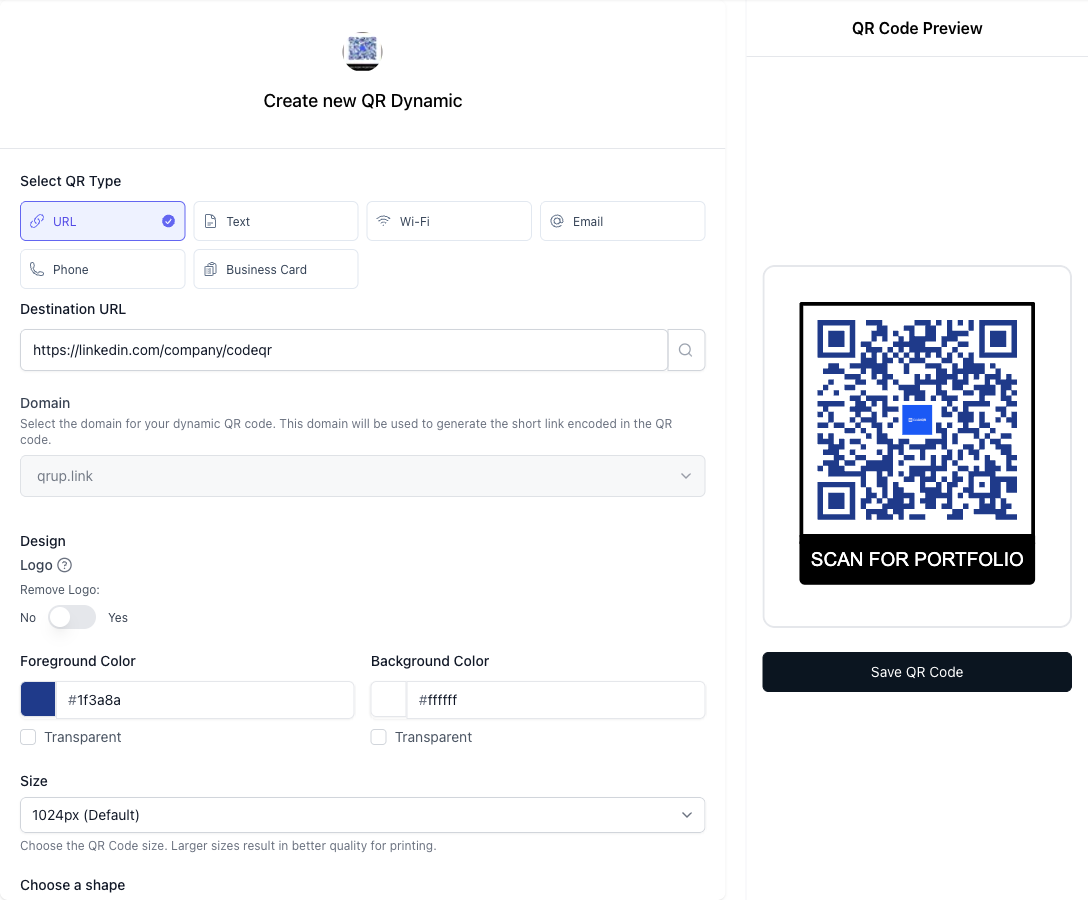
Practical example
Consider a job seeker applying to several product roles who adds a resume QR code to the top-right corner of a one-page CV. The code encodes a portfolio URL with a UTM tag set to the company name for each application, so a scan tied to one employer and a scan tied to another show up as separate lines in the analytics.
With frame text such as "Scan for portfolio" and a small monogram in the center of the code, the reader knows what to expect before scanning. Comparing scans across UTM tags after a batch of applications shows which kind of employer engages with the link more, which is a cue for where to follow up first. Because the code is dynamic, reorganizing the portfolio homepage later just means repointing the same printed QR code to the new URL — no resume gets reprinted.
Best practices
- Keep it at least 2 x 2 cm (about 0.8 inch) on print. That size scans reliably from normal reading distance. Smaller than that and phone cameras struggle, especially in dim office light.
- Leave a quiet zone around the code. Keep a clear margin of at least four modules (the small squares) on all sides. Text or borders crowding the code will break scans.
- Adding a logo? Scan it before you send. Error correction is what lets a centered monogram sit on the code without stopping a scan — at the highest level, H, up to about 30% of the code can be recovered. A logo that covers too much still breaks it, so test the finished code in both the PDF and a printed copy.
- Choose dark-on-light, high contrast. A dark code on a white or pale background scans best. Avoid light codes on dark paper or low-contrast color pairs.
- Make it dynamic, not static. A dynamic short link lets you fix a broken destination or update your portfolio after printing, and it is what makes scan tracking possible. Compare what each plan includes on the pricing page.
[^1]: Statista — More than 100 million U.S. smartphone users scanned a QR code in 2025, up from 89.5 million in 2022. https://www.statista.com/statistics/1337584/number-of-smartphone-qr-code-scanners-usa/ (verified 2026-07-07)