
One QR code on packaging for every country
Print one QR code on packaging sold in many countries. CodeQR sends each scan to that country's page, with a fallback for the rest. Setup and testing.
One QR code on packaging can serve every country you sell in: with Smart Rules, CodeQR reads the country of the phone that scans and sends it to that country's page. You print the code once and change each country's page later without reprinting. For more on codes on packaging, see QR codes for product packaging.
Why the code must be dynamic
A static code holds the address inside the image, so it cannot change. A dynamic code holds a short link and the destination sits in your account. The print run stays valid, and after you save, the next scan follows the new destinations. Rules also need a dynamic code.
Availability
- Plan: Smart Rules are on Business and above (pricing). To try them, choose Business under PLAN TO TRIAL in the plan step of onboarding, then click Start Free Trial. The selector starts on Pro, and a workspace gets one trial.
- Before you print: codes created during a no-card trial stay on the free short domains. Create the code you will print after checkout.
- Codes: dynamic QR codes of type URL. Short links have the same section.
- Simpler needs: if you only want country destinations, Geographic Targeting is available from Starter.
Send each country to its own page
This example sends visitors in Germany, France and Brazil to a page for their country, other European visitors to a European page, and everyone else to a global page.
- Open QR Codes and click Create QR Code.
- In Select QR Code format, choose Dynamic and click Continue.
- In Select QR Type, keep URL.
- In Destination URL, paste the page for every other country, for example
https://example.com/global. - Turn on Smart Rules.
- Set the first rule to Country, is, Germany, and paste the German page in its Destination URL.
- Click Add rule and do the same for France and Brazil. Then add a last rule: Continent, is, Europe, with the European page.
- Click Create QR Code.
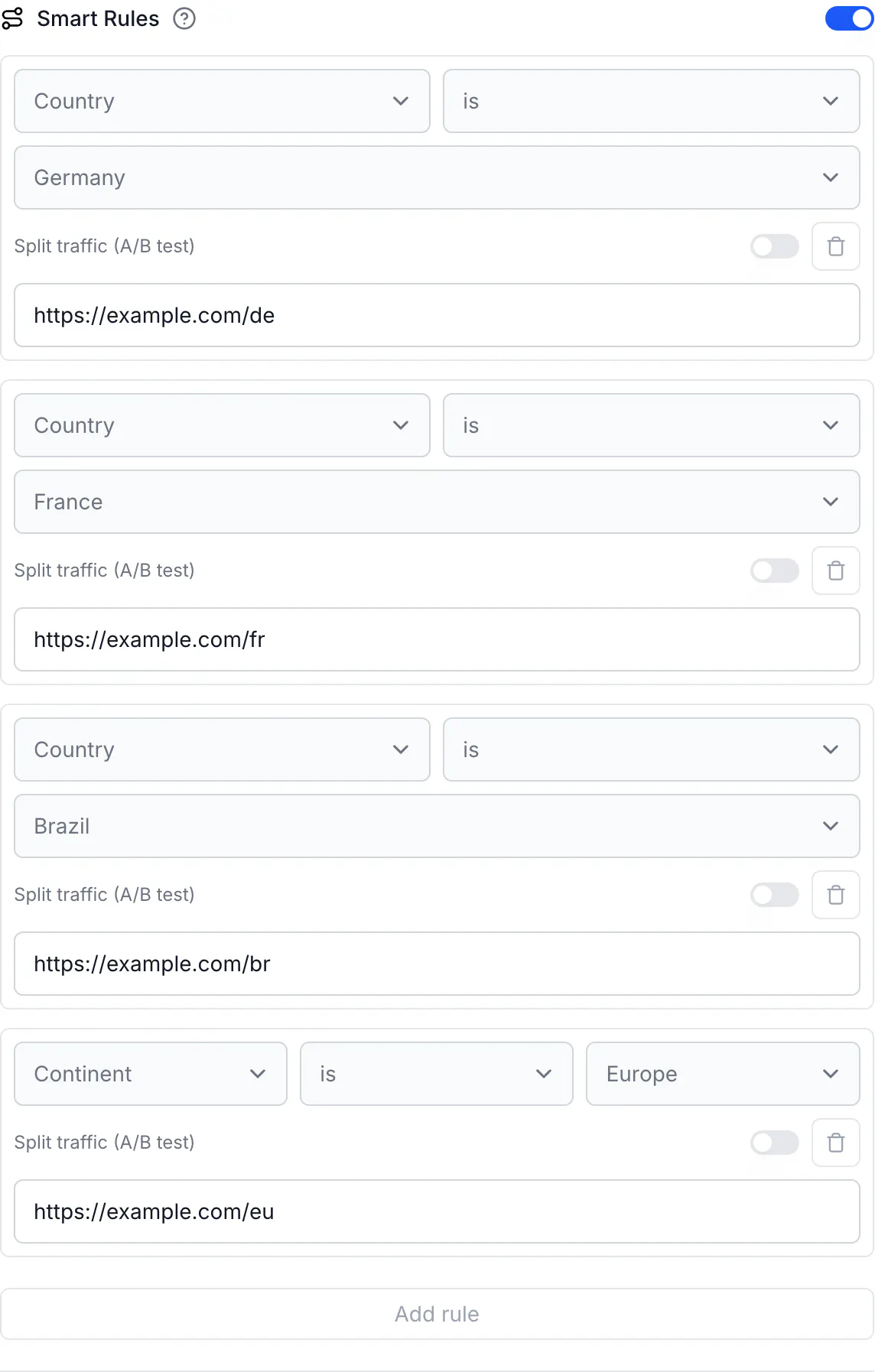
You can add up to 20 rules. For a short link instead of a code, use the same Smart Rules section in the link builder.
Put specific countries before the continent
Rules run from top to bottom and the first match wins. Germany is in Europe, so if the Continent rule came first, a German visitor would land on the European page and never reach the German rule. Keep the countries first and the continent last. In a test, a visitor in Germany went to the German page, a visitor in Spain to the European page, and a visitor in Japan to the global page.
What to watch for
The global page
Destination URL is the page for every country without a rule, and for a visitor whose location is unknown. Make it a page that works for anyone, such as a product page with a country picker.
Location is where the phone is
CodeQR reads the location of the phone at scan time, not the country where the product was sold. A product bought in Germany and carried to Brazil opens the Brazilian page when someone there scans it. A tourist abroad gets that country's page. The code can't tell where the product was sold, so keep the country pages useful to a traveler too.
Language can matter more than country
A Swiss customer may read German, French or Italian, and the country does not say which. When language matters more than location, use Language rules. See Make a multi-language QR code.
Unknown location
A visitor whose location is unknown never matches a rule, even one with is not. That visitor goes to Destination URL, so let Destination URL catch everyone else.
Add a country later
Open the code, click Add rule, choose Country, add the page, and click Save QR Code. The next scan follows it, and the printed packaging stays the same. Add rule puts the new rule after the ones you have and the editor can't reorder rules, so if a Continent rule covers the new country, remove that rule first and add it again after the country. See Change a QR code destination after printing.
Do the same via API
Send rules when you create the code:
curl -X POST https://api.codeqr.io/qrcodes \
  -H "Authorization: Bearer codeqr_xxxxxxxxxxxxxxxxxxxxxxxx" \
  -H "Content-Type: application/json" \
  -d '{
    "type": "url",
    "static": false,
    "domain": "go.example.com",
    "key": "pack",
    "url": "https://example.com/global",
    "rules": [
      { "attribute": "country", "operator": "equals", "value": "DE", "url": "https://example.com/de" },
      { "attribute": "country", "operator": "equals", "value": "FR", "url": "https://example.com/fr" },
      { "attribute": "country", "operator": "equals", "value": "BR", "url": "https://example.com/br" },
      { "attribute": "continent", "operator": "equals", "value": "EU", "url": "https://example.com/eu" }
    ]
  }'
Through MCP, create_link and update_link accept rules. The QR code tools don't, so use the API or the editor for a code.
Verify it works
Location depends on the network, so test with real scans. Scan the code with a phone in each market, or ask a colleague there to scan it. Then open the code's Analytics and the URLs tab, which lists scans per destination, so you can see how many scans each country's page received.
From a terminal, this shows where the code sends the network the command runs on:
curl -sI https://go.example.com/pack | grep -i '^location'
Common questions
Yes. Use a dynamic code with a Country rule for each market and a Destination URL for the rest. Everyone scans the same printed code.