
Add a QR code to Apple Wallet and Google Wallet
Turn a QR code into an Apple Wallet or Google Wallet pass, send customers one link that opens the right wallet, and see what changes after they save it.

A wallet pass puts your QR code in the phone's wallet app, next to boarding passes and loyalty cards, so people find it without searching their photos or email. To add a QR code to Apple Wallet or Google Wallet, CodeQR turns the code into a pass. Save it on your own phone, or send your customers a link that adds it to theirs.
Availability
- Plan: Business and above. Wallet passes are not available during a trial; they unlock when you complete checkout.
- QR code types: URL, Business Card, Email, Phone, Wi-Fi and Text. Pix and WhatsApp codes don't get a pass.
- Static and dynamic: both work, but the pass carries something different in each case, and that decides what you can edit later.
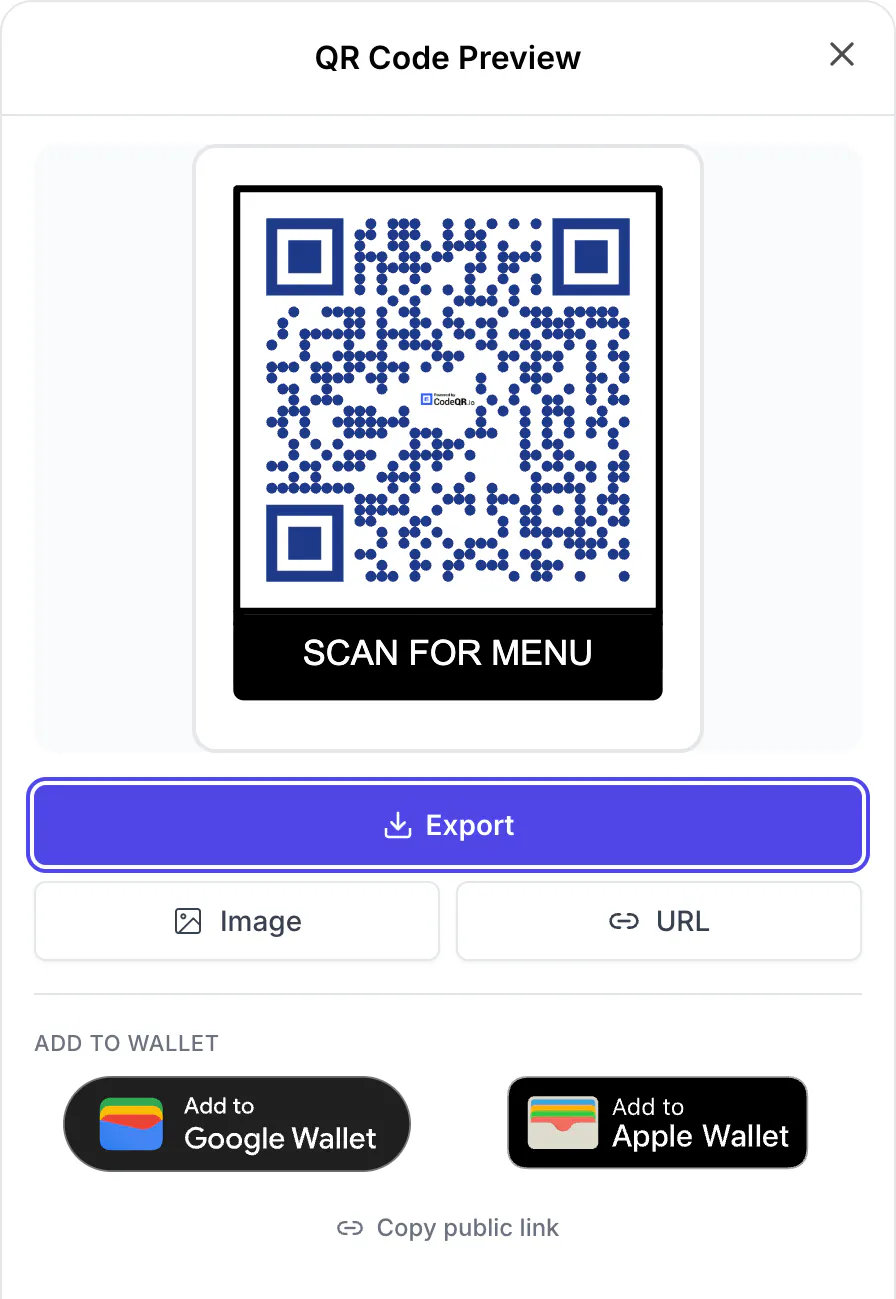
- Where: the QR Code Preview. Open it from the card menu ⋮ → Download, or click the small code on the card.
A code protected by a password, an expired code or an archived code can't get a pass.
Add the pass to your own phone
- Open QR Codes, open the card menu (⋮) and click Download. The QR Code Preview opens.
- Under ADD TO WALLET, pick a wallet: - Add to Apple Wallet downloads a
.pkpassfile. On an iPhone it opens in Wallet, where you tap Add. On a computer, send the file to your iPhone (AirDrop, email or Messages) and open it there. - Add to Google Wallet opens Google's save page in a new tab. Save the pass with the Google account you use on your Android phone.
Send the pass to your customers
Below the wallet buttons, Copy public link copies the address of the code's pass page, https://<your domain>/pass/<key>. Anyone who opens it sees the QR code, a Download button and both wallet buttons, so they pick their own wallet.
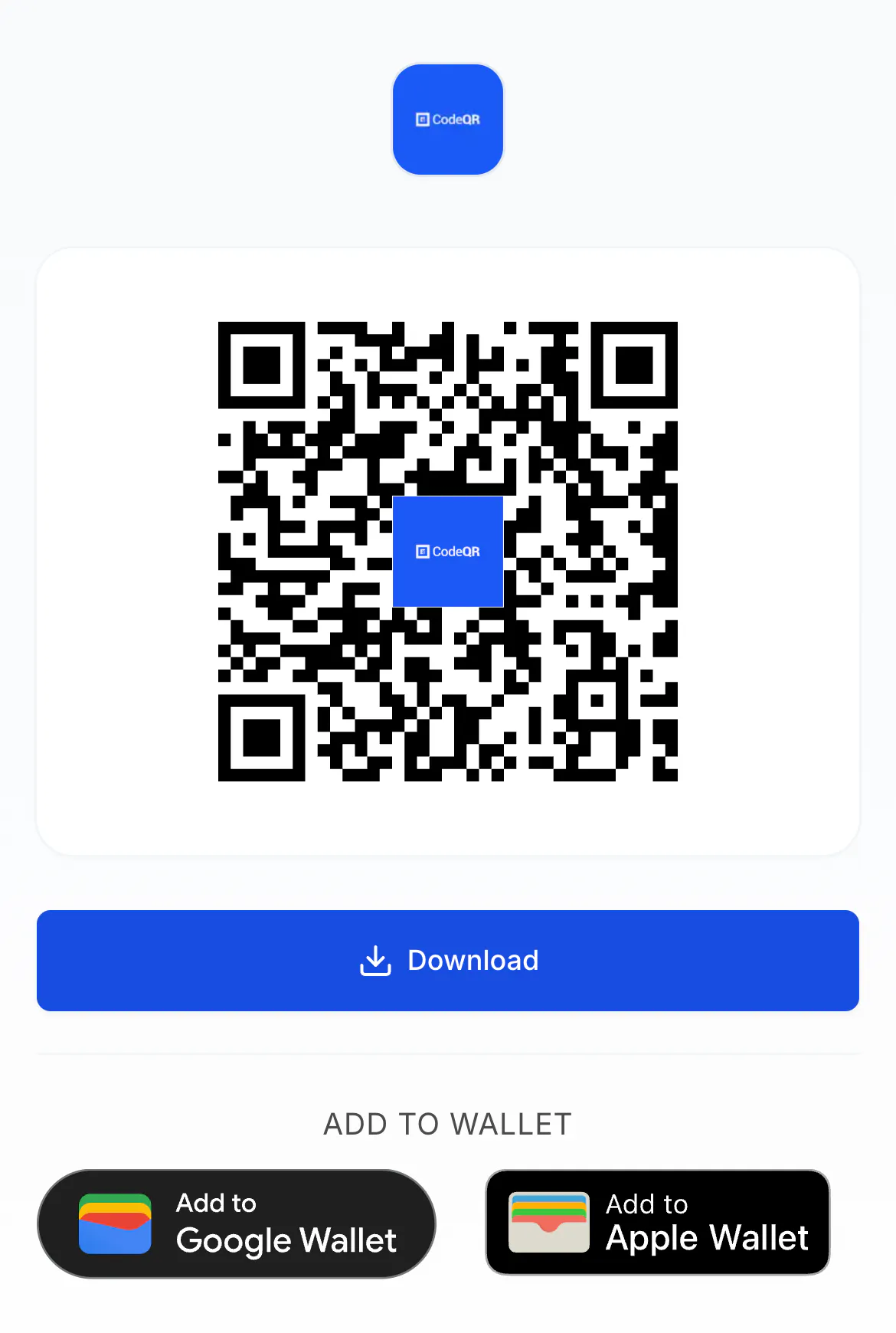
To skip that choice, add /add to the end of the link, for example https://go.example.com/pass/AbC123/add. The link then decides by device:
- iPhone, iPad and Safari on a Mac: straight to Apple Wallet.
- Android: straight to Google Wallet.
- Everything else, including other desktop browsers and the in-app browsers of Instagram, Facebook, LinkedIn, TikTok, Snapchat and LINE: the pass page. In-app browsers can't hand a pass to the wallet, so those visitors get the page instead.
/apple and /google in place of /add always open that wallet. The /add link fits an order confirmation email or a button on your website.
What the pass shows
- Title: the QR code's title. Without one, Apple Wallet shows the type ("Website", "Wi-Fi Network"…) and Google Wallet shows "QR Code", so give the code a clear title before you share the pass.
- Name and logo at the top: your workspace name and logo.
- Colors: Apple Wallet passes use a fixed style. Google Wallet passes take the QR code's background color.
Through the API, the walletPass object on a QR code replaces the name (up to 64 characters) and the logo (PNG, JPEG or WebP), and adds a line of text under the code (up to 40 characters), such as a member's name or a card number. It needs the Business plan or above, outside a trial.
What changes after someone saves the pass
- Dynamic code: the pass carries the code's short link. Change the destination whenever you need and every saved pass opens the new one, with no reissue. Scans from the wallet are counted in Analytics like any other scan.
- Static code: the content is written into the pass. To change it, create a new code and share its pass again. Scans of a static code are never counted.
- Title, name, logo and text: a change reaches only passes saved after it. People who saved the pass before keep the old version until they save it again.
- Archiving the code marks the passes saved in Google Wallet as expired.
Troubleshooting
Your workspace is on a plan below Business, or on a trial. Hover the button to see which: the trial message says passes unlock when you complete checkout.