
QR Code Graphic Design: A Practical Guide for Designers and Client Work
Design QR codes that scan and fit the layout: destination first, contrast, quiet zone, print tests, a clean client handoff and your own portfolio.


When a QR code lands on a business card, a package or a poster, it has two jobs at once. It has to scan on the first try, and it has to belong to the layout. Most scanning problems are design decisions: a code shrunk to fit, a pale brand color, a missing margin, a vague line next to it.
This guide is for graphic designers who place QR codes in client projects and in their own promotion. It follows the order that saves rework: destination first, then the code, then the layout, then print tests and the handoff to the client.
With CodeQR, you can create dynamic QR codes, short links and mobile Pages, and see scans for each code. That means you can fix a destination after the piece is printed and show the client which piece is working.

Start with the destination, not the artwork
Before you place a code, decide three things: where it goes, what the line next to it promises, and how you will know it worked. The artwork comes after. A code added at the end of a project usually ends up too small, squeezed into a corner or pointing at a generic homepage.
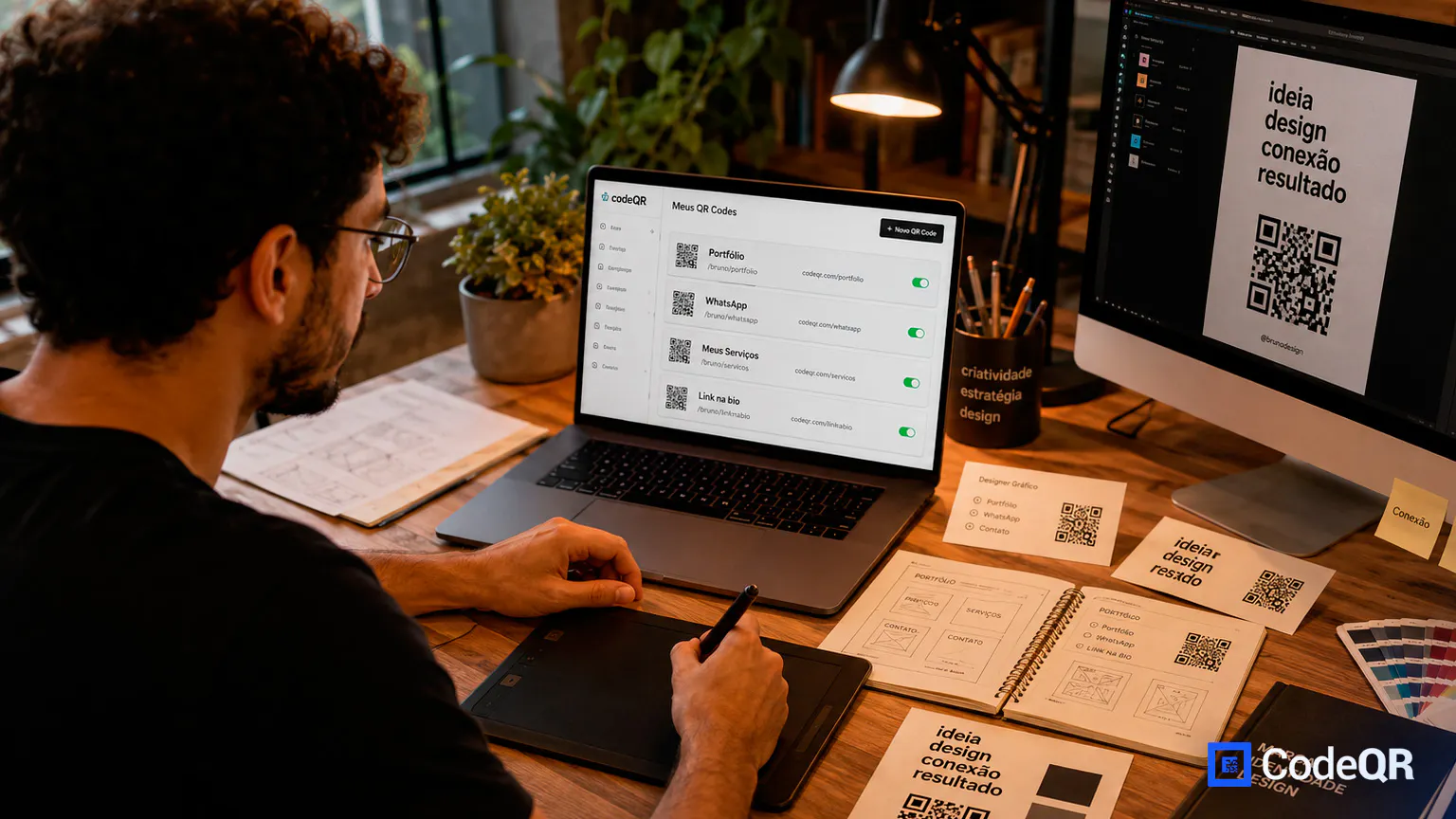
The destination should extend the piece, not compete with it. A portfolio page should curate. A page behind a code on packaging should guide. An approval page should record a decision.
Design the destination for a phone. Compress images, keep one main action and don't make visitors browse several galleries before they understand what they are looking at.
If the brand prefers its own website, use a trackable short link and agree in writing on who can change the URL. If the destination might change during the life of the printed piece, use a dynamic code from the start.
Design rules that keep a QR code scannable
A QR code is a functional element with strict tolerances. You can style it, but the rules below decide whether it still works in someone's hand.
Contrast and color
Dark modules on a light background are the safest choice. Brand colors work when the difference in lightness stays strong; a mid-tone code on a mid-tone background does not. Light-on-dark (inverted) codes don't scan in every app, so test them on several phones before you commit. Avoid placing the code over a photo, a gradient or a busy texture.
Quiet zone
The QR code standard calls for a clear margin, the quiet zone, four modules wide on every side. Treat it as part of the code: no text, rules or background pattern inside it. When the layout feels tight, reduce something else, not the margin.
Size and scanning distance
There is no single right size. The farther away people stand, the bigger the code needs to be, and print quality, paper and finish all play a part. The amount of data matters too: the less a code holds, the fewer modules it needs, so a short link keeps the pattern simpler than a long URL full of tracking parameters. Print a proof at final size and scan it from the real distance with more than one phone.
Shape, logo and styling
Keep the code square and never stretch it. The three large corner squares need to stay recognizable. A logo in the center works because QR codes include error correction, but the logo uses up part of that safety margin, so keep it small and test it.
In CodeQR you can apply your brand colors. A custom logo in the center requires a paid plan; codes on the Free plan carry the CodeQR logo. See pricing for what each plan includes.
Finishes and materials
Varnish, foil, folds and curved surfaces can change how a code reads. Glossy stock reflects light, and a code that wraps around a bottle or crosses a fold can distort. Test on the real material, not only on screen or on a desk printer.
A call to action and a fallback
Put a short line next to the code that says what opens, such as "See the full case study" or "Register for the workshop." In PDFs and digital pieces, add a clickable link or a visible short link for people who can't scan.
Static or dynamic: decide before you lay out the piece
A static code stores the address in the pattern itself. That is fine for information that truly never changes. But any change to a portfolio, a campaign, a product page or an approval form means a new code and a reprint, and a static code gives you no scan count.
A dynamic code points to a link that redirects to your destination. The printed image stays the same, you can change the destination after the code is printed, and each scan is counted. For client work that stays in circulation for months, dynamic is usually the safer choice.
If you change a destination later, keep the new page consistent with what the printed piece promises. For a deeper comparison, read dynamic vs. static QR codes.
QR codes in client projects
In work for clients, the code is a small part of the file and a long-lived part of the brand. For each use below, write down the destination, who owns the account and who maintains the link.
Packaging and labels
Plan an area for instructions, a catalog, product origin, warranty details or aftercare. Define the destination with the brand and test it on a prototype, taking curve, gloss, size, print method and scanning distance into account.
Posters, exhibitions and editorial pieces
A code can open references, the creative process, an accessible version or extra content. At an exhibition, one code per piece shows which work draws interest. Essential information should never exist only behind the code.
Brand guidelines and file handoff
On the cover of brand guidelines or an onboarding kit, a code can open a file portal, tutorials or an updates page. Show the guidelines version next to the code so nobody works from an old copy. When the assets aren't public, protect the link: Password Protection is available on Starter and above, or use the sharing controls of your file host.
Proofs and approvals
A code on a PDF proof or a printed mockup can open a comments form or an approval page. That keeps feedback in one place, but it doesn't replace a formal sign-off when the contract requires one. Label each proof with version, date and the person responsible.
Case studies at events and awards
Presentation material can link to the full case study, a video or results the client has approved for publication. Check the event rules and your usage rights first. A piece that circulated internally is not automatically cleared for public release.
Other places to plan for
- Catalogs, books, magazines and exhibition panels.
- Trade show booths, badges and event signage.
- Aftercare inserts, once production tests are done.
- Digital pieces, always paired with a clickable link or short link.
Hand the client a code they can edit
A QR code keeps working long after the invoice is paid, so decide early whose account holds it. Settle this in the contract, not after the print run.
- The client's own CodeQR account. The client owns the codes from day one. If they want you to keep managing them, they can invite you to their workspace; inviting teammates is available on Pro and above.
- Your account, under a maintenance agreement. Set a term, what the maintenance covers and how access is handed over when the agreement ends, so the client is never locked in.
Whichever option you choose, deliver a short handoff note with the files:
- The destination URL and what the code is for.
- The account owner and who is allowed to change the destination.
- The call to action printed next to the code.
- The test date, print size and phones used to test.
- A date to review the link.
Never change the destination of a client's printed piece without their approval and a written record. When a campaign ends, point the code to a relevant page instead of leaving people on an error, an expired form or a page nobody maintains.
Your own portfolio: one code per specialty
A single link to a long portfolio makes people dig. A QR code on your business card, resume or event materials can open a focused selection instead: branding, packaging, editorial or interface work.
Create a separate page for each specialty and give each its own code. A card you hand out at a food industry trade show can open packaging work; an application to a publisher can open editorial projects. On each project, add context, your role and a short description.
A few more ways to use codes in your own business:
- Business card and resume. Link to selected work, services, availability and contact details. Add a line that explains the destination and a visible short link as a fallback.
- Project briefing form. In proposals or networking materials, a code can open a form that asks for project type, deadline, formats, audience and contact details. Don't ask for large files or confidential information at this stage.
- Proposals. A page can summarize scope, stages and a way to book a meeting. Keep individual pricing and client data off public links.
CodeQR Pages include Gallery, Bio link and Contact pages, so you can publish a mobile portfolio or contact page without coding one from scratch. Behance or Dribbble can still appear on the page as a secondary link.
Measure which piece works

Data tells you about the code's role in the piece, not only about the page. Create separate codes for each piece, format or variation, and keep a log of what changed.
- Scans per piece, event, package or partner.
- Scans over time and by country and city; device breakdowns start on Starter.
- Which portfolio specialty gets the most scans, when each has its own code.
- Actions after the scan, such as inquiries and completed briefing or approval forms, counted in the tool that receives them.
- Results before and after a change in layout, call to action or position.
A piece can get few scans because it sits too far away, has no call to action or uses a finish that is hard to read. Check the physical object before you change the page. For client case studies, only show results that have a source and the client's permission.
Keep many codes organized
Once codes appear across many materials, you need to know where each one was printed and what it is for.
Use names with context, piece, destination and date, such as "bookstore client — bookmark — catalog — 2026-08." On Pro and above, group codes into folders for your portfolio, clients, packaging, events and approvals. On any plan, use tags and a consistent naming convention.
Keep a list of printed pieces in circulation and decide who can edit destinations. That makes it easy to find a campaign, compare periods and avoid putting an old code on the wrong material.
Rights, confidentiality and permissions
Graphic design mixes your own work with assets that belong to other people. A QR code makes sharing easy, but it doesn't give you permission to publish brands, images, fonts, data or files.
- Get permission before you add client work to your portfolio.
- Credit collaborators, photographers, illustrators and other authors where it applies.
- Keep proposals, source files, brand guidelines and confidential dashboards off public links.
- Record who owns the account and who is responsible for the destination after delivery.
- Offer a text alternative for essential information and consider accessibility.
- Don't change the destination of a client piece without approval and a record.
Common mistakes to avoid
Check these before you publish or print. Small errors reduce scans and make people trust the destination less.
- Treating the code as decoration and lowering the contrast.
- Placing it on a fold, curve, varnish or texture without a real proof.
- Linking to a generic portfolio instead of the related case study.
- Delivering the piece without documenting the URL, account and owner.
- Publishing a client case study or results without permission.
- Leaving out a clickable link in PDFs and digital materials.
Frequently asked questions about QR code design
These answers help you balance looks, scanning and control of the destination in your projects.
What size should a QR code be on a business card?
There is no single size for every case. Consider scanning distance, print quality, how much data the code holds and the finish. Print a proof at the final size and test it on several phones.
Can I change the colors and add a logo?
Yes, as long as you keep strong contrast, the quiet zone and the corner squares intact. Test every styled version. In CodeQR, a custom logo in the center requires a paid plan; codes on the Free plan carry the CodeQR logo.
Should the code open Behance or my own page?
Your own page lets you pick the right case studies and put contact details up front. Behance can be a secondary link on that page. Choose based on who receives the material and what you want them to do next.
Who should own the QR code, the designer or the client?
Decide it in the contract. For long-lived brand assets, the client usually owns the account, and you document access, maintenance and handover so they don't depend on you.
How do I know which printed piece works best?
Create a separate code for each piece or variation. Compare scans and the actions that follow, and log the position, size and call to action of each version.
Design the destination before the code
For graphic designers, QR codes connect strategy and execution. They can present your portfolio, collect briefs and extend packaging, as long as you test the scan and plan the maintenance.
Start with the goal, document the URL and only then place the code in the layout. That order protects the experience, reduces rework and makes the handoff more professional for you and for your client.
Create a free CodeQR account and turn your design work into touchpoints you can update and measure.