Send each visitor to the right destination with Smart Rules
Smart Rules route one short link or QR code to different destinations by device, country, language, campaign, referrer — or split traffic for an A/B test.

One short link or one printed QR code, many destinations: with Smart Rules you decide where each visitor lands based on their device, location, browser language, the campaign that brought them, or the site they came from — and you can split traffic between destinations to run an A/B test. Read this page to understand what a rule is and pick the guide for your job.
Availability
- Plan: Business and above (pricing). On lower plans the toggle shows a Business badge and the API rejects the request.
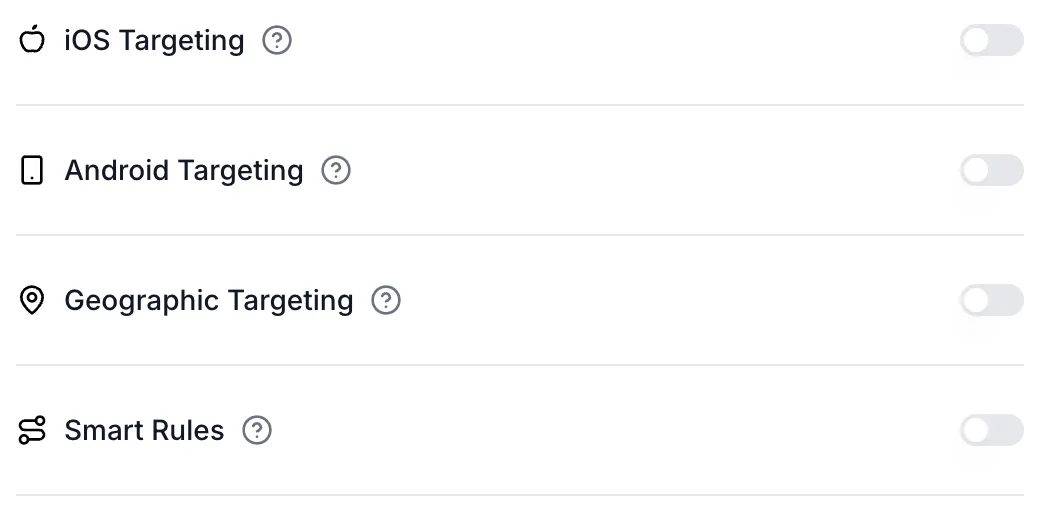
- Where: in the link builder (Links → Add Link, or open a link and choose Edit), turn on Smart Rules in the optional features list. Dynamic QR codes of type URL have the same section in the QR code editor. Static QR codes cannot use Smart Rules.
What a rule is
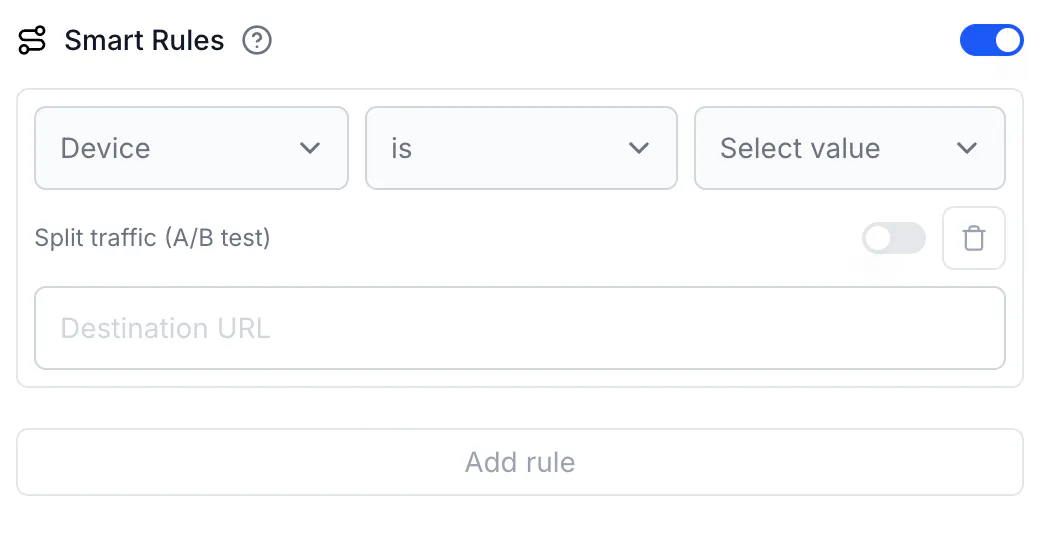
A rule reads as a sentence: if attribute is / is not value, then send the visitor to destination.
- Attribute — what CodeQR checks on the incoming request:
- Device: the operating system (iOS, Android, Windows, macOS, Linux)
- Location: Country, Region (state), City, Continent — from the visitor's IP address
- Campaign: UTM Source, UTM Medium, UTM Campaign, UTM Term, UTM Content — read from the query string on your short link
- Referrer — the site the visitor came from
- Language — the browser's preferred language
- Operator — is or is not. The value must match completely (case does not matter); there is no "contains".
- Destination URL — where matching visitors go. Instead of one URL, turn on Split traffic (A/B test) to send matching visitors to 2–4 variant URLs by percentage.
A rule with no condition is called All traffic. It always splits traffic, and it must be the last rule.
How CodeQR decides
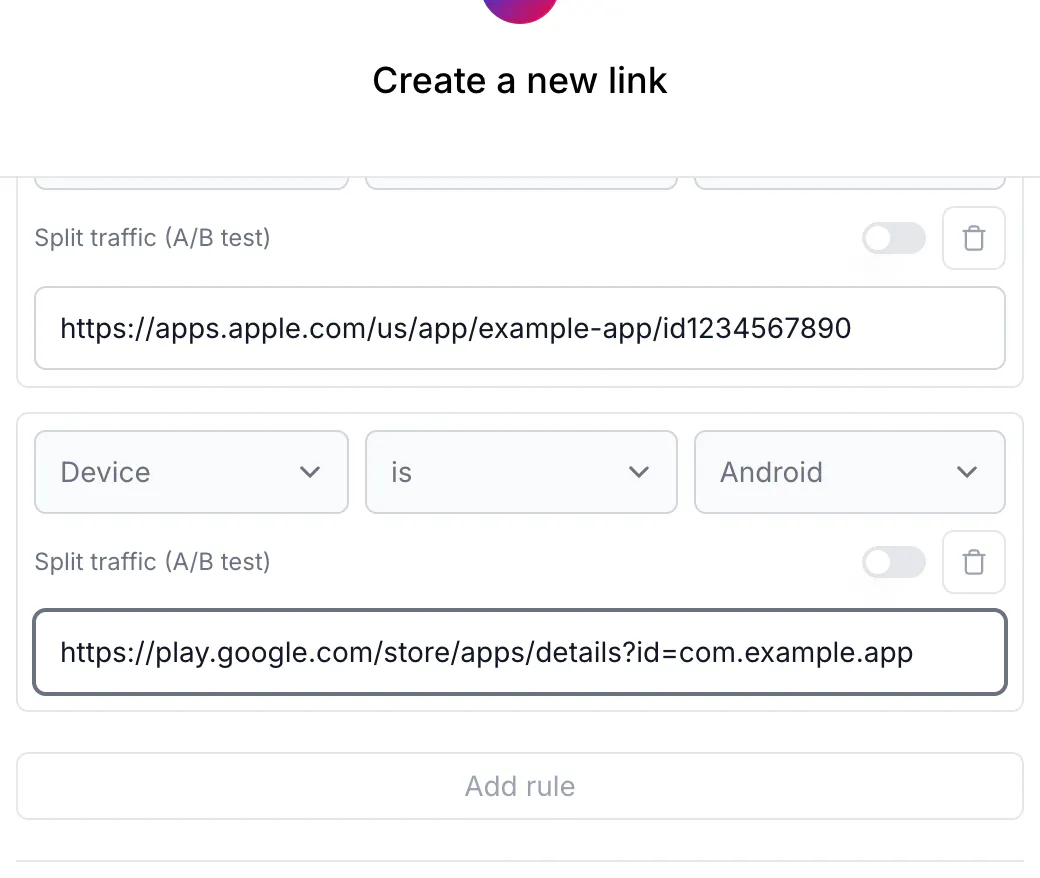
Rules run top to bottom. The first rule that matches wins. If no rule matches, the visitor goes to the link's Destination URL. Each rule has exactly one condition; to combine conditions, order the rules so the most specific comes first. The full decision path, including how Smart Rules interact with Link Cloaking, iOS Targeting, Android Targeting and Geographic Targeting, is in How Smart Rules choose a destination.
Pick your guide
- Send iPhone users to the App Store and Android users to Google Play, everyone else to your site — Read: Send iOS and Android visitors to their app store
- Show a localized page by country, state, city, continent or browser language — Read: Geo redirect by country, region, city, or language
- Send newsletter, ad or Instagram traffic to a dedicated page — Read: Route campaign traffic by UTM or referrer
- Test two or more landing pages behind one link or QR code — Read: Split one link's traffic to A/B test destinations
- Create or change rules from code, an AI agent, or an automation — Read: Create Smart Rules with the API, MCP, and automations
- Look up every attribute, operator, accepted value and limit — Read: Smart Rules reference
- Understand why a visitor landed somewhere unexpected — Read: How Smart Rules choose a destination — and why it differed
Limits at a glance
- Up to 20 rules per link or QR code
- 2 to 4 variants per split; whole-number weights that add up to 100
- Rules are evaluated on links and on dynamic URL QR codes; not on static QR codes, and not on QR codes of other types (Wi-Fi, vCard, WhatsApp, text)
- Available in the web app, the REST API (
rulesfield on links and QR codes), the MCP server (create_linkandupdate_link), and — through the API — automation platforms
Smart Rules and the older targeting toggles
The link builder still has iOS Targeting, Android Targeting and Geographic Targeting. Smart Rules cover the same cases and more, and a matching Smart Rule takes precedence over those toggles. Use Smart Rules for new links; you do not need to turn the older toggles on.