
Sign in to CodeQR
Sign in with Google, Apple, LinkedIn, GitHub or your email address, and find out what to do when the password field or the code prompt appears.

CodeQR has one account per person and several ways to open it. Whichever one you use, you land in the same workspaces.
Availability
- Plan: every plan, including the free one.
- Where: app.codeqr.io/login.
The ways in
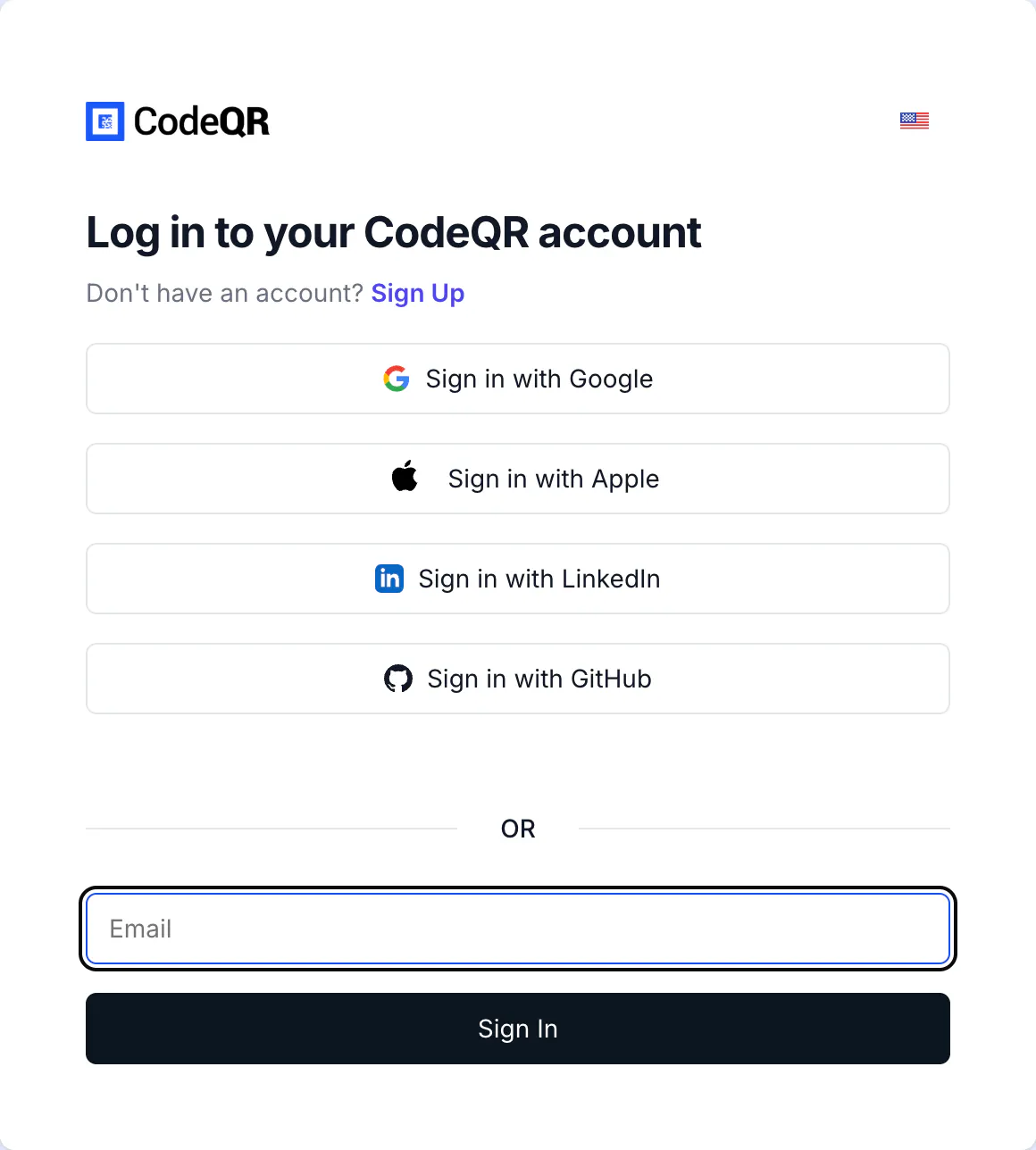
- Sign in with Google, Sign in with Apple, Sign in with LinkedIn and Sign in with GitHub hand the sign-in over to that provider. Nothing to remember, and no password stored at CodeQR.
- Email covers everyone else. Type the address and select Sign In.
The provider you pick the first time becomes the way your account opens. If you created the account with Google and later type the same address in the email field, CodeQR still recognizes you — you are one person, not two accounts.
What happens after you enter your email
The email field behaves differently depending on what your account has, which is why the page can look different from one sign-in to the next.
- You have no password. CodeQR emails you a sign-in link. Open it on the same device and you are in.
- You have a password. A password field appears under the email. Fill it in and select Sign In.
- You have two-factor authentication on. After the password, CodeQR asks for the 6-digit code from your authenticator app. A backup code works here too.
Most accounts are in the first case. Setting a password is optional — see Set or change your password.
Change the language
The Idioma button at the top of the sign-in page switches the interface. Your choice follows you into the app.
Verify it works
After signing in you land on the dashboard of your default workspace, and the workspace name shows at the top of the sidebar. If you belong to more than one, the switcher at the top lists them all.
Troubleshooting
The sign-in link never arrived
Check the spam folder first, then confirm the address you typed is the one on the account. The link is single-use: if you opened it once already, request a new one.
You are asked for a password you never set
That means the account does have one — someone set it, or you did and forgot. Request a new one from the sign-in page and follow the email.
You changed your email address and cannot get in
Sign in with the old address. Changing the email in Account → Your Email updates it for the next sign-in, and if the change did not go through, the old address is still the live one.
Your authenticator app is gone
Use one of the ten backup codes you saved when you turned two-factor authentication on. Each works once. Without the phone and without a code, nobody can open the account for you — see Turn on two-factor authentication.
You are in, but the workspace you expected is missing
You are signed in to the right account and were removed from that workspace, or you were invited with a different address. Ask the workspace owner to check the member list — Manage your workspace.