
Turn on two-factor authentication
Protect your CodeQR account with a code from an authenticator app, save the ten backup codes, and know what to do if you lose the phone.

With two-factor authentication on, a stolen password is not enough to open your account. Signing in also asks for a 6-digit code from an app on your phone.
Availability
- Plan: every plan.
- Where: Account → Security.
- Requires a password on the account. The Two-Factor Authentication card does not appear otherwise.
Before you start
- A password on your account. If you signed up with Google, Apple, LinkedIn or GitHub, you have none yet — Set or change your password.
- An authenticator app on your phone. Any TOTP app works: Google Authenticator, Microsoft Authenticator, 1Password, Authy, Bitwarden.
- Somewhere safe to keep ten backup codes. A password manager is the usual answer. Not the same phone.
Steps
- Open Account → Security.
- Select Enable two-factor authentication.
- Scan the QR code with your authenticator app. If the phone cannot scan, type the string under Manual entry code into the app instead.
!The enrollment screen with a QR code, the manual entry code and the field for the 6-digit code

- Type the 6-digit code the app now shows into 6-digit code and select Verify & enable.
- Save the ten backup codes, then select Done.
!The backup codes screen listing ten codes with the warning that each works once

Nothing is turned on until step 4 succeeds. Abandoning the screen at step 3 leaves your account exactly as it was, and the code you scanned stops being valid after ten minutes.
The backup codes are the part people regret
Ten codes, each usable once, shown on that screen and never again. They are the only way back into your account if the phone with the authenticator is lost, stolen, wiped or replaced.
CodeQR stores them hashed and cannot read them back to you, and support cannot turn the second factor off on your behalf. Without the phone and without a code, the account stays closed.
If you have used several, or you are not sure where you put them, select Regenerate backup codes on the same card. That issues ten new ones and voids the old set.
What changes when you sign in
Type your email, then your password, and CodeQR asks for the 6-digit code. A backup code is accepted in the same field.
The provider buttons are not affected. If your account is also linked to Google, that button still signs you in without a second factor — the code is asked for on the password path.
Turn it off
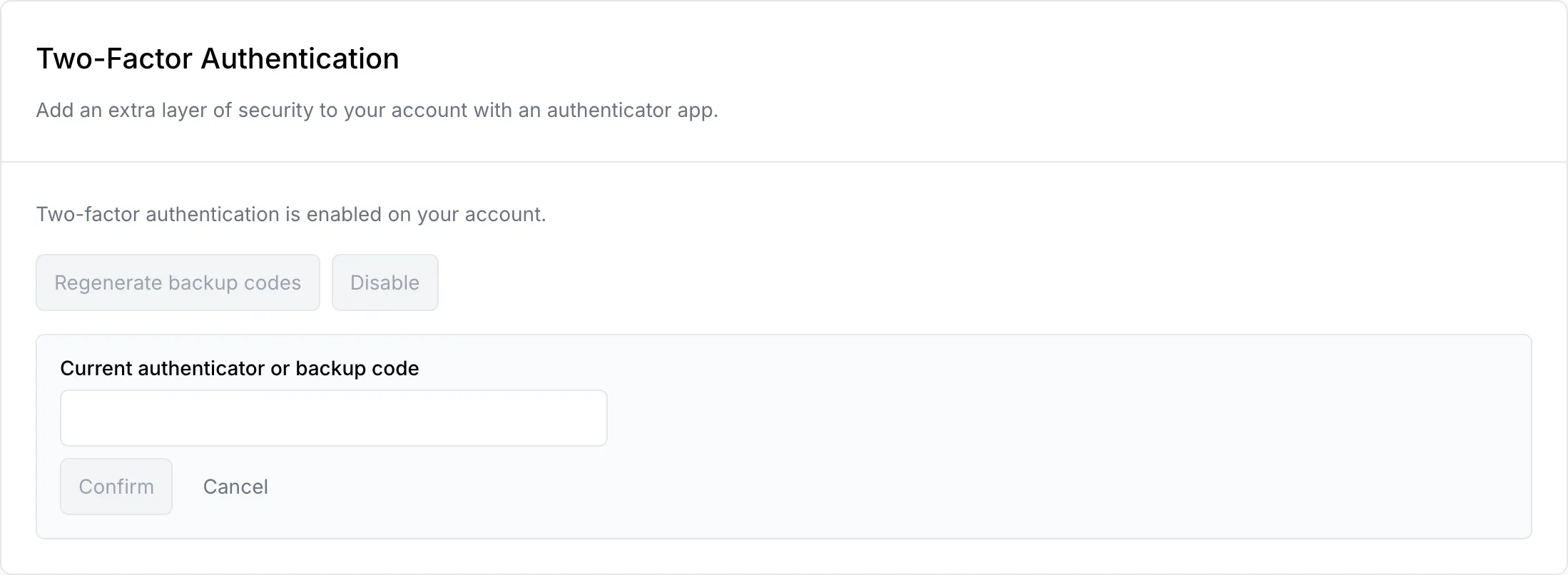
Select Disable on the same card. CodeQR asks for a current authenticator or backup code first, so someone who found your unlocked laptop cannot switch the protection off.
Verify it works
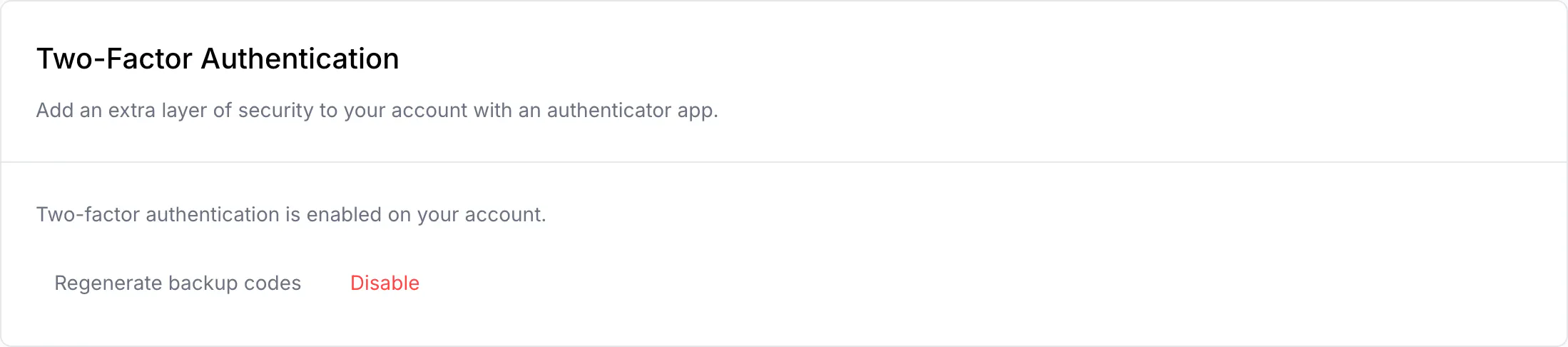
The card reads Two-factor authentication is enabled on your account. and offers Regenerate backup codes and Disable.
For a real test, open a private window and sign in with your email and password. The code prompt should appear before you reach the dashboard. Keep the first window signed in while you try, so a surprise does not lock you out.
Troubleshooting
Invalid verification code
Nearly always the phone's clock. TOTP codes are tied to the time, and a phone a minute out of step generates codes CodeQR rejects. Turn on automatic date and time on the phone and try again.
Also check that you typed the code that is on screen right now — they change every 30 seconds, and one that has already rolled over will not be accepted.
Too many requests
Enrollment and confirmation are limited to five attempts a minute. Wait a minute and try again.
The QR code will not scan
Use Manual entry code. Every authenticator app has an option to add an account by typing a key.
You lost the phone and the backup codes
The account cannot be recovered. This is what the second factor is for, and it applies to you as much as to an attacker. If you own a workspace, hand ownership over from a session that is still signed in before you lose that one too.
The Two-Factor Authentication card is not there
Your account has no password. See Set or change your password.