
Remove CodeQR branding from links and QR codes
Where the CodeQR mark appears on a free workspace — the QR code logo and the visitor pages — how a paid plan removes it, and what stays on every plan.

On a free workspace, CodeQR signs the things your audience sees: a small logo inside every QR code, and a Powered by CodeQR line on the pages a visitor passes through. Any paid plan removes all of it. This page lists exactly where the mark appears, so you can check your own material.
Availability
- Plan: Starter and above removes the mark. On Free it is always present and the controls are locked.
- Where: the QR code editor for the logo; the rest is automatic and needs no setting.
Where the mark shows up on a free workspace
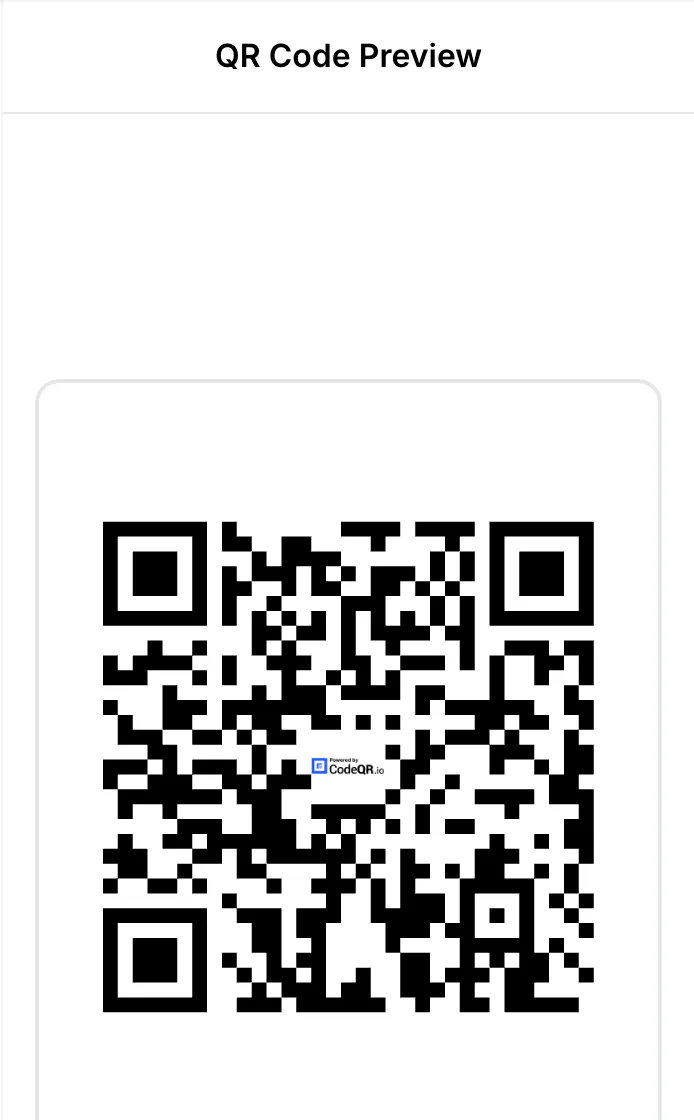
- Inside the QR code. A small CodeQR logo sits in the middle of the code.
- On the password page, when someone opens a password-protected link.
- On the flexible-link page, where the recipient chooses the destination.
- On the pre-redirection form, before the visitor continues to the destination.
- On CodeQR pages you publish.
Steps
On a paid plan, nothing is required — the mark is absent. To confirm, or to control the logo inside a QR code:
- Open QR Codes and create or edit a code.
- Under Design, find Logo.
- Set Remove Logo to Yes to produce a code with no logo at all, or upload your own logo to put your brand in the center.
- Save the QR code.
On Free, that switch is locked and shows an Upgrade to Starter button:

Adding your own logo also changes what the code looks like when it is scanned in the wild, so re-test a printed proof after switching.
What a custom domain adds
Removing the mark is half of the job; the other half is the address itself. A link on a shared CodeQR domain still says CodeQR in the one place everybody reads — the URL. Connecting your own domain is what makes the whole thing yours, and it is available from the same Starter plan. See Connect your own domain to CodeQR.
What still carries CodeQR on every plan
Being precise about this is more useful than promising a clean sweep:
- The "not found" page. An address that does not exist on your domain sends the visitor to a CodeQR page. There is no per-domain setting for it.
- The expired-link page, when a link with an expiration date is opened after it has passed. Setting an Expiration URL on the link avoids the page entirely by sending the visitor to an address of yours.
- The root of your domain, if Target Page is empty — the visitor gets a CodeQR page describing the platform. Filling Target Page replaces it; see Redirect your domain root to your website.
The first two are the ones worth planning around, because they appear precisely when something has gone wrong and the visitor is already confused.
Verify it works
For a QR code, download it and look at the center. For the visitor pages, open one of your own links in a private window and read the footer.
For the root of your domain:
curl -sS https://go.example.com/ | grep -i "<title>"
A title ending in A CodeQR.io Custom Domain means the root still shows the CodeQR page.
Troubleshooting
Remove Logo is locked
The workspace is on the Free plan. Any paid plan unlocks it.
I upgraded and my old QR codes still have the logo
A QR code is generated from its current settings, so download it again after upgrading. The code itself does not change — the same scan leads to the same link — so a re-download is enough, without reprinting for the sake of the logo.
The logo makes my QR code harder to scan
Anything placed in the center covers part of the code. Test a printed proof at real size and distance, and keep the logo small if scans are unreliable.
My links still show a CodeQR domain
Branding and the domain are separate. Removing the mark does not change the address; connecting your own domain does.