
Add a lead form to a QR code or short link
Build a CodeQR Page form, attach it to a short link or dynamic QR code as a Pre-redirection form, test it and read the first responses. With API call.

At the end of this guide you have a short link (and, if you want, a dynamic QR code) that shows your own form — name, email, whatever you ask — before it sends the visitor to the destination, and every response waits for you in Responses.
Two things this is not: an "email QR code" (a mailto: code that opens the visitor's mail app — no data is collected) and a QR code that points at a Google Form (the visitor ends on Google's "response recorded" page). For a Google Form, Typeform or Tally form shown before the redirect see Use a Google Form or Typeform before the redirect.
Availability
- Plan: Business and above (pricing).
- Where: link builder → Pre-redirection form. Same section in the QR code editor for dynamic QR codes (any type). Static QR codes cannot use it.
Before you start
You need a CodeQR Page with a form. Any page type with fields works — Newsletter Subscription and Contact Form are the usual choices. If you already have one, skip to Steps.
- Open Pages and click Create new page.
- Choose the type — for example Newsletter Subscription — give it a Page name and click Create page.
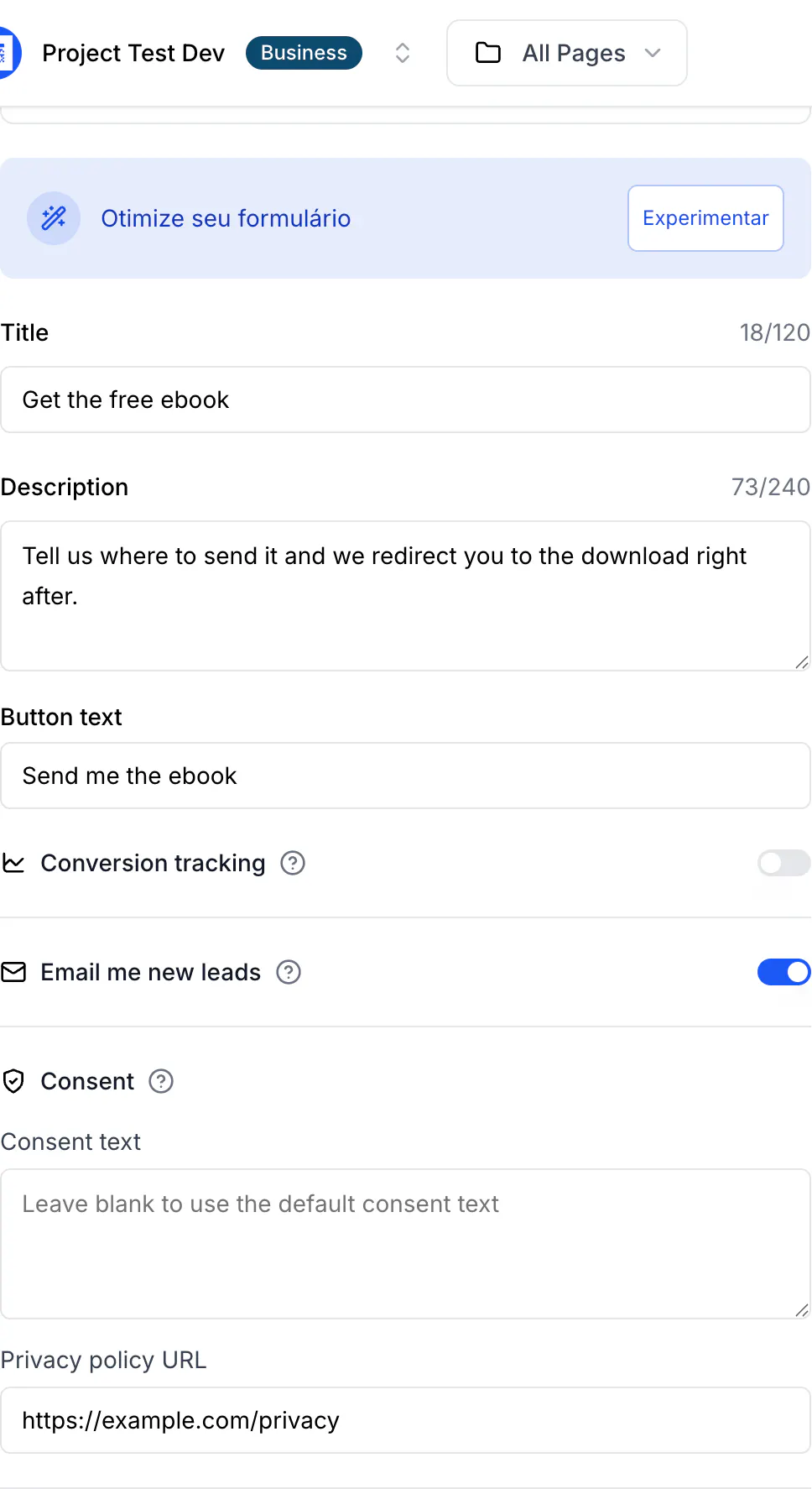
- In Form Content, set the Title and Description the visitor reads, and the Button text (the default is generic; write what the visitor gets, for example
Send me the ebook). - In Form Fields, keep the fields you need and mark the required ones. Fewer fields convert better; a phone field costs conversion even when optional.
- Under Consent, keep the default consent text or write your own, and paste your Privacy policy URL. The visitor must tick the consent box before the button becomes active — this is not optional.
- Turn on Email me new leads to receive an email per response, and Conversion tracking if you want each lead in Events and in your webhooks (Pro and above; see Where your leads go).
- Click Save, then turn on the switch next to the page name at the top of the editor to publish it. (A draft page also renders in the form today; publishing keeps the standalone page and the page picker consistent.)
Steps
- Open Links and click Add Link. To change an existing link, open its ⋮ menu and choose Edit.
- Enter the Destination URL — where the visitor goes after the form, for example
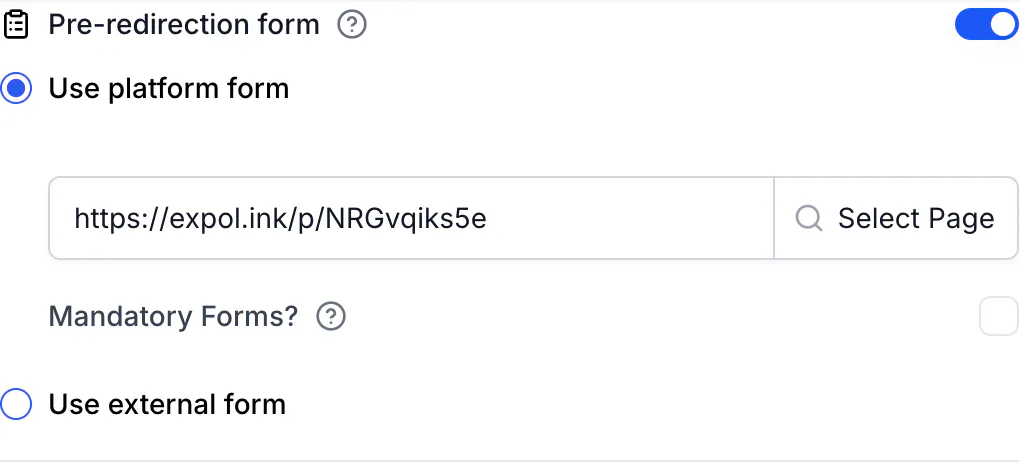
https://example.com/ebook. - In the optional features list, turn on Pre-redirection form.
- Keep Use platform form selected and click Select Page.
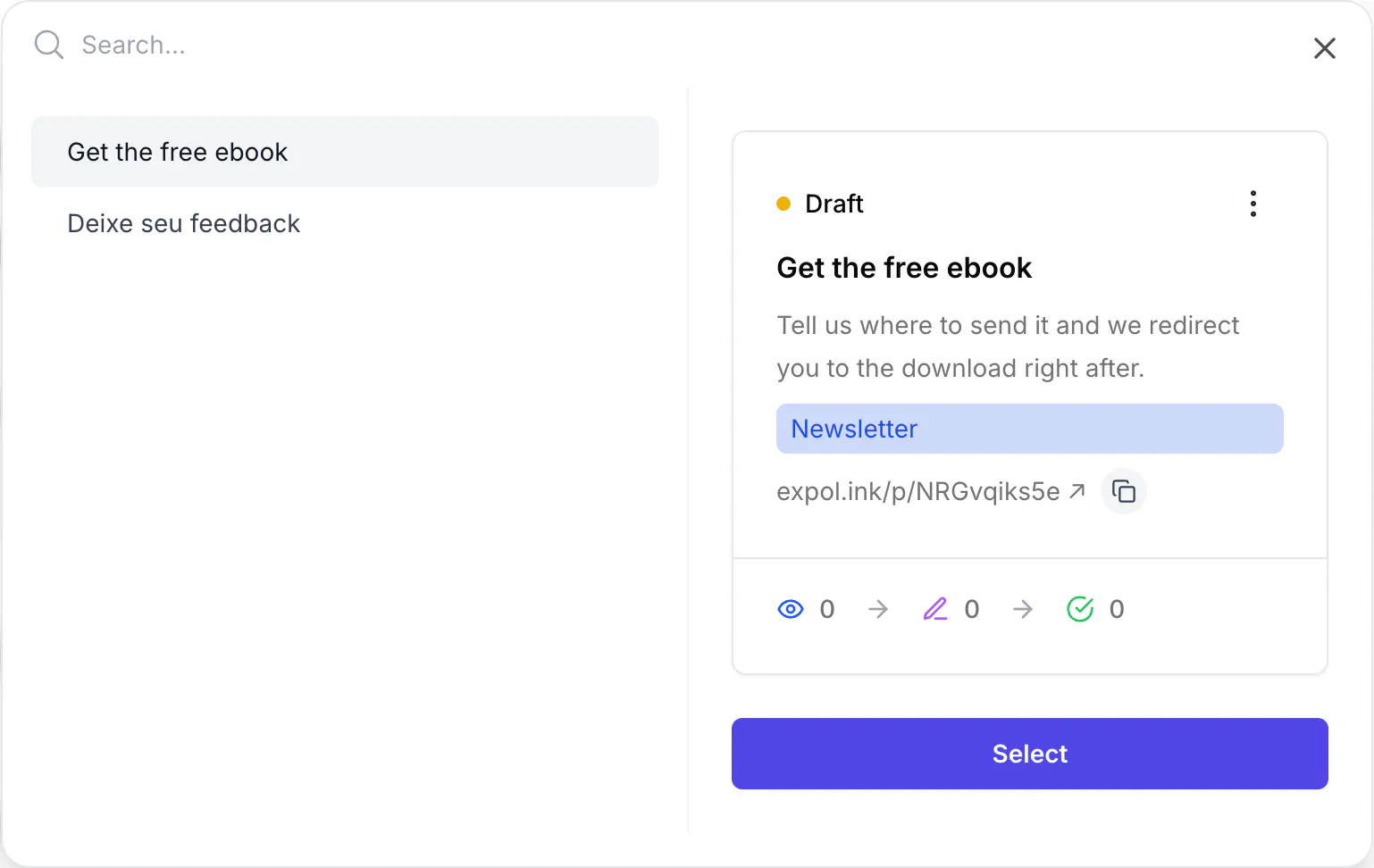
- In the picker, search or scroll to your page and click Select. The page URL (for example
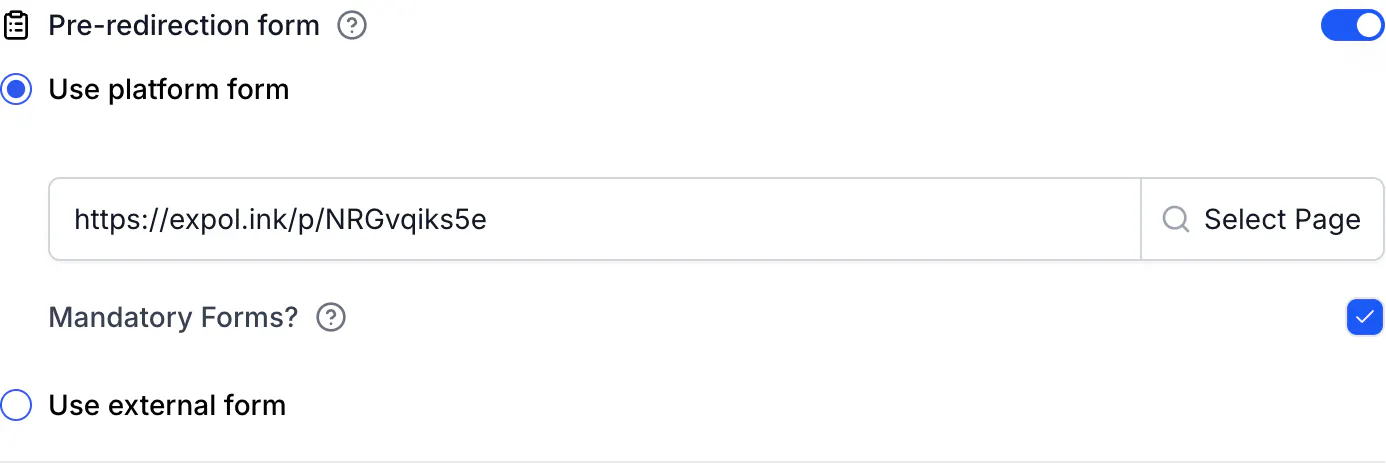
https://go.example.com/p/NRGvqiks5e) fills the field. The picker lists every page in the workspace — pick one that has a form. - Leave Mandatory Forms? unchecked if visitors may skip the form, or tick it to remove the close button. See Make the form required or let visitors skip it.
- Click Create link (or Save link).
For a QR code: open QR Codes → Create QR Code, choose Dynamic, pick the type (URL, WhatsApp or another), fill in the destination, and repeat steps 3–6 in the Pre-redirection form section of the editor. Save.
Do the same via the API
POST https://api.codeqr.io/links with the four form fields. pageUrl is the public URL of the page — copy it from the page card in Pages; the server does not derive it from pageId.
Request:
curl -X POST https://api.codeqr.io/links \
  -H "Authorization: Bearer codeqr_xxxxxxxxxxxxxxxxxxxxxxxx" \
  -H "Content-Type: application/json" \
  -d '{
    "url": "https://example.com/whitepaper",
    "domain": "go.example.com",
    "key": "whitepaper",
    "preRedirection": true,
    "pageId": "cmsx4bmpm0001a0d0hwow7468",
    "pageUrl": "https://go.example.com/p/NRGvqiks5e",
    "isFormMandatory": true
  }'
Response (200 OK, abbreviated to the relevant fields):
{
  "id": "cmsx55jec0003ui96u4owiiyb",
  "domain": "go.example.com",
  "key": "whitepaper",
  "url": "https://example.com/whitepaper",
  "preRedirection": true,
  "pageId": "cmsx4bmpm0001a0d0hwow7468",
  "pageUrl": "https://go.example.com/p/NRGvqiks5e",
  "isFormMandatory": true,
  "shortLink": "https://go.example.com/whitepaper",
  "qrCode": "https://api.codeqr.io/qr?url=https://go.example.com/whitepaper?qr=1"
}
The same fields work on PUT /links/{linkId}, POST /qrcodes (with "static": false) and PUT /qrcodes/{qrcodeId}. Full payloads, every validation error and the automation notes are in Set up pre-redirection forms with the API and automations. The MCP server cannot set these fields today.
Verify it works
- Open the short link in a private window (or scan the QR code with a phone that has not opened it in the last hour). The form appears over a blurred preview of the destination.
- Fill it in, tick I have read and agree, and press the button. You land on the destination.
- Open the link again in the same window: you go straight to the destination — the form is skipped for one hour per browser. That is expected; use a new private window to see the form again.
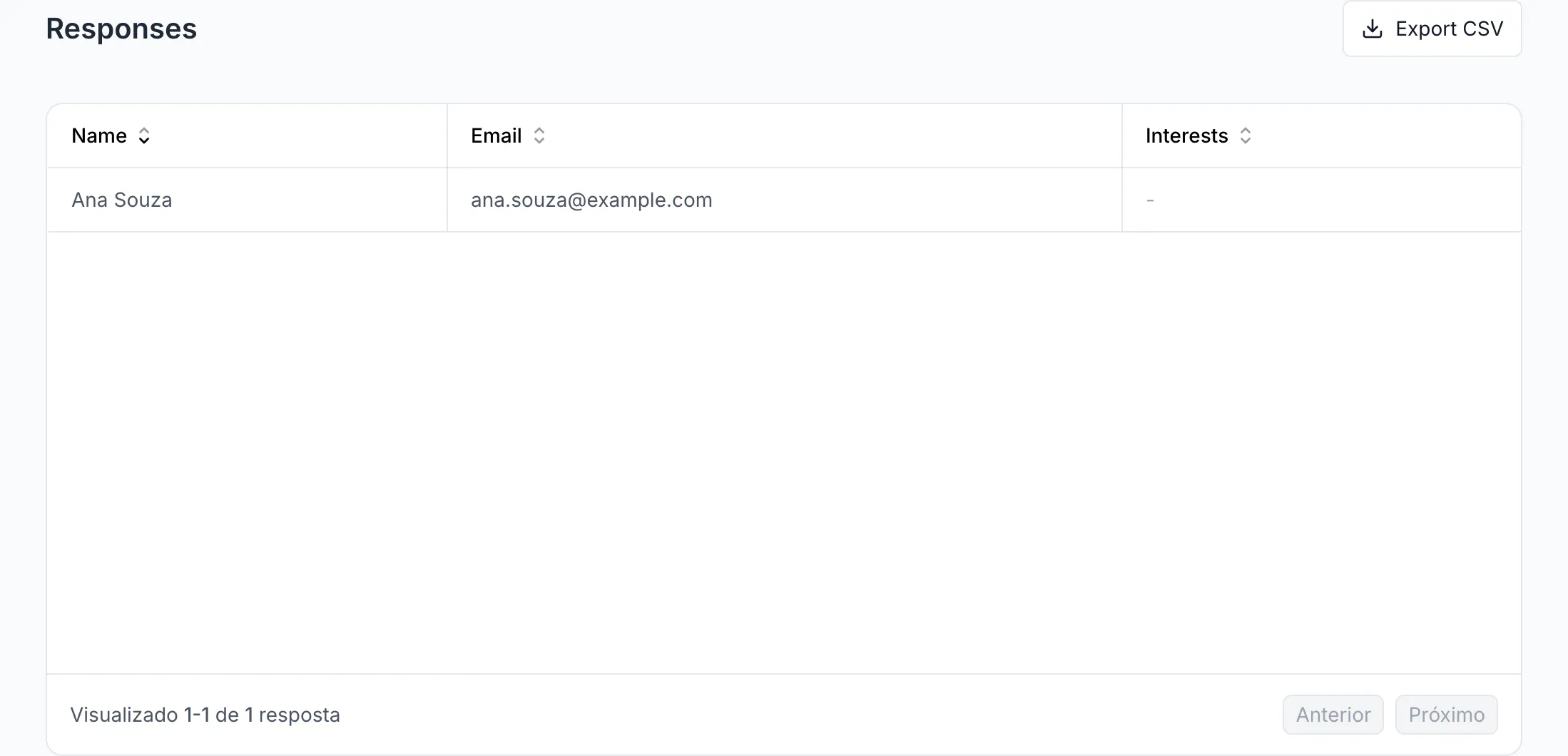
- In Pages → your page → Responses, the row is there. Export CSV downloads it with one column per field.
Without a browser, the response headers tell the story:
curl -sI -A "Mozilla/5.0 (iPhone; CPU iPhone OS 17_5 like Mac OS X)" https://go.example.com/whitepaper | grep -iE "^HTTP|x-pathname|set-cookie"
# HTTP/2 200
# set-cookie: cq_id=…; Path=/whitepaper; Max-Age=3600
# x-pathname: /go.example.com/pre-redirection/whitepaper/link

curl -sI -b "skipForm=FORM_FILLED" https://go.example.com/whitepaper | grep -iE "^HTTP|location"
# HTTP/2 302
# location: https://example.com/whitepaper
The 200 is the form page; with the skipForm cookie the link behaves like any other short link.
Troubleshooting
The form showed once, and now the link goes straight to the destination
CodeQR sets a skipForm cookie for one hour on that link after a submission or a skip. Open a private window, another browser, or wait an hour. Bots and link previews never see the form either.
The button stays grey
The visitor has not ticked I have read and agree. The consent checkbox is required for every CodeQR form; there is no setting to remove it.
The page I want is not in the picker
The picker lists the pages of the current workspace only. Create the page in this workspace, or select the right workspace first.
The link builder shows a Business badge on the toggle
The workspace is on Free, Starter or Pro. Upgrade to Business, or leave the toggle off.
My QR code editor has the toggle disabled
The QR code is Static. Create a Dynamic QR code; static codes encode the destination directly and cannot show a form.