
Add comments to a link or QR code
Leave a private note on a link or QR code so you and your team remember why it exists, what it was for, and what has to change later.

Six months from now, nobody remembers why a link exists or which campaign it belonged to. A comment is a private note that travels with the link and answers that.
Availability
- Plan: every plan.
- Where: the link and QR code builders, under Comments.
- Who sees it: only people in your workspace. Comments never appear to whoever scans or clicks.
Add a comment
- Open Links or QR Codes and create or edit one.
- Scroll to Comments, at the bottom of the options, and turn it on.
- Write the note.
- Save.
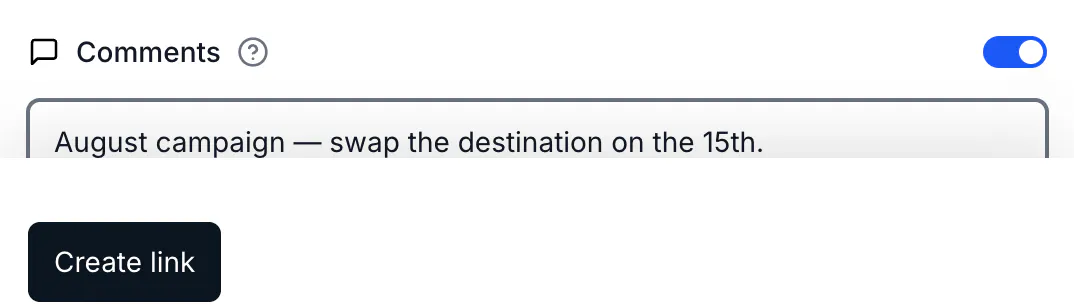
The field is free text with no length limit, so treat it as a notepad rather than a label. Turning the toggle off clears what was written.
What to write
A comment earns its keep when it says something the link itself cannot:
- Why it exists — "Printed on the November flyer run, 5,000 copies".
- What has to happen later — "Swap the destination after the 15th, the promo page comes down".
- Who to ask — "Ana owns this one, check before editing".
- What was already tried — "Second version, the first had the wrong UTM".
What not to put there: anything you would want to filter or group by. That is what tags and folders are for — a comment is prose, tags are structure.
Find links by their comments
The filter reads them, which is what makes comments more than decoration. Open Filter and type comment to find the two entries:
- With comments — everything that carries a note.
- Specific comment — search the text itself, so "flyer" finds every link printed on one.
A link with a comment also shows a small marker in the list, so you can see at a glance which ones carry context.
Through the API
comments is a normal field on links and QR codes: send it when creating or updating one, and filter by it when listing. The same value the builder writes is the one the API returns.
Troubleshooting
The toggle was turned off. Turning Comments off clears the field — turn it on, write again, and save.