
Send iOS and Android visitors to their app store
One link or QR code that opens the App Store on iPhone, Google Play on Android and your website everywhere else — set up in the link builder, the API or MCP.

At the end of this guide you have one short link (and, if you want, one QR code) that opens the App Store on iPhone and iPad, Google Play on Android, and your website on every other device — one URL to print, post and measure.
Availability
- Plan: Business and above (pricing).
- Where: link builder → Smart Rules. Same section in the QR code editor for dynamic QR codes of type URL.
Before you start
- Your app's App Store URL, in the
https://apps.apple.com/…/id<number>form (numeric app ID, for examplehttps://apps.apple.com/us/app/example-app/id1234567890). - Your app's Google Play URL, in the
https://play.google.com/store/apps/details?id=<package>form (for examplehttps://play.google.com/store/apps/details?id=com.example.app). - A web page for everyone else (desktop, unknown devices, link previews). It becomes the link's Destination URL.
- Do not use
itms-apps://ormarket://URLs — mobile browsers block those schemes from a web redirect.
Steps
- Open Links and click Add Link. To change an existing link, open its ⋮ menu and choose Edit.
- In Destination URL, enter the web page for visitors who are not on iOS or Android, for example
https://example.com/app. - Turn on Smart Rules.
- In the first rule, keep Device, keep is, and select iOS.
- In that rule's Destination URL, paste the App Store URL.
- Click Add rule.
- In the new rule, keep Device, keep is, and select Android.
- In that rule's Destination URL, paste the Google Play URL.
- Click Create link (or Save link when editing).
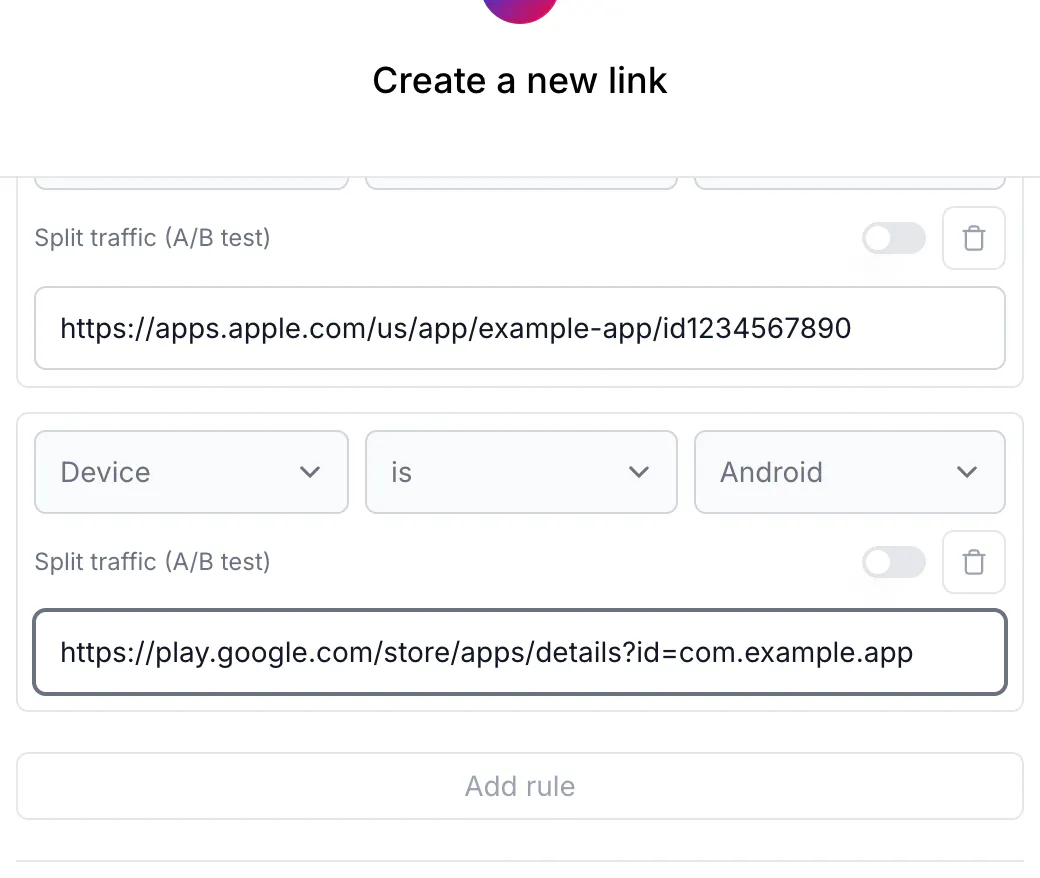
For a QR code: open QR Codes → Create QR Code, choose Dynamic, keep the type URL, enter the web page as Destination URL, then repeat steps 3–8 in the Smart Rules section of the editor and save.
Do the same via API
POST https://api.codeqr.io/links with the rules array. domain must be a domain in your workspace; omit key to get a random one. Authentication is a Bearer token from Settings → API Keys.
Request:
curl -X POST https://api.codeqr.io/links \
  -H "Authorization: Bearer codeqr_xxxxxxxxxxxxxxxxxxxxxxxx" \
  -H "Content-Type: application/json" \
  -d '{
    "url": "https://example.com/app",
    "domain": "go.example.com",
    "key": "get-the-app",
    "rules": [
      { "attribute": "device", "operator": "equals", "value": "iOS",
        "url": "https://apps.apple.com/us/app/example-app/id1234567890" },
      { "attribute": "device", "operator": "equals", "value": "Android",
        "url": "https://play.google.com/store/apps/details?id=com.example.app" }
    ]
  }'
Response (200 OK; the link object echoes rules):
{
  "id": "cmswk759f0001j41i0vj1vmfq",
  "domain": "go.example.com",
  "key": "get-the-app",
  "url": "https://example.com/app",
  "archived": false,
  "expiresAt": null,
  "expiredUrl": null,
  "password": null,
  "externalId": null,
  "trackConversion": false,
  "proxy": false,
  "title": null,
  "description": null,
  "image": null,
  "video": null,
  "utm_source": null,
  "utm_medium": null,
  "utm_campaign": null,
  "utm_term": null,
  "utm_content": null,
  "rewrite": false,
  "doIndex": false,
  "banned": false,
  "flexible": false,
  "filled": false,
  "ios": null,
  "android": null,
  "geo": null,
  "rules": [
    {
      "url": "https://apps.apple.com/us/app/example-app/id1234567890",
      "value": "iOS",
      "operator": "equals",
      "attribute": "device"
    },
    {
      "url": "https://play.google.com/store/apps/details?id=com.example.app",
      "value": "Android",
      "operator": "equals",
      "attribute": "device"
    }
  ],
  "userId": "cm73yc6m70002mtesulffnrgb",
  "folderId": null,
  "projectId": "cm73y7wm100008j24i1b137wr",
  "preRedirection": false,
  "pageId": null,
  "pageUrl": null,
  "isFormMandatory": false,
  "publicStats": false,
  "clicks": 0,
  "lastClicked": null,
  "leads": 0,
  "sales": 0,
  "saleAmount": 0,
  "createdAt": "2026-08-17T01:32:38.884Z",
  "updatedAt": "2026-08-17T01:32:38.884Z",
  "tagId": null,
  "comments": null,
  "notificationToken": null,
  "useAsTemplate": false,
  "tags": [],
  "shortLink": "https://go.example.com/get-the-app",
  "qrCode": "https://api.codeqr.io/qr?url=https://go.example.com/get-the-app?qr=1"
}
To add the rules to an existing link, send the same rules array with PUT https://api.codeqr.io/links/{linkId}. For a dynamic QR code, use POST https://api.codeqr.io/qrcodes with "type": "url", "static": false and the same rules array. Values are matched case-insensitively, but the values CodeQR reads are exactly iOS and Android; mobile matches nothing.
Do the same via MCP
Connect your AI client to https://mcp.codeqr.io/mcp (OAuth 2.0). Ask, for example:
Create a short link to https://example.com/app on go.example.com with key get-the-app. Add smart rules: device iOS goes to https://apps.apple.com/us/app/example-app/id1234567890, device Android goes to https://play.google.com/store/apps/details?id=com.example.app.
The agent calls create_link with:
{
  "url": "https://example.com/app",
  "domain": "go.example.com",
  "key": "get-the-app",
  "rules": [
    { "attribute": "device", "operator": "equals", "value": "iOS",
      "url": "https://apps.apple.com/us/app/example-app/id1234567890" },
    { "attribute": "device", "operator": "equals", "value": "Android",
      "url": "https://play.google.com/store/apps/details?id=com.example.app" }
  ]
}
and gets the created link back, including rules. Use update_link with linkId and the same rules array to change an existing link. The MCP create_qrcode and update_qrcode tools do not accept rules; create the QR code through the API or the app instead.
Do the same via automations
Make, Zapier and Pluga do not have a "smart rules" field in their CodeQR modules. In Make, use the CodeQR Make an API Call module with method POST, URL /links and the JSON body above. In Zapier and Pluga, call the API from a code or webhook step with the same body. Every link.created and link.updated webhook payload includes the link's rules, so downstream automations can read them.
Verify it works
- Scan the QR code or open the short link on an iPhone: the App Store page opens.
- Open it on an Android phone: Google Play opens.
- Open it on a laptop: your web page opens.
Without devices at hand, check the redirect from a terminal — the location header shows the destination for each user agent:
curl -sI -A "Mozilla/5.0 (iPhone; CPU iPhone OS 17_5 like Mac OS X) AppleWebKit/605.1.15 Version/17.5 Mobile/15E148 Safari/604.1" \
  https://go.example.com/get-the-app | grep -i location
# location: https://apps.apple.com/us/app/example-app/id1234567890

curl -sI -A "Mozilla/5.0 (Linux; Android 14; Pixel 8) AppleWebKit/537.36 Chrome/126.0.0.0 Mobile Safari/537.36" \
  https://go.example.com/get-the-app | grep -i location
# location: https://play.google.com/store/apps/details?id=com.example.app

curl -sI https://go.example.com/get-the-app | grep -i location
# location: https://example.com/app
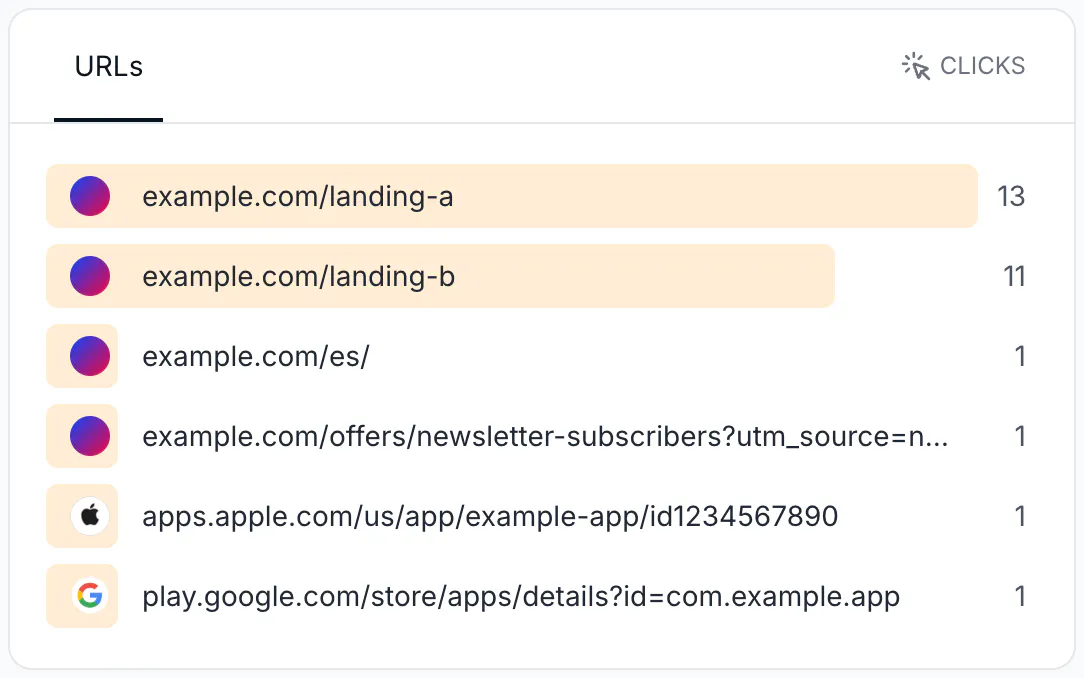
After a few clicks, open Analytics for the link: the URLs card lists clicks per destination (App Store, Google Play, your page).
Troubleshooting
iPad visitors land on the web page instead of the App Store
Safari on iPadOS identifies itself as a Mac by default, so CodeQR sees the operating system as macOS, not iOS. Add a rule Device is macOS pointing to the App Store only if Mac visitors are also fine on that page; otherwise keep iPad on the web page and offer an App Store button there. See the device notes in How Smart Rules choose a destination.
The store opens, but the app that is already installed does not
App-opening links (Universal Links on iOS, App Links on Android) require the user to tap the app's own domain directly; Apple and Google do not honor them behind a redirect. Store URLs work through a redirect; "open the app" links do not. Keep the store URLs in your rules and let the store hand off to the app.
Android opens a browser page instead of Google Play
The rule points to a market:// URL. Replace it with https://play.google.com/store/apps/details?id=<package>. The same applies to itms-apps:// on iOS: use https://apps.apple.com/….
Desktop visitors see an app store page
The link's Destination URL is the fallback for everyone who matches no rule. Set it to your web page, not to a store.
The link preview in WhatsApp or Slack shows my website, not the store
Preview crawlers are not phones, so no Device rule matches them and they receive the Destination URL. People who tap the link still go to their store.
The API returns 403 "Smart rules are available on the Business plan and above"
The workspace is on Free, Starter or Pro. Upgrade, or send the request without rules.