
Invite people to your workspace
Add teammates to a CodeQR workspace, understand how many seats your plan includes, and know what to do when an invitation expires or the limit is reached.

Everyone who works on your links should have their own account rather than share one. This page adds people to a workspace and explains the two things that surprise teams: how seats are counted, and what an invitation does and does not do.
Availability
- Plan: every plan includes at least one seat, and the number grows with the plan — 1 on Free and Starter, 5 on Pro, 15 on Business, 50 on Scale, 500 on Enterprise.
- Where: Settings → People. Only an owner can invite.
Before you start
- Use work e-mail addresses. A personal address becomes a problem the day the person leaves.
- A pending invitation occupies a seat. Three invitations you never sent to anyone real are three seats you cannot use.
Steps
- Open Settings → People.
- Select Invite.
- Type the person's e-mail address.
- Select Send invitation.
The dialog asks only for the e-mail — the role is not chosen here.
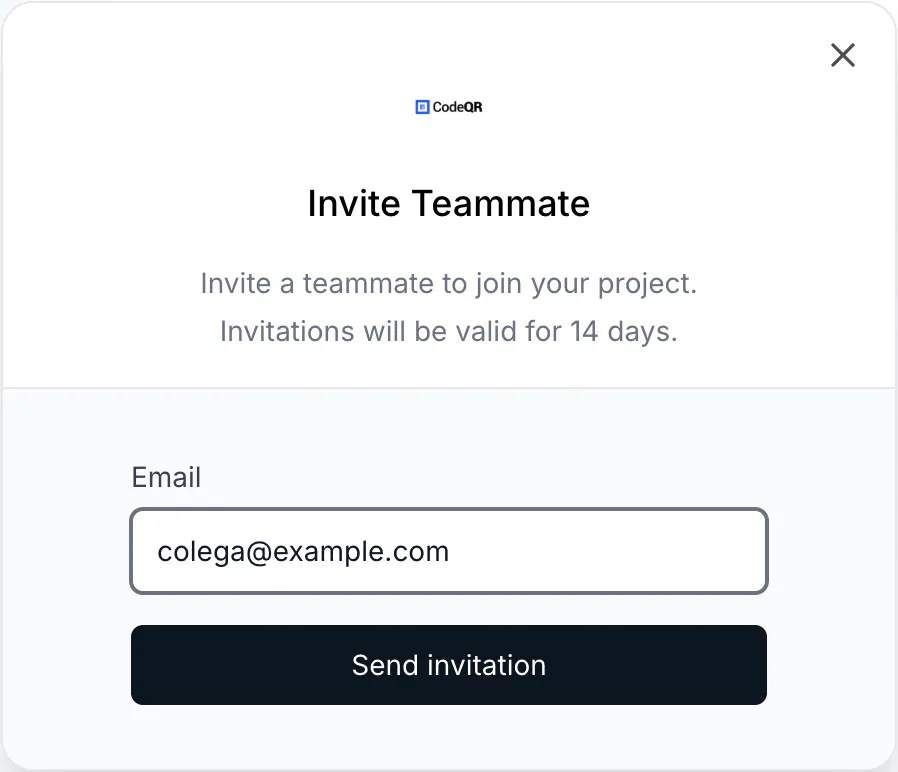
Everyone who accepts joins as a member, and you promote them afterward from their row in the list. What owners and members can each do describes the difference.
The invitation is valid for 14 days. Pending invitations appear under the Invites tab.
When the invitation expires
There is no resend. Revoke the pending invitation and send a new one — which also frees the seat it was holding.
When the seat limit is reached
The invitation is refused with the reason: You have reached the limit of N users on the {Plan} plan. Please upgrade to add more users.
Two ways forward: free a seat by revoking a pending invitation or removing someone who no longer needs access, or move to a plan with more seats. Note that moving down a plan does not remove anyone — the ceiling drops, the people stay, and you cannot add more until you are under it again.
Removing someone
Removing a person from the workspace does not delete anything they made. Their links, QR codes, folders and tags stay exactly where they are and keep working; only their access ends.
That is the safe order when someone leaves: remove their access first, and deal with their content afterward, at your own pace.
Verify it works
Ask the person to accept, then check Settings → People: they should appear under Members with the role Member. If they accepted and see a different workspace, they were invited from another one — the invitation is tied to the workspace it was sent from.
Troubleshooting
The invitation never arrived
Check spam first, then the corporate filter, which usually discards silently. If the address was mistyped, revoke and invite again — there is no way to edit a pending invitation.
The person accepted and sees nothing
They are probably looking at a different workspace. The workspace switcher at the top of the sidebar lists everything their account belongs to.
Inviting from the onboarding screen does nothing
Use Settings → People instead. The invitation step shown during onboarding does not currently deliver the invitation.
I cannot invite anyone
Only an owner can. If you are a member, ask an owner to send it.
Someone left the company
Remove them from Settings → People. What they created stays in the workspace.