
Design your page to match your brand
Set the colours and font of a CodeQR page, then fill the SEO tab so a shared link shows your own title, description and cover image.

A page arrives in CodeQR's default blue. The Design tab lets you set the colours and the font, and the change applies to that page alone.
Availability
- Plan: every plan.
- Where: Pages → your page → Design.
What you can change
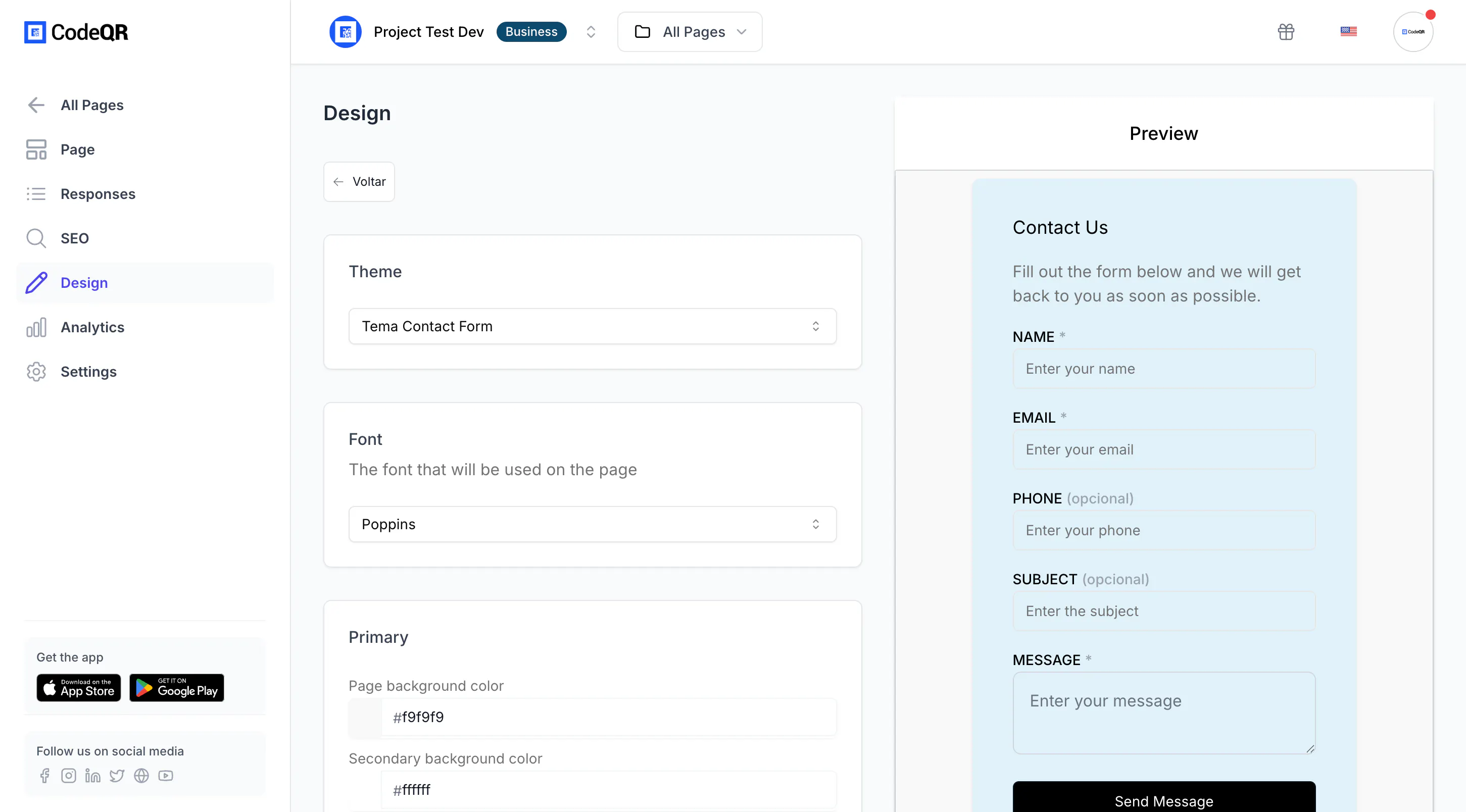
- Font — the typeface for the whole page.
- Primary — Page background color, Secondary background color, Text color and Border color.
- Buttons — Background color and Text color.
- Card — Background color, Text color and Border color for the block the form sits in.
Every colour is a hexadecimal value. Type it without the #.
Steps
- Open your page and select Design.
- Change the values you want. The preview beside them updates as you type.
- Select Save. The toast reads Data saved successfully.
- Reload the live page to see it as a visitor does.
Choose colours that still scan
A page reached by a QR code is read outdoors, at arm's length, on a phone at half brightness. Two things decide whether it can be used:
- Contrast between text and background. Dark grey text on white is safe; light grey on white disappears in sunlight.
- A button that looks like a button. If the button background matches the page background, people do not find it. Keep them clearly apart.
Pick the colours from your brand and then check the result on an actual phone, not on the preview.
Set what a shared link shows
Colours are the page. The SEO tab is everything around it: the browser tab, and the card that appears when somebody pastes your address into WhatsApp, Slack or a post.
Open your page and select SEO.
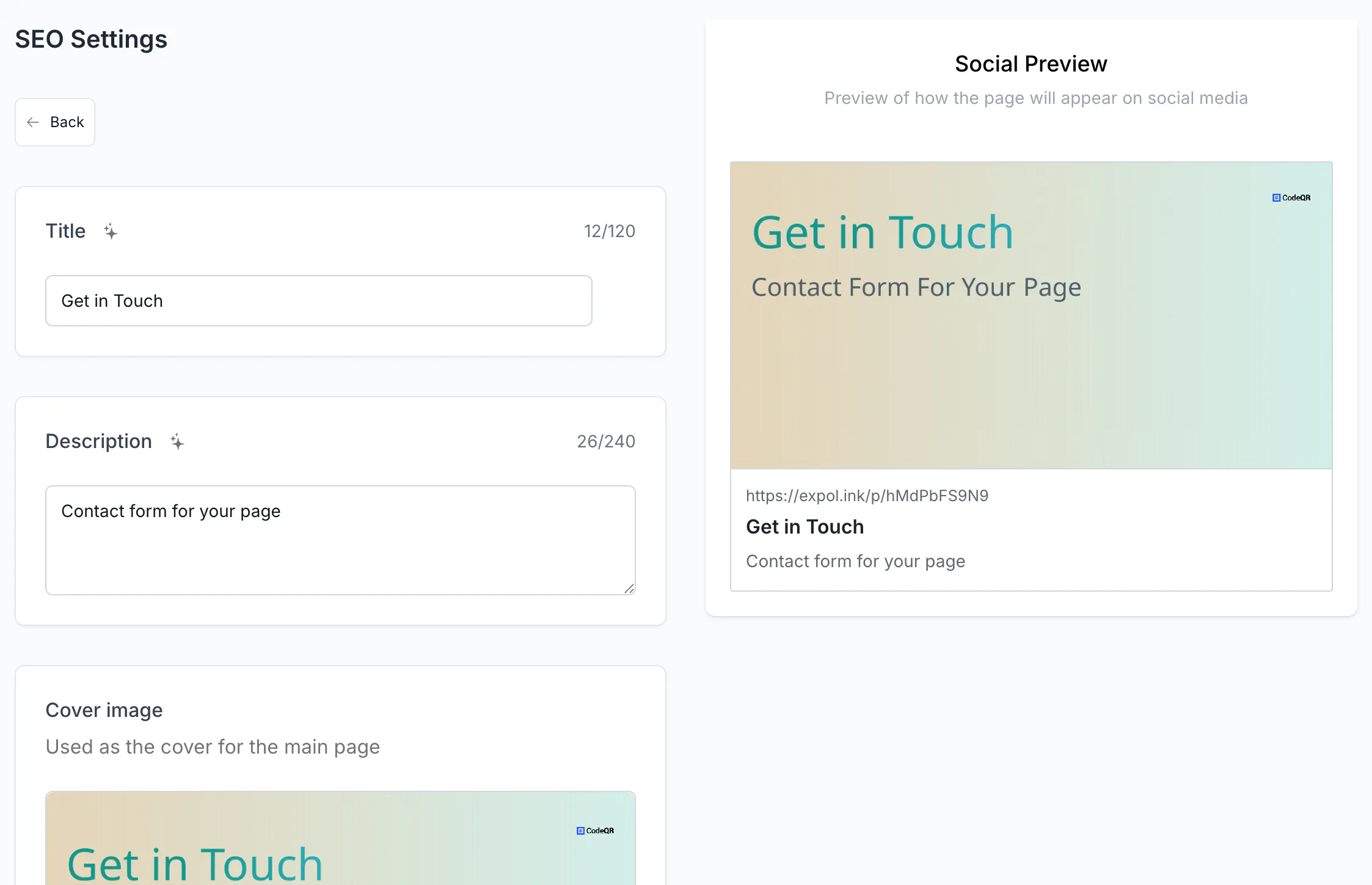
- Title — the browser tab and the headline of the shared card. This is the same field as Name under Settings, so changing it in one place changes the other, and it is the name your consent notice quotes.
- Description — the line under the headline.
- Cover image — upload a picture and CodeQR resizes it to 1200 × 627. Leave it empty and CodeQR builds a card from your title and description instead, so the link never shares a generic image.
Social Preview, below the fields, shows the result. Select Save, then reload the live page.
Both text fields have a button that writes them for you from what the page already contains.
Verify it works
Open the page address on your phone, outdoors if you can. Read the title, find the button without looking for it, and fill one field to confirm the text inside the box is legible against its background.
Changing the design of one page does not touch any other page in the workspace — confirm it by opening a second page after you save.
Troubleshooting
The colour did not change anything
Save with the button at the bottom of the panel, then reload the live page rather than the editor. The editor preview and the live page are rendered separately.
The form is hard to read on a phone
Increase the contrast between Text color and the Card background. Those two are what the visitor reads the fields against, not the page background.
You want the CodeQR badge off the page
A Powered by CodeQR line sits under the form, after the last field, on every page and every plan. It scrolls with the page and covers nothing, but there is no setting that removes it.
You want the same look on every page
There is no shared template. Each page carries its own colours, so note the hexadecimal values somewhere and reuse them.