
Set or change your password
Add a password to an account created with Google, or change the one you have. A password is also what unlocks two-factor authentication.

If you created your account with Google, Apple, LinkedIn or GitHub, it has no password. You can add one, and there is a reason to: a password is what unlocks two-factor authentication.
Availability
- Plan: every plan.
- Where: Account → Security.
Set a password for the first time
The card reads Your account is managed by followed by the provider you signed up with.
- Open Account → Security.
- Select Create account password.
- CodeQR emails you a link. Open it and choose the password.
You do not type the password on the settings page — the link in the email is where it happens, and it stops working after an hour. Request another if it expires.
Change a password you already have
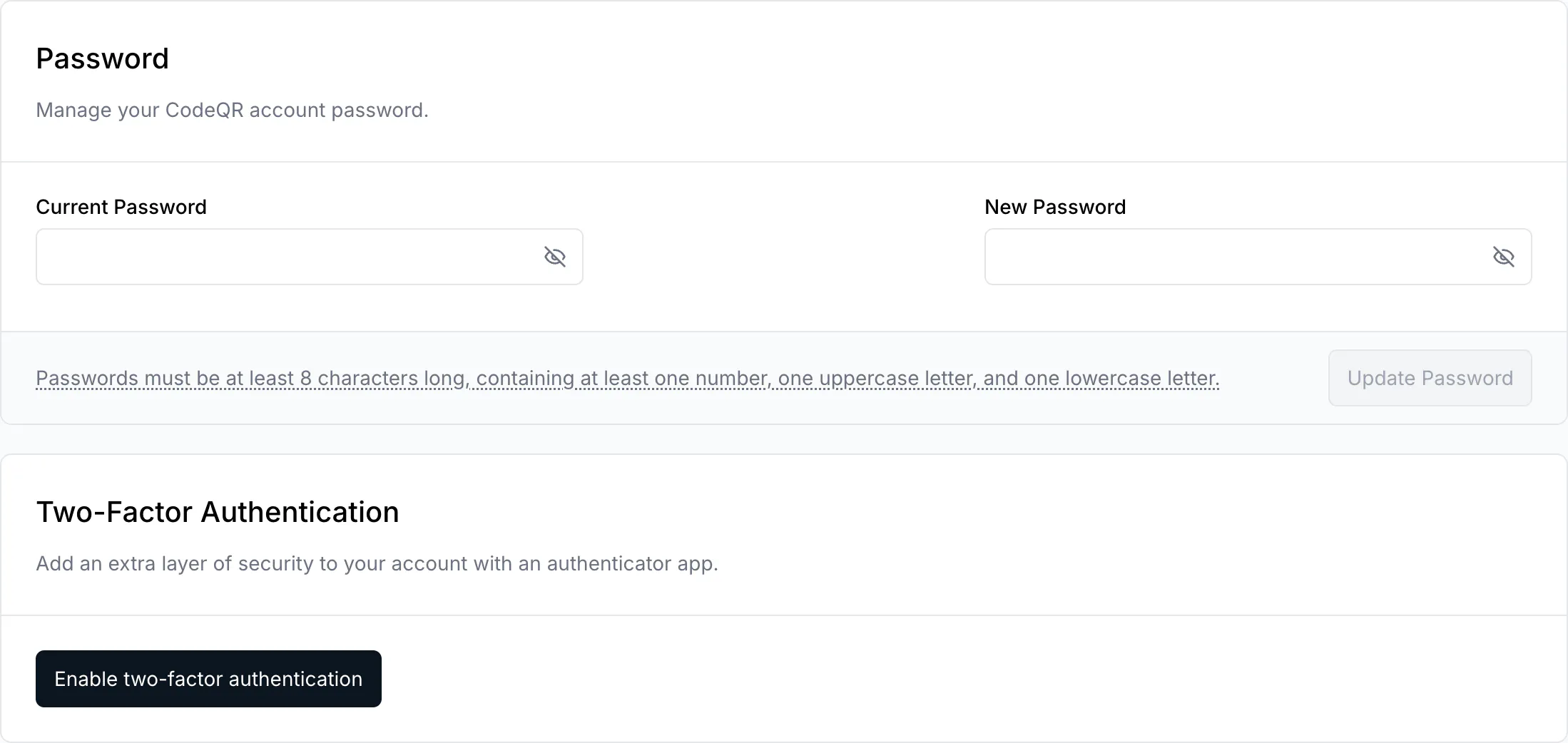
- Open Account → Security.
- Fill in Current Password and New Password.
- Select Update Password.
What the password has to contain
At least 8 characters, with at least one number, one uppercase letter and one lowercase letter. The card repeats these rules under the fields.
Why this matters for two-factor authentication
The Two-Factor Authentication card appears on the Security page only for accounts that have a password. Sign in with Google and you never see that the option exists — the page offers Create account password and stops there.
So the order is: password first, then two-factor. Adding a password does not take away the Google button; both keep working.
Verify it works
Reload Account → Security. The card now reads Password with Current Password and New Password, instead of Create account password, and the Two-Factor Authentication card is underneath it.
Troubleshooting
The email never arrived
Check the spam folder, then confirm the address in Account → Your Email is one you can open. That is where the link goes.
The link says it expired
It lasts an hour. Go back to Account → Security and select Create account password again.
Update Password does nothing
The button stays inactive until both fields are filled and the new password meets all three rules. A password with 10 lowercase letters and no number is rejected without a message.
You want to remove the password
There is no way to take one off once it is set. If it is there because you wanted two-factor authentication and you have changed your mind, turn the second factor off and keep signing in with your provider.