
Choose the right QR code type
A QR code can join a Wi-Fi network, open WhatsApp, save a contact or receive a Pix. Pick the type that does the job and know what it costs you.

A QR code does not have to open a website. CodeQR builds eight kinds, and the type you pick decides what the phone does the moment it reads the code.
Availability
- Plan: every plan, including the free one. No type is reserved for a paid plan.
- Where: QR Codes → Create QR Code.
The eight types
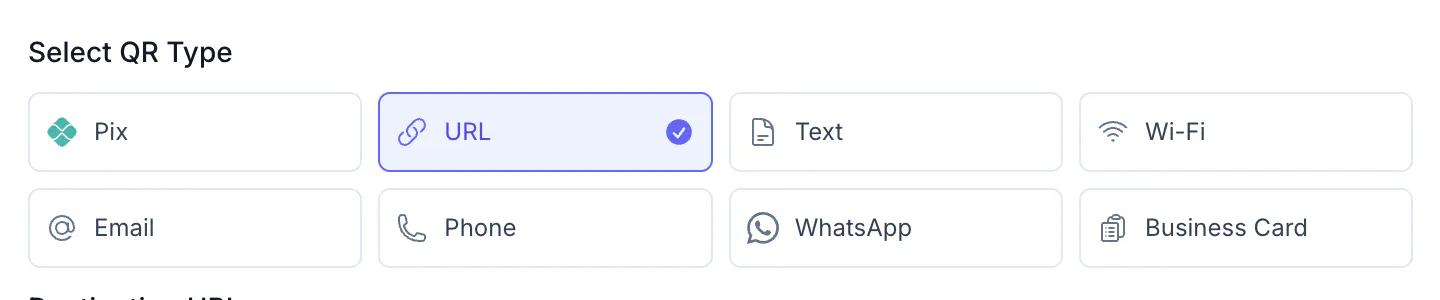
| Type | What the phone does |
|---|---|
URL | Opens a web address |
Wi-Fi | Joins the network, without anyone typing the password |
Opens a chat with you, with a message already written | |
Pix | Fills in a payment in the banking app |
Business Card | Saves name, phone and email in the address book |
Text | Shows a message on screen |
Phone | Offers to call the number |
Starts an email with the subject filled in |
Static or dynamic changes what the code is
You pick this before the type, and it is the decision that matters most.
Static puts the content inside the image itself. The phone reads the code and acts immediately, with no internet: it joins the network, it saves the contact, it fills the payment. Nothing passes through CodeQR, so nothing is counted — and the content can never be changed. Reprinting is the only fix.
Dynamic puts a short address inside the image. Scanning opens a CodeQR page that shows your content with a button to act on it, so scans are counted and you can edit the content after the code is printed.
Two types behave differently and it is worth knowing before you print:
- WhatsApp never shows that page. A dynamic WhatsApp code sends the phone straight to the chat.
- Pix is static only. It is the payment format itself that has to be read by the banking app, so there is nothing useful for a page to do in the middle.
Which to pick
- Printed once, on paper, and never changing — a table tent with the Wi-Fi password, a payment code taped to the counter. Static is simpler and works with no signal.
- Printed on something expensive, or you want to know how often it is used — a sign, a flyer run, packaging. Dynamic, so the content survives a change of number, network or price.
Steps
- Open QR Codes and select Create QR Code.
- Choose Dynamic or Static, then select Continue.
- Under Select QR Type, choose the type.
- Fill in the fields for that type. Each one asks for different things.
- Give it a Title so you recognise it in the list later. Visitors never see it.
- Select Create QR.
Verify it works
Scan it with a phone that is not yours, before printing anything. Reading the code on your own screen is not the same test: a Wi-Fi code should offer to join, a contact code should offer to save, a payment code should open the banking app with the amount already there.
Troubleshooting
Pix only appears when the format is Static. If you chose Dynamic first, go back and change the format.