
How to Create QR Codes via the CodeQR API: Complete Guide
Learn how to use the CodeQR API to programmatically create QR codes and integrate this feature into your applications.
What is the CodeQR API?
The CodeQR API is a RESTful interface that allows you to create, manage, and track QR codes programmatically. With it, you can:
- Create QR codes of different types (URL, text, WiFi, email, etc.)
- Customize appearance with colors, sizes, and logos
- Configure behaviors such as expiration, password, and redirection
- Track analytics and scans in real time
- Integrate webhooks for automated events
Why use the CodeQR API?
Advantages of integration via API
- Full automation: Create QR codes without manual intervention
- Scalability: Generate thousands of QR codes quickly
- Advanced customization: Complete control over appearance and behavior
- Simple integration: Works with any programming language
- Detailed analytics: Track performance and engagement
Common use cases
- E-commerce: QR codes for products and campaigns
- Events: Check-in and information for participants
- Marketing: Promotional campaigns and tracking
- WiFi: Network credentials sharing
- Contacts: vCards for professional networking
Initial Setup
1. Get your API key
To get started, you need a valid API key:
- Go to Settings > API Keys in your CodeQR dashboard
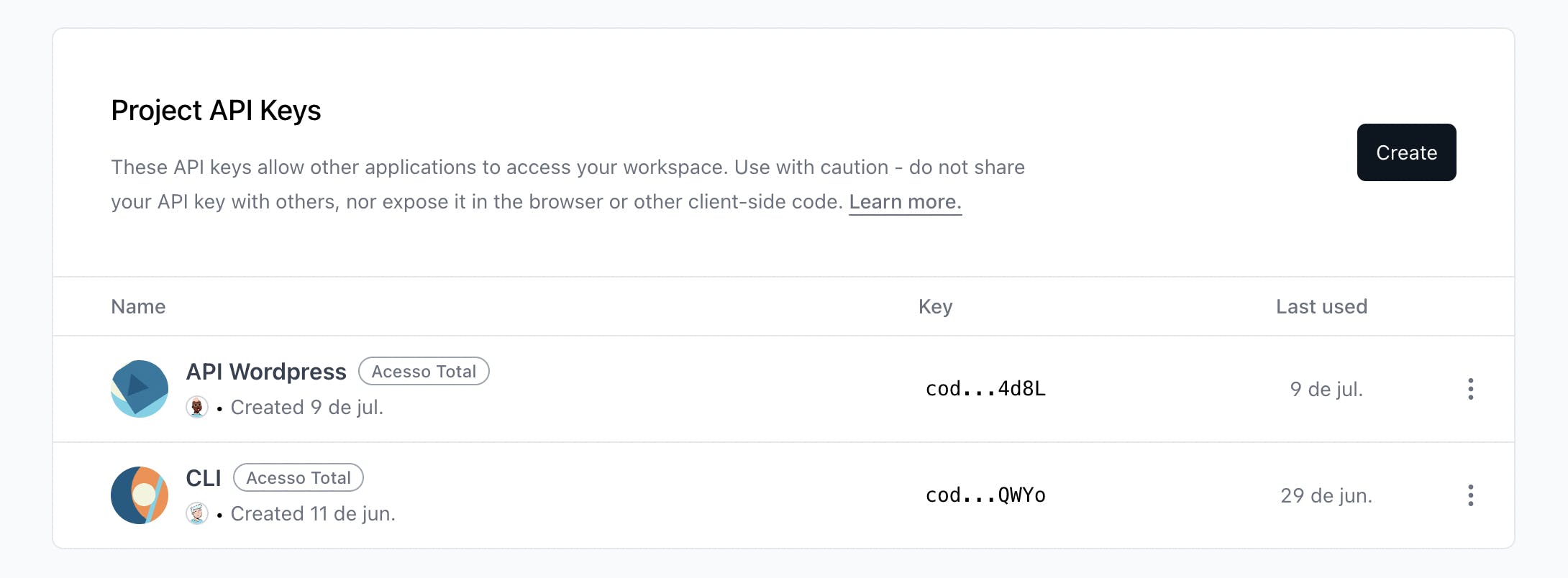
- Click on "Create" to generate a new key
- Select the required permissions
- Copy and store the key securely
Learn more about how to get your API key.
2. Set up authentication
All requests must include your API key in the authorization header:
Authorization: Bearer codeqr_xxxxxxxx
3. Get Your Project Slug
In addition to your API key, you need your project's project slug. This parameter is required for all requests:
How to find your project slug:
- Access your project in the CodeQR dashboard
- The slug appears in the URL: app.codeqr.io/[acme]
- Example: if the URL is app.codeqr.io/acme, the slug is marketing
- Or go to Settings > Project to see the configured slug
4. API Base URL
All requests must be made to:
https://api.codeqr.io
Important: All requests must include the projectSlug parameter in the query string.
Creating Your First QR Code
Basic URL QR Code
The minimum required parameter is the destination URL:
curl --request POST \
  --url https://api.codeqr.io/qrcodes?projectSlug=acme \
  --header 'Authorization: Bearer codeqr_your_api_key' \
  --header 'Content-Type: application/json' \
  --data '{
    "type": "url",
    "url": "https://codeqr.io/blog",
}'
Scan to access

API Response:
 {
	"id": "cmf6yawg30001pqrwjhd1bdxe",
	"domain": "expol.ink",
	"key": "iympEuajxgeP-qr",
	"archived": false,
	"expiresAt": null,
	"expiredUrl": null,
	"password": null,
	"externalId": null,
	"trackConversion": false,
	"proxy": false,
	"title": null,
	"description": null,
	"image": "https://res.cloudinary.com/dhnaggn4g/image/upload/v1757085378/expol.ink/iympEuajxgeP-qr.png",
	"utm_source": null,
	"utm_medium": null,
	"utm_campaign": null,
	"utm_term": null,
	"utm_content": null,
	"rewrite": false,
	"doIndex": false,
	"flexible": false,
	"filled": true,
	"ios": null,
	"android": null,
	"geo": null,
	"static": false,
	"type": "url",
	"contentStatic": null,
	"text": null,
	"email": null,
	"wifi": null,
	"url": "https://codeqr.io/blog",
	"phone": null,
	"vcard": null,
	"crypto": null,
	"sms": null,
	"facetime": null,
	"latlog": null,
	"pix": null,
	"logo": null,
	"bgColor": "#FFFFFF",
	"fgColor": "#000000",
	"size": 1024,
	"level": "H",
	"showLogo": true,
	"src": "https://res.cloudinary.com/dhnaggn4g/image/upload/v1741477675/logos/clwazhjsm00002nx4heuc6vge.png",
	"height": 153,
	"width": 153,
	"excavate": true,
	"pattern": "default",
	"shape": "none",
	"frame": "none",
	"frameColor": "#000000",
	"frameText": null,
	"userId": "cmbsr6sky0000ljvvbzz5qjkj",
	"projectId": "clwazhjsm00002nx4heuc6vge",
	"preRedirection": false,
	"pageId": null,
	"pageUrl": null,
	"isFormMandatory": false,
	"publicStats": false,
	"scans": 0,
	"lastClicked": null,
	"leads": 0,
	"sales": 0,
	"saleAmount": 0,
	"createdAt": "2025-09-05T14:49:17.761Z",
	"updatedAt": "2025-09-05T15:16:21.270Z",
	"tagId": null,
	"comments": "",
	"notificationToken": null,
	"tags": [],
	"shortLink": "https://expol.ink/iympEuajxgeP-qr",
	"webhookIds": []
}
Important response fields
The API response contains several useful fields you can use in your application:
image - QR code image URL
- Use this field to display the QR code
- Example: https://res.cloudinary.com/.../qr.png
shortLink - Shortened link
- Redirects to the original URL
- Example: https://expol.ink/zfNIPj8Mv24Q-qr
id - Unique identifier
- Use for future operations (update, delete)
- Example: cm9zsbu1f00019imtllva1p35
key - Custom slug
- Custom name (if provided)
- Example: zfNIPj8Mv24Q-qr
scans - Scan counter
- Updated in real time
- Example: 500
createdAt - Creation date
- ISO 8601 timestamp
- Example: 2025-04-27T15:09:08.689Z
💡 Tip: The image field is especially important—it contains the direct URL to the QR code image that you can use in your application, website, or print materials.
JavaScript Example
const response = await fetch("https://api.codeqr.io/qrcodes?projectSlug=acme", {
  method: "POST",
  headers: {
    Authorization: "Bearer codeqr_your_api_key",
    "Content-Type": "application/json",
  },
  body: JSON.stringify({
    type: "url",
    url: "https://codeqr.io/blog",
  }),
});

const qrCode = await response.json();
console.log("QR Code criado:", qrCode.shortLink);
console.log("Imagem do QR Code:", qrCode.image);
Customizing QR Codes
Visual appearance
You can fully customize the appearance of your QR code:
curl --request POST \
  --url https://api.codeqr.io/qrcodes?projectSlug=acme \
  --header 'Authorization: Bearer codeqr_your_api_key' \
  --header 'Content-Type: application/json' \
  --data '{
	"type": "url",
	"url": "https://codeqr.io/blog",
	"static": false,
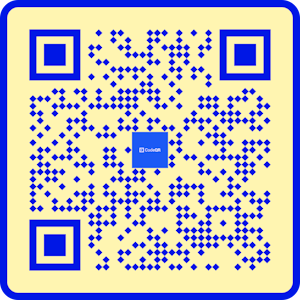
	"bgColor": "#fff5b1",
	"fgColor": "#0017e5",
	"showLogo": true,
	"pattern": "diamond",
	"shape": "square",
	"frame": "none"
}'
Result
Customization parameters
bgColor (string) - The QR code background color
- Example: #fff5b1
fgColor (string) - The QR code foreground color
- Example: #0017e5
size (number) - The QR code size
- Example: 1024
level (string) - The QR code error correction level
- Example: M
showLogo (boolean) - Whether the logo should be displayed in the QR code
- Example: true
src (string | null) - The QR code image URL
- Example: enter src
height (number) - The height of the QR code
- Example: 256
width (number) - The width of the QR code
- Example: 256
excavate (boolean) - Whether the QR code should have excavated areas
- Example: true
pattern (string) - The shape pattern of the QR code modules
- Accepted values: default, circles, diamond, triangles, squares, circles, stars, hearts
- Example: diamond
shape (string) - The shape design around the QR code
- Accepted values: none, square, circle
- Example: circle
Organization and identification
curl --request POST \
  --url https://api.codeqr.io/qrcodes?projectSlug=acme \
  --header 'Authorization: Bearer codeqr_your_api_key' \
  --header 'Content-Type: application/json' \
  --data '{
    "url": "https://codeqr.io/blog",
    "key": "meu-qr-personalizado",
    "title": "QR Code do Produto",
    "description": "QR code para página do produto",
    "externalId": "PROD-001",
    "tagIds": ["tag1", "tag2"]
  }'
Available QR Code Types
1. Text QR Code
curl --request POST \
  --url https://api.codeqr.io/qrcodes \
  --header 'Authorization: Bearer codeqr_your_api_key' \
  --header 'Content-Type: application/json' \
  --data '{
    "type": "url",
    "url": "https://codeqr.io/blog",
}'
2. Text QR Code
curl --request POST \
  --url https://api.codeqr.io/qrcodes?projectSlug=acme \
  --header 'Authorization: Bearer codeqr_your_api_key' \
  --header 'Content-Type: application/json' \
  --data '{
    "type": "text",
    "text": "Olá! Este é um QR code de texto."
  }'
3. Email QR Code
curl --request POST \
  --url https://api.codeqr.io/qrcodes?projectSlug=acme \
  --header 'Authorization: Bearer codeqr_your_api_key' \
  --header 'Content-Type: application/json' \
  --data '{
    "type": "email",
    "email": {
      "to": "contact@codeqr.io",
      "subject": "Assunto do email",
      "body": "Corpo do email"
    }
  }'
4. WiFi QR Code
curl --request POST \
  --url https://api.codeqr.io/qrcodes \
  --header 'Authorization: Bearer codeqr_your_api_key' \
  --header 'Content-Type: application/json' \
  --data '{
    "type": "wifi",
    "wifi": {
      "ssid": "NomeDaRede",
      "password": "senha123",
      "security": "WPA"
    }
  }'
5. Phone QR Code
curl --request POST \
  --url https://api.codeqr.io/qrcodes?projectSlug=acme \
  --header 'Authorization: Bearer codeqr_your_api_key' \
  --header 'Content-Type: application/json' \
  --data '{
    "type": "phone",
    "phone": "+5511999999999"
  }'
6. Location QR Code
curl --request POST \
  --url https://api.codeqr.io/qrcodes?projectSlug=acme \
  --header 'Authorization: Bearer codeqr_your_api_key' \
  --header 'Content-Type: application/json' \
  --data '{
    "type": "latlog",
    "latlog": {
      "latitude": -23.5505,
      "longitude": -46.6333
    }
  }'
Advanced Settings
Access control
Protect your QR codes with password and expiration date:
curl --request POST \
  --url https://api.codeqr.io/qrcodes?projectSlug=acme \
  --header 'Authorization: Bearer codeqr_your_api_key' \
  --header 'Content-Type: application/json' \
  --data '{
    "type": "url",
    "url": "https://codeqr.io/blog",
    "password": "password123",
    "expiresAt": "2025-12-05T17:10:00.000Z",
  }'
Device-based redirection
Redirect users to different URLs based on device:
curl --request POST \
  --url https://api.codeqr.io/qrcodes?projectSlug=acme \
  --header 'Authorization: Bearer codeqr_your_api_key' \
  --header 'Content-Type: application/json' \
  --data '{
    "url": "https://codeqr.io/blog",
    "ios": "https://apps.apple.com/us/app/qr-code-generator-and-reader/id1623860555",
    "android": "https://play.google.com/store/apps/details?id=com.losenvo.codeqrlink"
  }'
Location-based redirection
Customize the user experience based on location:
curl --request POST \
  --url https://api.codeqr.io/qrcodes?projectSlug=acme \
  --header 'Authorization: Bearer codeqr_your_api_key' \
  --header 'Content-Type: application/json' \
  --data '{
    "type": "url",
    "url": "https://codeqr.io/blog",
    "geo": {
      "BR": "https://exemplo.com/brasil",
      "US": "https://exemplo.com/usa",
      "GB": "https://exemplo.com/uk"
    }
  }'
UTM parameters for analytics
Track the performance of your QR codes:
curl --request POST \
  --url https://api.codeqr.io/qrcodes?projectSlug=acme \
  --header 'Authorization: Bearer codeqr_your_api_key' \
  --header 'Content-Type: application/json' \
  --data '{
    "type": "url",
    "url": "https://exemplo.com",
    "utm_source": "marketing",
    "utm_medium": "qr_code",
    "utm_campaign": "promocao_2025",
    "utm_term": "produto",
    "utm_content": "banner"
  }'
Error Handling
Common error codes
bad_request (400) - Malformed request
- Solution: Check data formatting
unauthorized (401) - Invalid API key
- Solution: Check API key
forbidden (403) - No permission
- Solution: Check key permissions
not_found (404) - Resource not found
- Solution: Check QR code ID/URL
conflict (409) - Conflict (e.g., duplicate key)
- Solution: Use a unique key
rate_limit_exceeded (429) - Rate limit exceeded
- Solution: Wait and try again
internal_server_error (500) - Internal server error
- Solution: Try again later
Best Practices
1. Security
- Never expose API keys in the frontend
- Use environment variables to store credentials
- Implement regular key rotation
- Use keys with minimum required permissions
2. Performance
- Implement caching for frequently accessed QR codes
- Use pagination for large lists
- Monitor rate limits and implement retry logic
- Consider webhooks for real-time updates
3. Monitoring
- Implement logging for all operations
- Use UTM parameters for tracking
- Set up alerts for critical errors
- Monitor abnormal API usage
4. Validation
- Validate all URLs before creating QR codes
- Check required data formats
- Test on different devices and browsers
- Implement robust input validation
Next Steps
Now that you know how to create QR codes via the API, explore these advanced features:
1. QR Code Management
2. Batch Operations
3. Advanced Features
4. SDK Integration
Additional Resources
Official Documentation
Related Articles
- How to use link cloaking on CodeQR
- How to create password-protected links
- How to use tags on CodeQR
- Integration with ActiveCampaign
Support
Conclusion
The CodeQR API offers a complete and flexible solution for programmatically creating QR codes. With this guide, you have learned:
- ✅ How to set up authentication and make your first request
- ✅ How to customize QR code appearance and behavior
- ✅ Different types of available QR codes
- ✅ Advanced settings for specific use cases
- ✅ Practical examples in JavaScript, Python, and PHP
- ✅ Error handling and best practices
Now you are ready to integrate QR code creation into your applications and take full advantage of the CodeQR platform!
Was this article helpful? Share it with your team and explore more resources in the CodeQR documentation.