
How to Import Links from a CSV File
Learn how to easily import your links from a CSV file into CodeQR. Perfect for bulk link imports or migrating from other providers.


You can import your existing links into CodeQR via our CSV import feature. This is useful if you have a large list of links to import or if you want to migrate links from another provider.
Step 1: Prepare Your CSV File
Before uploading, make sure your CSV file is formatted correctly. Your CSV file should have the following columns:
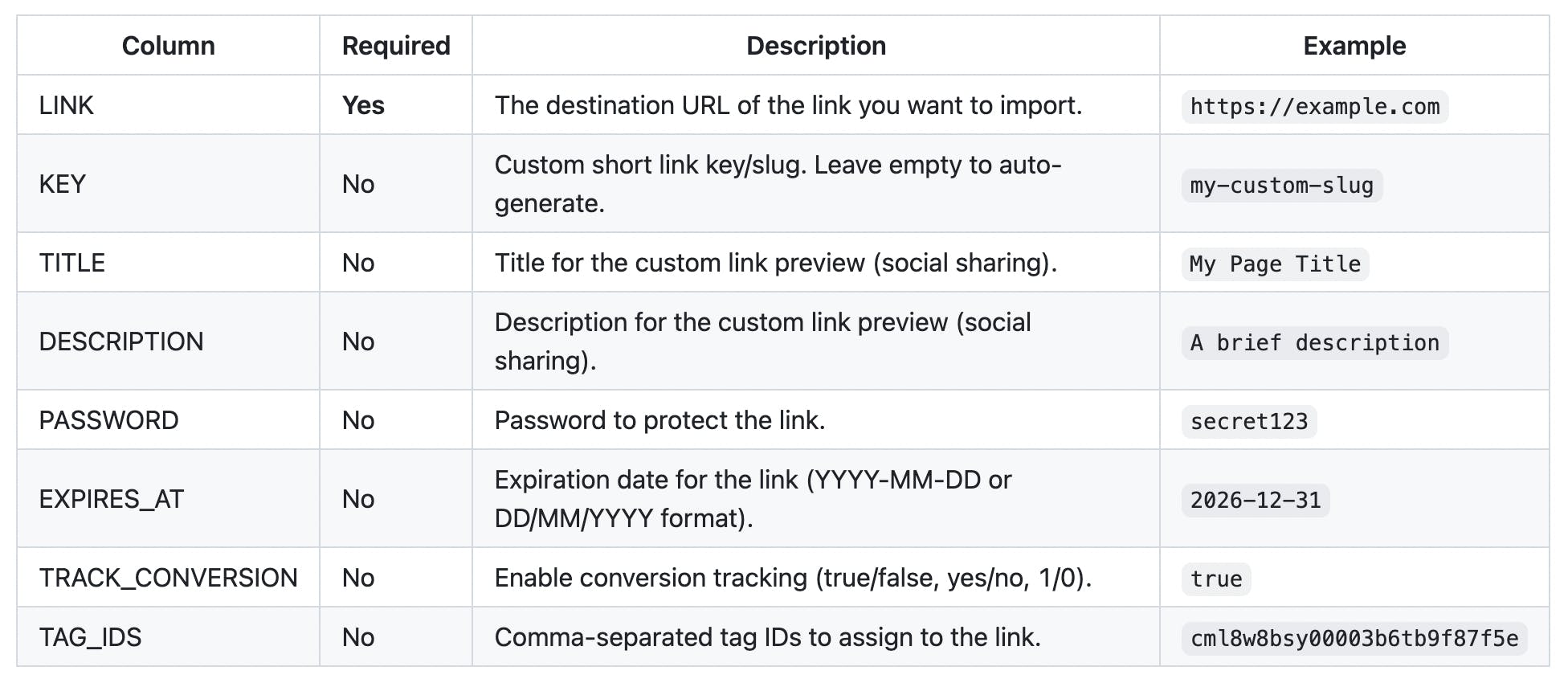
CSV Format Notes
- The column names can be customized - you will map them during import
- Use semicolon (;) or comma (,) as delimiter - both are supported
- Wrap values in quotes if they contain special characters
- Leave optional columns empty if not needed
Sample CSV File
Here's an example of a properly formatted CSV file:
LINK,KEY,TITLE,DESCRIPTION,PASSWORD,EXPIRES_AT,TRACK_CONVERSION,TAG_IDS
https://example.com/page1,my-link,My Page,A great landing page,,,true,
https://example.com/page2,,Second Page,Another description,secret123,2026-12-31,false,
https://example.com/page3,promo,,,,,no,
You can also download a sample CSV file directly from the import modal.
Step 2: Open the Import Modal
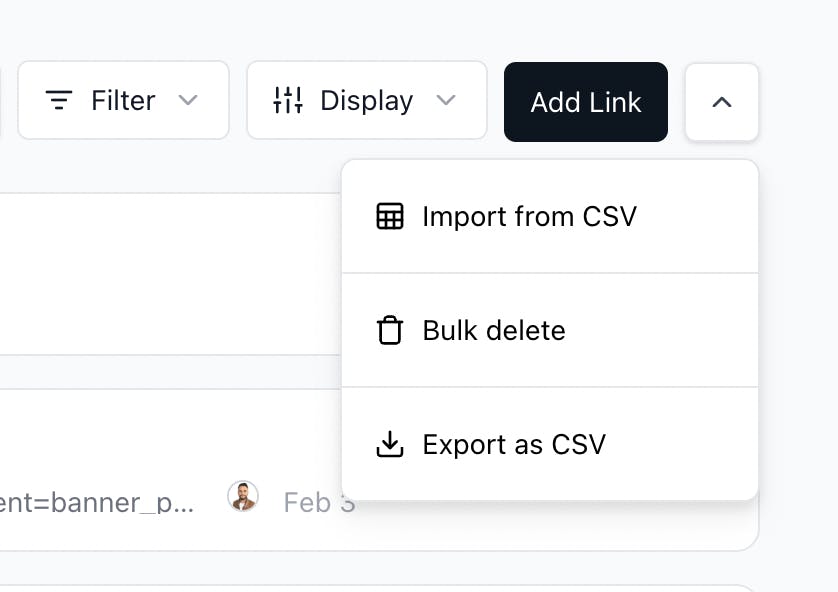
From your Links dashboard, click on the dropdown arrow (⋮) next to the Add Link button and select Import from CSV.
Step 3: Upload Your CSV File
The import modal will open with a file upload area. You can either:
- Click to browse and select your CSV file, or
- Drag and drop your CSV file into the upload area
Note: The maximum file size is 2MB.
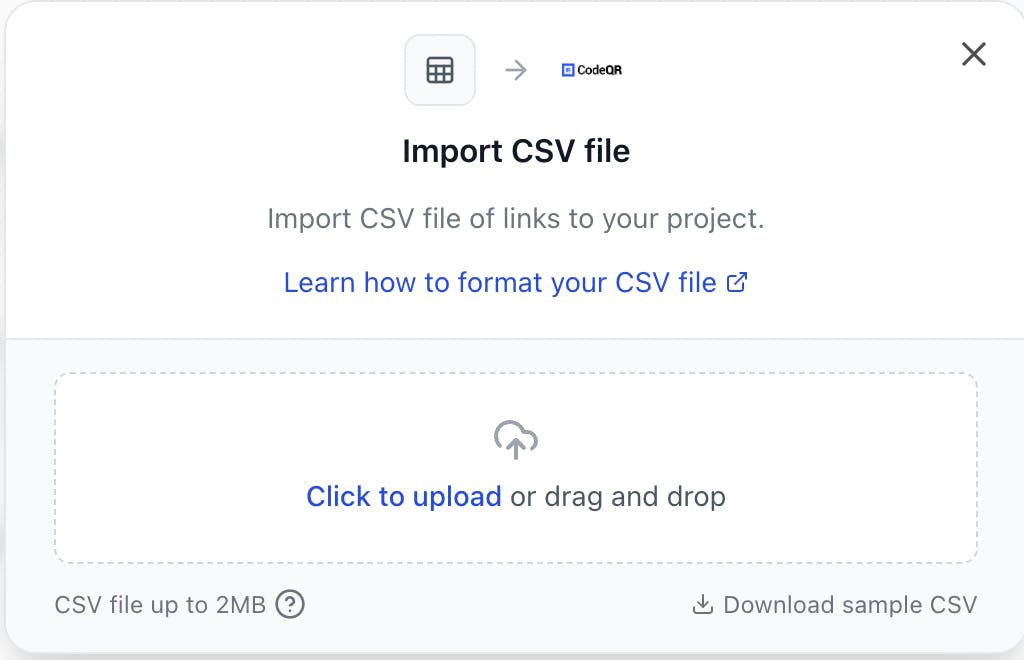
You can also click Download sample CSV to get a template file with the correct format.
Step 4: Map Your Columns
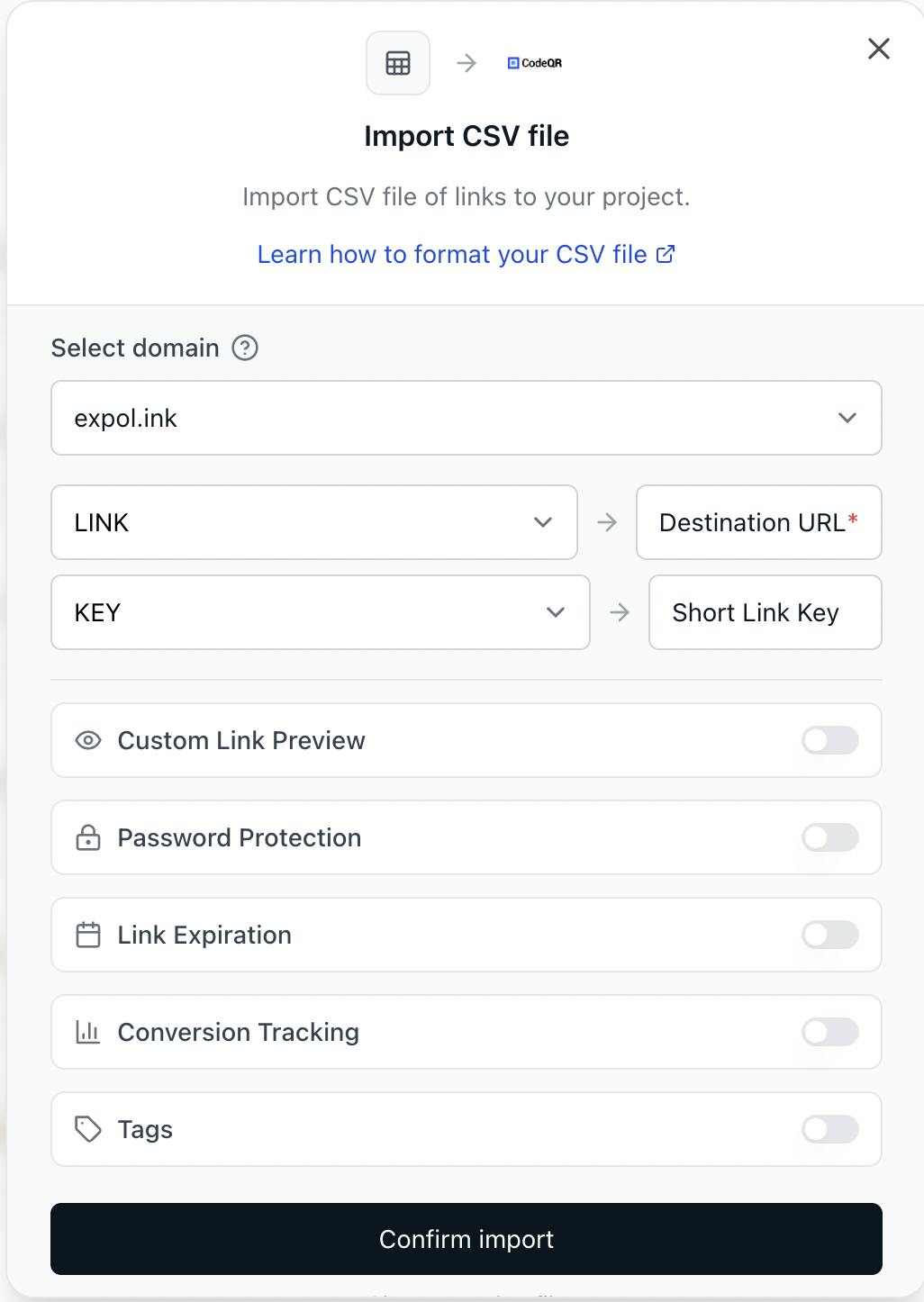
After uploading, CodeQR will automatically detect the columns in your CSV file and attempt to map them to the corresponding fields. You can review and adjust the mappings as needed.
Required Mapping
- Destination URL (required): Select the column containing your destination URLs
Optional Features
You can enable additional features by toggling the switches:
- Custom Link Preview: Map Title and Description columns for social sharing previews
- Password Protection: Map a Password column to protect links
- Link Expiration: Map an expiration date column
- Conversion Tracking: Map a column to enable/disable conversion tracking per link
- Tags: Map a column containing tag IDs
Select Domain
Choose the domain for your imported links from the dropdown. All links will be created under this domain.
Once you've reviewed the mappings, click Confirm import.
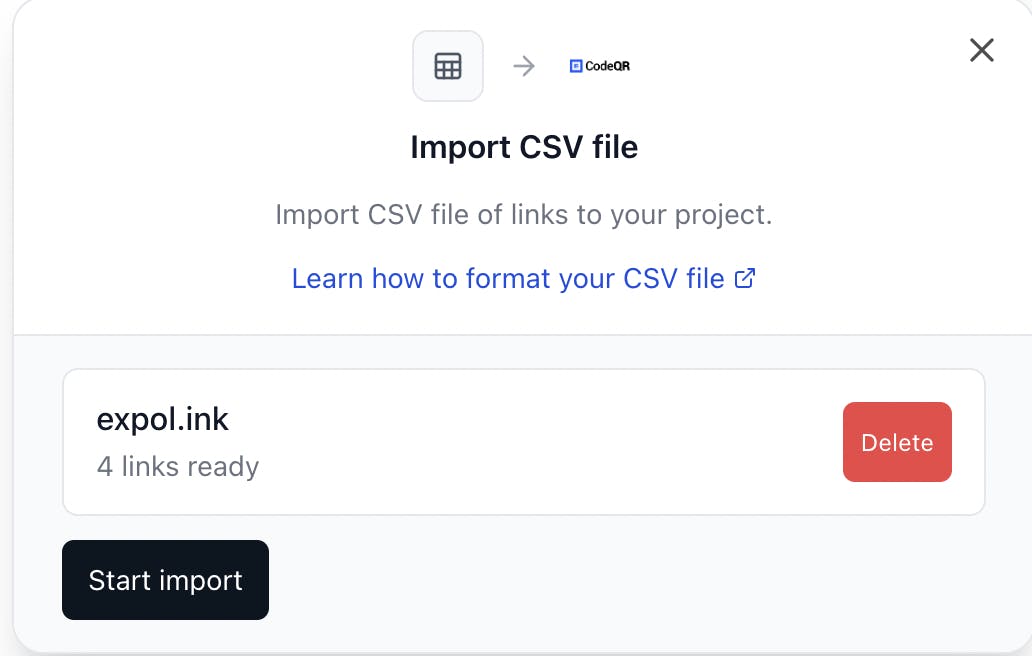
Step 5: Review Import Summary
After confirming, you'll see a summary showing how many links are ready to be imported. You can:
- Click Start import to begin the import process
- Click Delete if you want to cancel and start over
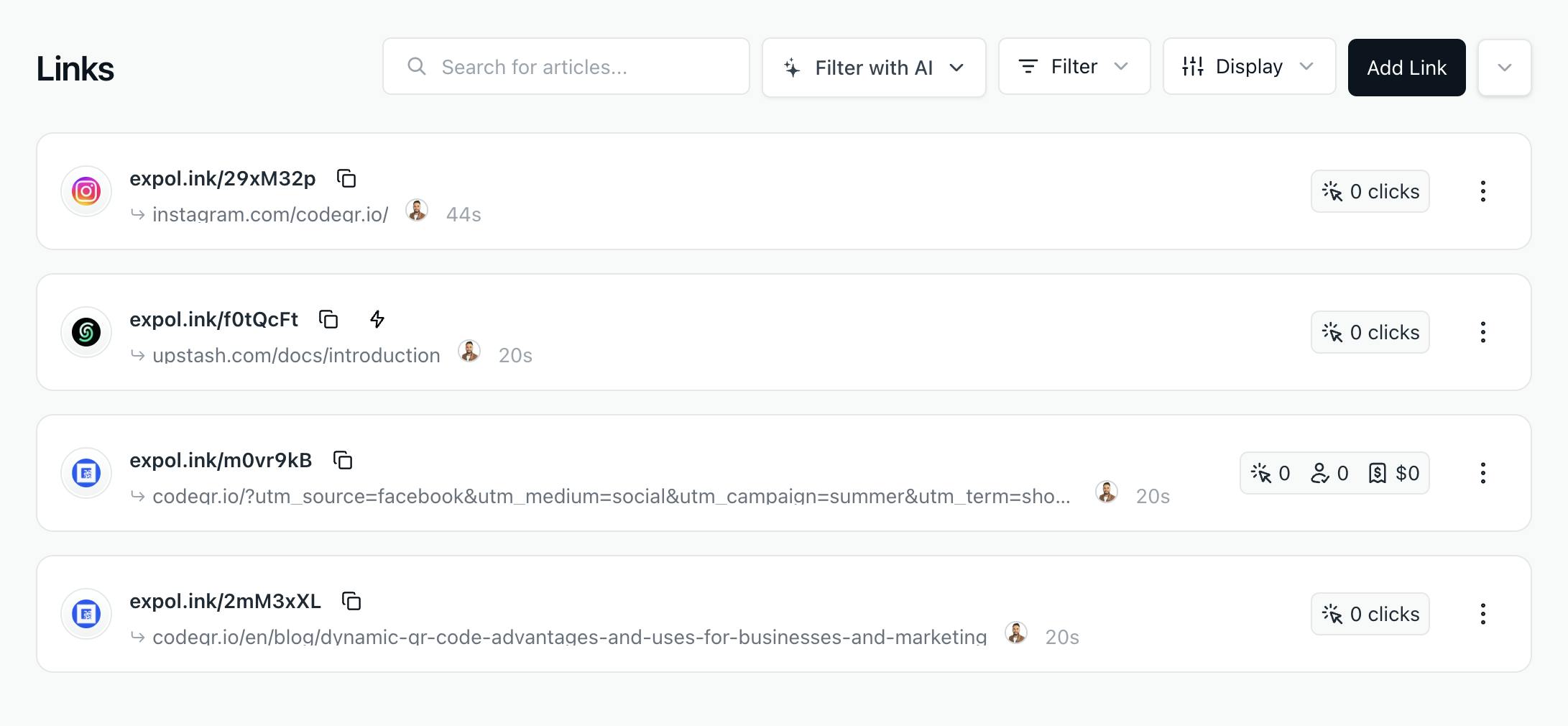
Step 6: View Your Imported Links
Once the import is complete, you'll be redirected to your Links dashboard where you can see all your newly imported links.
Troubleshooting
Common Validation Errors
If your CSV contains invalid data, you'll see validation errors before the import proceeds. Common issues include:
- Invalid URL: Make sure all destination URLs are valid (starting with http:// or https://)
- Invalid boolean value: Use true, false, yes, no, 1, or 0 for boolean fields
- Invalid date format: Use YYYY-MM-DD or DD/MM/YYYY format for dates
Tips for Successful Imports
- Test with a small file first: Start with a few links to verify your format is correct
- Check for special characters: Wrap values containing commas or quotes in double quotes
- Verify URLs: Ensure all destination URLs are complete and valid
- Use consistent formatting: Keep date formats and boolean values consistent throughout