
Use tags to filter links, QR codes and pages
Tag links, QR codes and pages so you can filter them and compare campaigns in Analytics — how many tags each plan allows, and what deleting one does.

A tag is a label you can put on a link, a QR code or a page, and the same item can carry several. That is what makes tags the tool for reporting: one campaign tag can span clients, channels and months, and Analytics can filter by it.
Availability
- Plan: every plan, with a limit on how many distinct tags a workspace can hold: Free 2 · Starter 25 · Pro 50 · Business 150 · Scale 1000. The limit counts tags, not tagged items.
- Where: Settings → Tags, and the Tags field in the link, QR code and page builders.
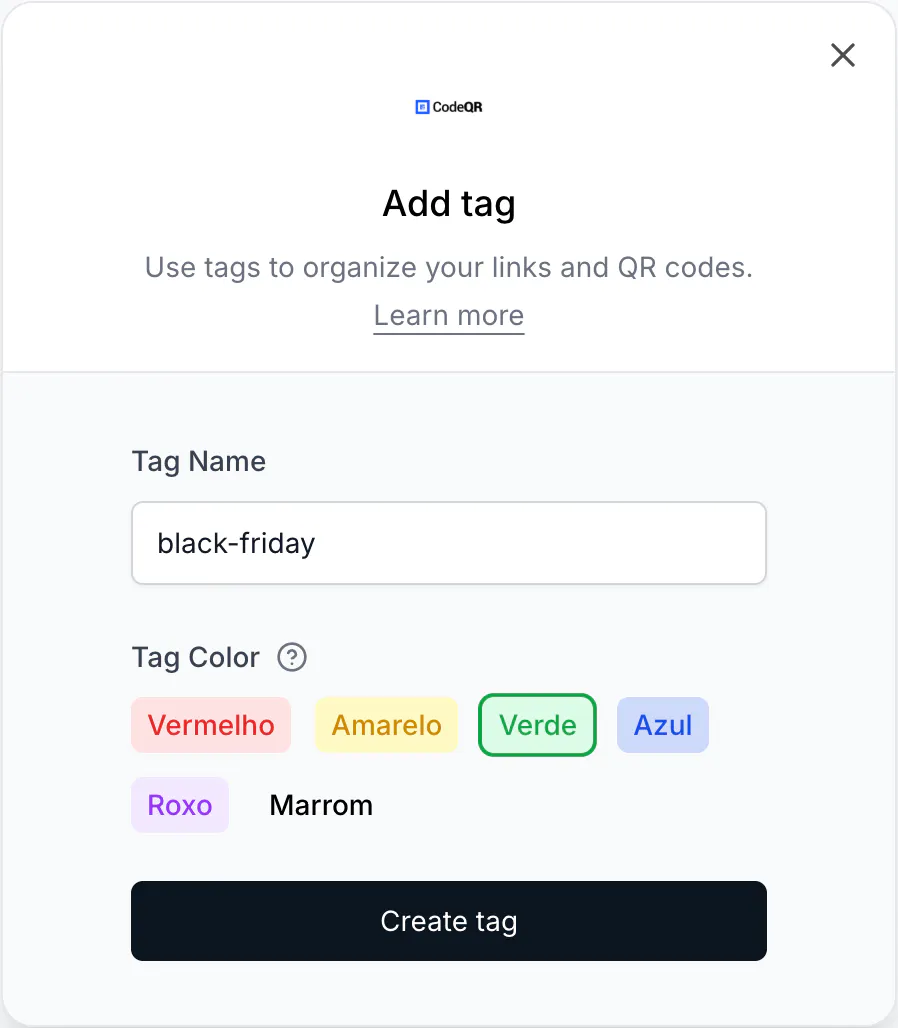
- Colors: the picker offers six — red, yellow, green, blue, purple and brown. A seventh,
pink, is accepted by the API only.
Before you start
Agree on what a tag means before creating many. A tag list that grew by accident is worse than none, because filters stop being trustworthy. Choose between folders and tags to organize links explains when a grouping should be a tag at all, and Name links so your team can find them later covers the vocabulary.
Steps
- Open Settings → Tags.
- Select Adicionar. The button keeps a Portuguese label in the English interface.
- Type a name in Tag Name and pick a color in Tag Color.
- Select Create tag.
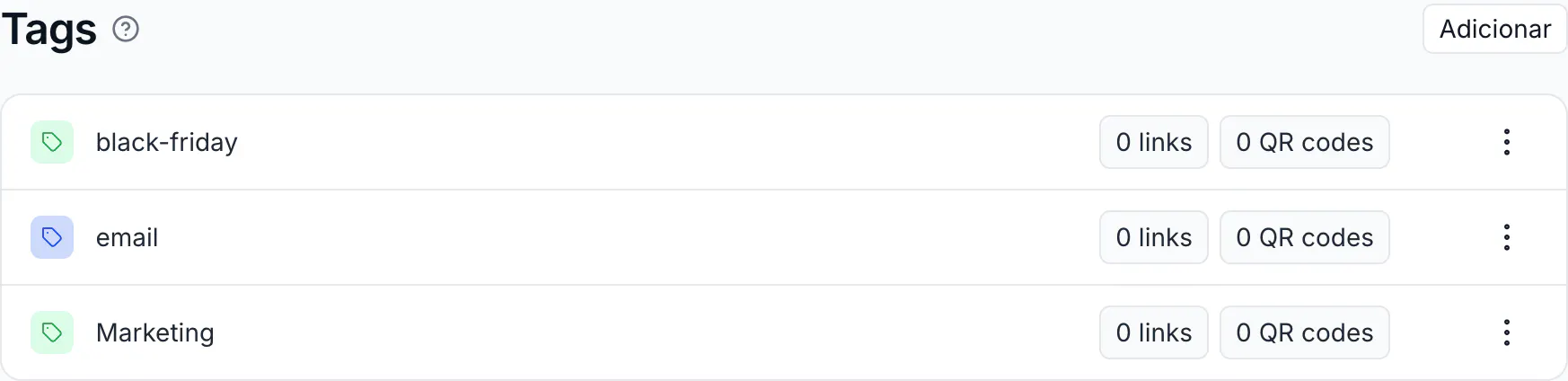
The tag joins the list, each row showing how many links and QR codes carry it:
Then, in the link, QR code or page builder, pick the tag in Tags and save. An item can carry more than one, and a tag can also be created from the builder while you add it.
Filter by tag
In the Links and QR Codes lists, filter by tag to see everything carrying it, across folders. The filter combines with the others — a domain, a folder, a search term — so black-friday inside the Client A folder is one click plus one selection.
Tags in Analytics
Analytics can filter by tag, which is the practical difference between tags and folders: a tag can slice a report, a folder cannot. Filter a report by black-friday and you get the clicks, scans and conversions for that campaign regardless of where the links live.
What deleting a tag does
It does not delete anything. The tag disappears and the items that carried it stop carrying it. Links keep working, statistics stay intact, and any other tags on those items remain.
Renaming works the same way: the items follow the new name, and past reports group under it.
Do the same with the API
curl -X POST https://api.codeqr.io/tags \
  -H "Authorization: Bearer codeqr_xxxxxxxxxxxxxxxxxxxxxxxx" \
  -H "Content-Type: application/json" \
  -d '{"tag":"black-friday","color":"blue"}'
The color field accepts red, yellow, green, blue, purple, pink and brown. Omit it and a color is picked for you.
Attach tags when creating a link by passing their names:
curl -X POST https://api.codeqr.io/links \
  -H "Authorization: Bearer codeqr_xxxxxxxxxxxxxxxxxxxxxxxx" \
  -H "Content-Type: application/json" \
  -d '{"url":"https://example.com","domain":"go.example.com","tagNames":["black-friday","email"]}'
An AI assistant connected over MCP can list and create tags.
Verify it works
Tag one link, then filter the Links list by that tag: the link appears and everything else disappears. Then open Analytics and filter by the same tag — the numbers should match that link's counters.
Troubleshooting
I cannot create another tag
The workspace reached its plan's limit — 2 on Free, 25 on Starter, 50 on Pro, 150 on Business. Delete tags you no longer filter by; deleting one costs nothing but the label.
Two tags mean the same thing
Rename one to match the other and re-tag the items, then delete the duplicate. Analytics follows the current name.
The tag filter returns nothing
Check that you are filtering the right list, and that the items you expect carry the tag rather than only a similar name. Filters are exact.
Can I tag pages and QR codes too
Yes. Tags apply to links, QR codes and pages alike, and the filter works in each list.
The brown tag shows no color
Marrom appears in the picker, but no style is defined for that value, so the swatch and every tag created with it render without color. Pick another color until that is corrected.
Can tags be applied automatically
No. Every tag is applied by a person or by your own code through the API.