
How to create password-protected links in CodeQR?
Learn how to protect your short links with a password in CodeQR to prevent unauthorized access.

This feature is only available to Starter and higher plans.
CodeQR's password protection feature is useful when you want to share a link with a group of people and make sure that only the intended recipients can access the link.
In this guide, we'll show you how to create password-protected links in CodeQR.
1. Create a link
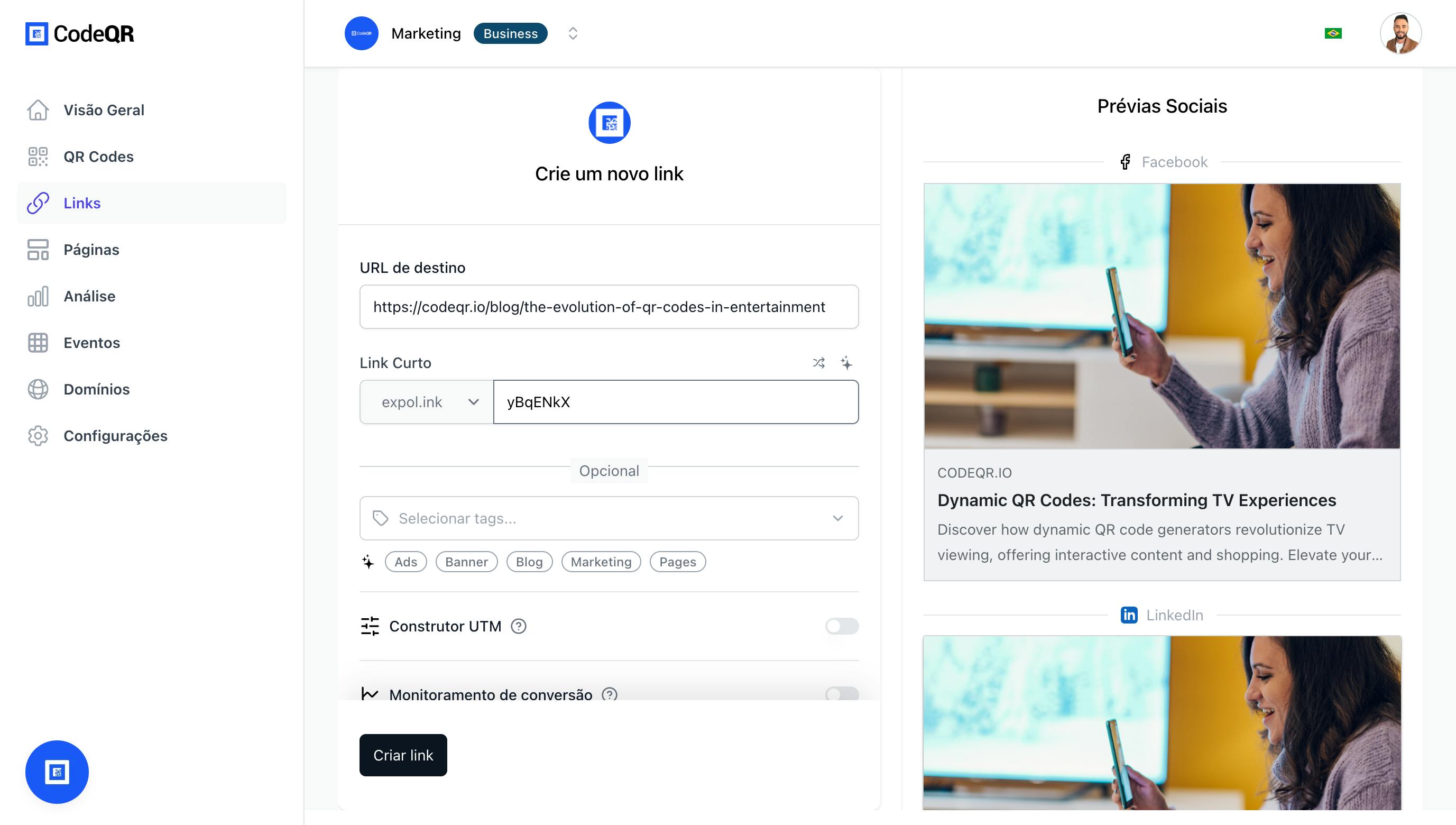
First, create a link by clicking the Create Link button in the top right corner of the CodeQR dashboard.
Then enter your destination URL and, optionally, a custom short link for it.
2. Enter a password
To use this feature, click to enable Password Protection in the link builder. This will open a field where you can enter your password.
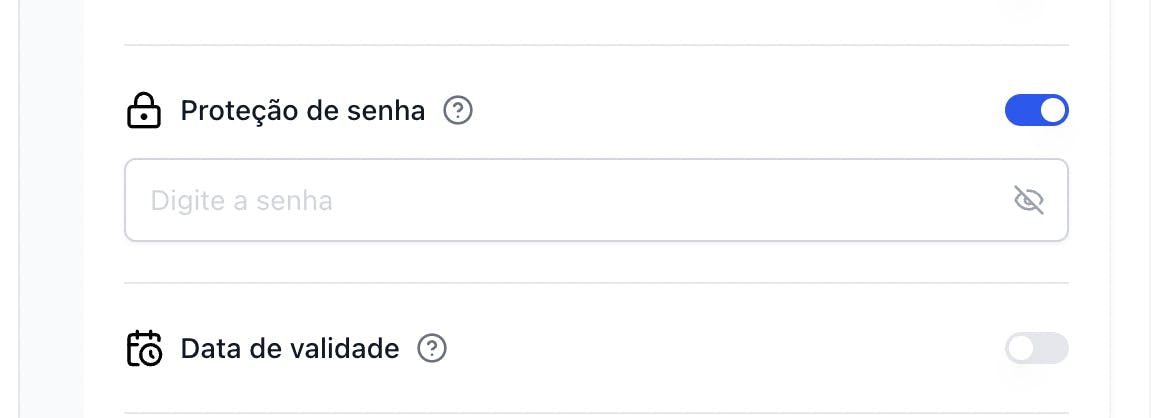
Next, enter a password for the link or generate a random one, and click Create link.
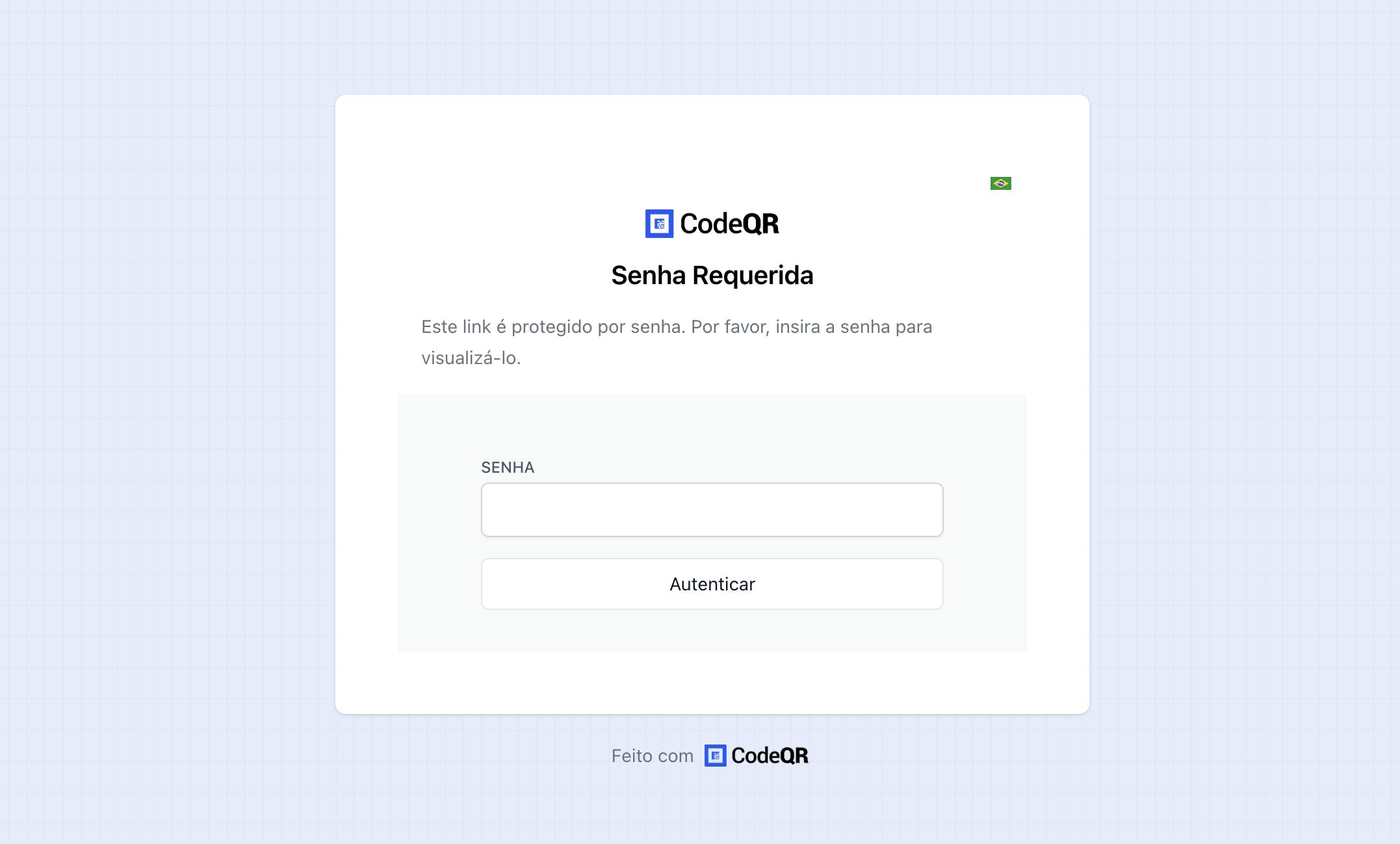
When you share your link, the user will be prompted to enter a password before they can access the destination URL.
3. Pass the password in the URL (optional)
Optionally, you can also pass a pw query parameter to the link to automatically authenticate and redirect the user to the destination URL.
Here's an example:
- Password-protected link: codeqr.link/password
- Password-protected link with the password included in the URL as a query parameter: codeqr.link/password?pw=123456
Advantages of password parameter in the URL:
- Frictionless experience for authorized users
- Simplified sharing in closed groups
- Automation for processes that need access to the link
- Integration with systems that manage passwords
Security considerations:
- Server logs may record the password in the URL
- Browser history stores the password
- Accidental sharing of the full URL
- Use only for temporary or low-sensitivity passwords
4. Set a custom logo for the password page (optional)
On the Starter plan and above, you can also set a custom logo for the password page. That's useful if you want to brand the password page with your company logo.
The logo on your password page is linked to your project's logo in CodeQR. You can set this up by following the steps below:
Steps to set up a custom logo:
- Go to the settings page for your project by clicking the Settings link in the menu bar at the top of your project dashboard.
- Scroll down to the Project Logo section and upload your company's logo. We recommend using a square image for best results.
- Save the changes and your logo will be applied automatically.
Once you’ve set your project logo, your password page will automatically use your project's logo.
Use cases for password-protected links
1. Confidential business content
- Internal documents that should not be public
- Training materials exclusive to employees
- Financial reports for authorized stakeholders
- Sensitive business strategies
2. Private events and webinars
- Access links for exclusive events
- Support materials for registered participants
- Recordings of private sessions
- Supplementary resources for members
3. Premium and educational content
- Paid courses with restricted access
- Ebooks and guides for subscribers
- Exclusive webinars for premium customers
- Member resources for paid communities
4. Targeted marketing campaigns
- Special offers for specific groups
- Product previews for beta testers
- Exclusive content for influencers
- Press materials for accredited journalists
Password management strategies
1. Temporary passwords
Formato: EVENTO-DDMM-HHMM
Exemplo: WEBINAR-2712-1430
Validade: 24 horas
2. Group passwords
Equipe de vendas: VENDAS2024
Equipe de marketing: MARKETING2024
Parceiros: PARCEIROS2024
Clientes VIP: VIP2024
3. Hierarchical passwords
Nível 1 (básico): ACESSO-BASICO
Nível 2 (intermediário): ACESSO-PREMIUM
Nível 3 (avançado): ACESSO-EXECUTIVO
4. Rotating passwords
- Weekly: Changes every Monday
- Monthly: Renews on the first day of the month
- Per event: New password for each event
- On demand: Change as needed
Security best practices
1. Creating strong passwords
- Minimum length: 8-12 characters
- Complexity: Letters, numbers, and symbols
- Avoid: Common words, obvious dates
- Automatic generation: Use secure password generators
2. Distributing passwords
- Secure channels: Encrypted email, private messages
- Avoid: Public social networks, shared documents
- Separation: Send link and password separately
- Confirmation: Confirm receipt with recipients
3. Monitoring and auditing
- Access logs: Record all attempts
- Pattern analysis: Identify suspicious behavior
- Regular reports: Review accesses periodically
- Automatic alerts: Set up notifications for anomalies
4. Renewal and revocation
- Regular schedule: Change passwords periodically
- Immediate revocation: Remove access when necessary
- Communication: Inform about password changes
- Backup: Keep records of previous passwords
Troubleshooting common problems
1. Users cannot access
Symptoms: Correct password rejected Solutions:
- Check if the password has expired
- Confirm if the link hasn’t been changed
- Check case sensitivity settings
2. Password page does not load
Symptoms: 404 error or timeout Solutions:
- Check if the base link is working
- Confirm DNS settings
- Try a different browser
- Check company firewall/proxy
3. Custom logo doesn’t appear
Symptoms: Default logo instead of custom Solutions:
- Check image format (PNG, JPG, SVG)
- Confirm image size (max 2MB)
- Wait for cache update (up to 1 hour)
- Try an incognito browser
4. pw parameter does not work
Symptoms: Password page appears even with ?pw=password Solutions:
- Check if the password in the URL is correct
- Confirm if the feature is enabled
- Try without special characters in the password
- Check URL encoding
Related articles
- How to create a short link in CodeQR
- How to set up custom views for your links
- How to use link cloaking in CodeQR
- How to set an expiration date for your CodeQR links
- How to use device targeting in CodeQR
- How to use geographic targeting in CodeQR
- How search engine indexing works in CodeQR
- How to set up custom domains in CodeQR