
Duplicate Links & QR Codes + Templates
Learn to duplicate links/QR codes & use templates in CodeQR. Copy settings, UTM tags & designs in just a few clicks.

Why duplicate or use templates?
- Save time: Reuse the same base (URL, UTM, design, options) without redoing everything.
- Consistency: Keep the same campaign, brand, or tracking standards across items.
- Team workflow: Templates are visible to the whole workspace; anyone can start from the same base.
No new link or QR code is created until you click Save. Whether you duplicate or use a template, what opens is the creation form already pre-filled, with a new key/slug. You can change whatever you want and only then save.
Where to find it: the two ways
There are two ways to create a new link or QR code from an existing one:
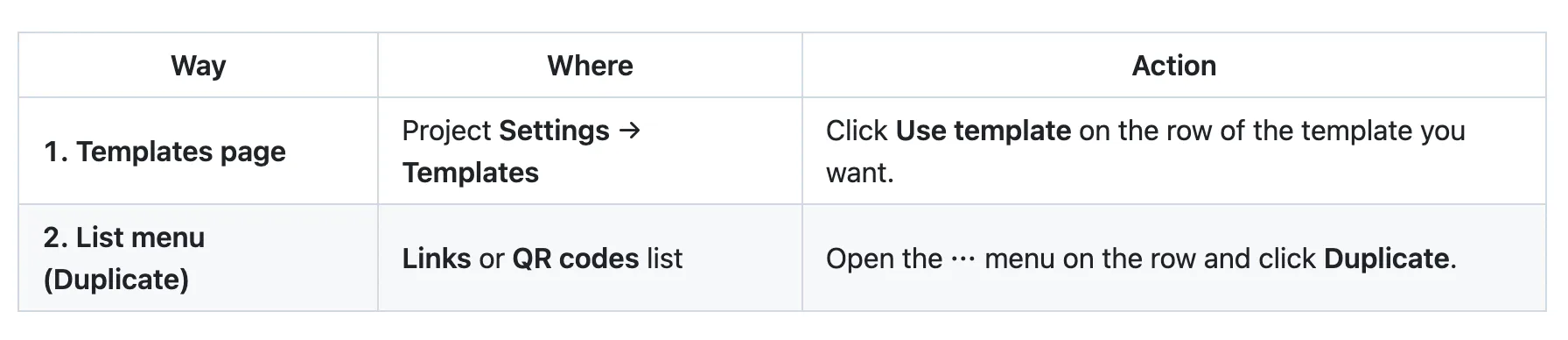
Way 1 only uses items you have marked as templates. Way 2 works with any link or QR code in the list — it does not need to be marked as a template.
Way 1: Use a template on the Templates page
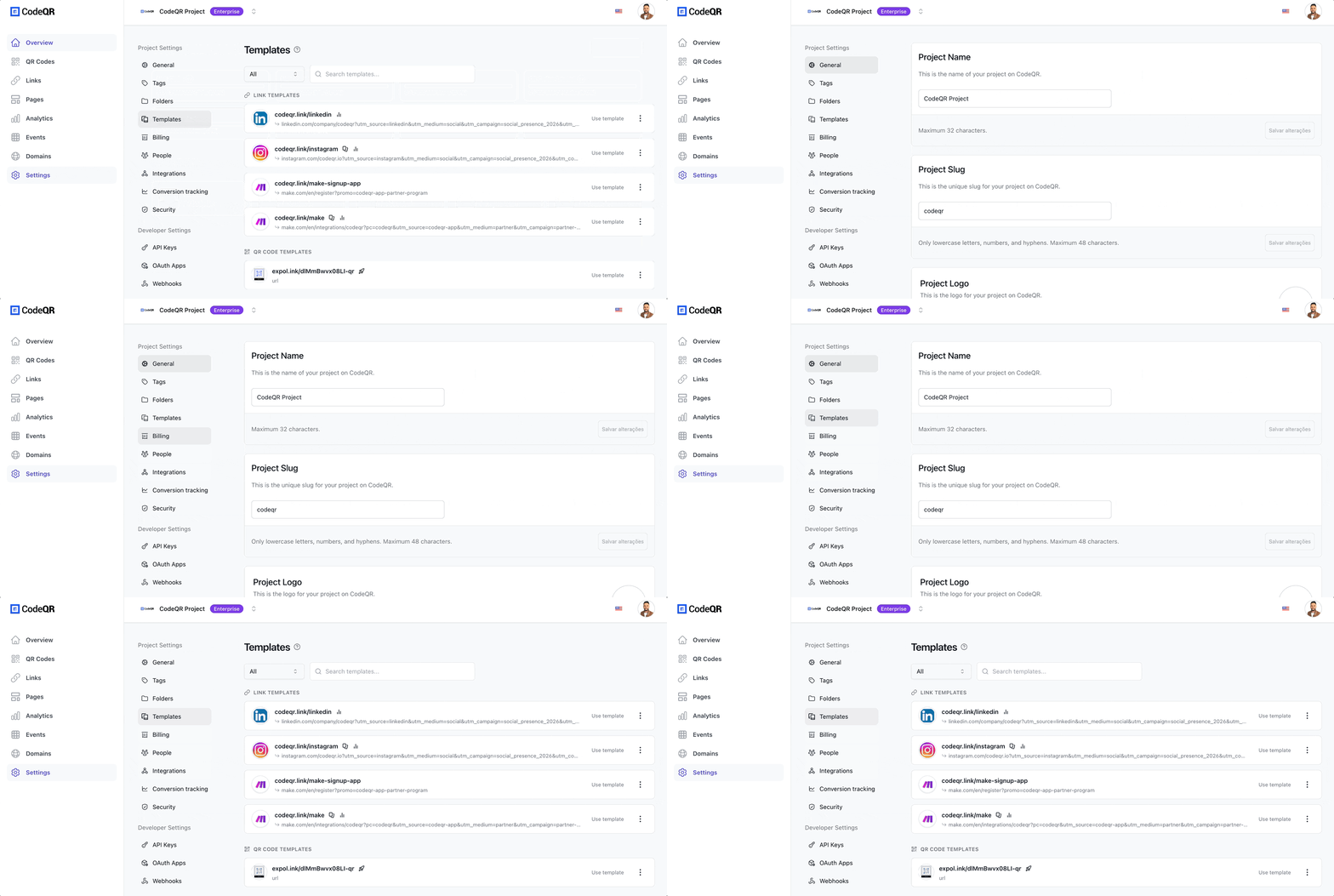
- In the CodeQR dashboard, open Settings (gear icon) for your project.
- In the left sidebar, click Templates (book/copy icon).
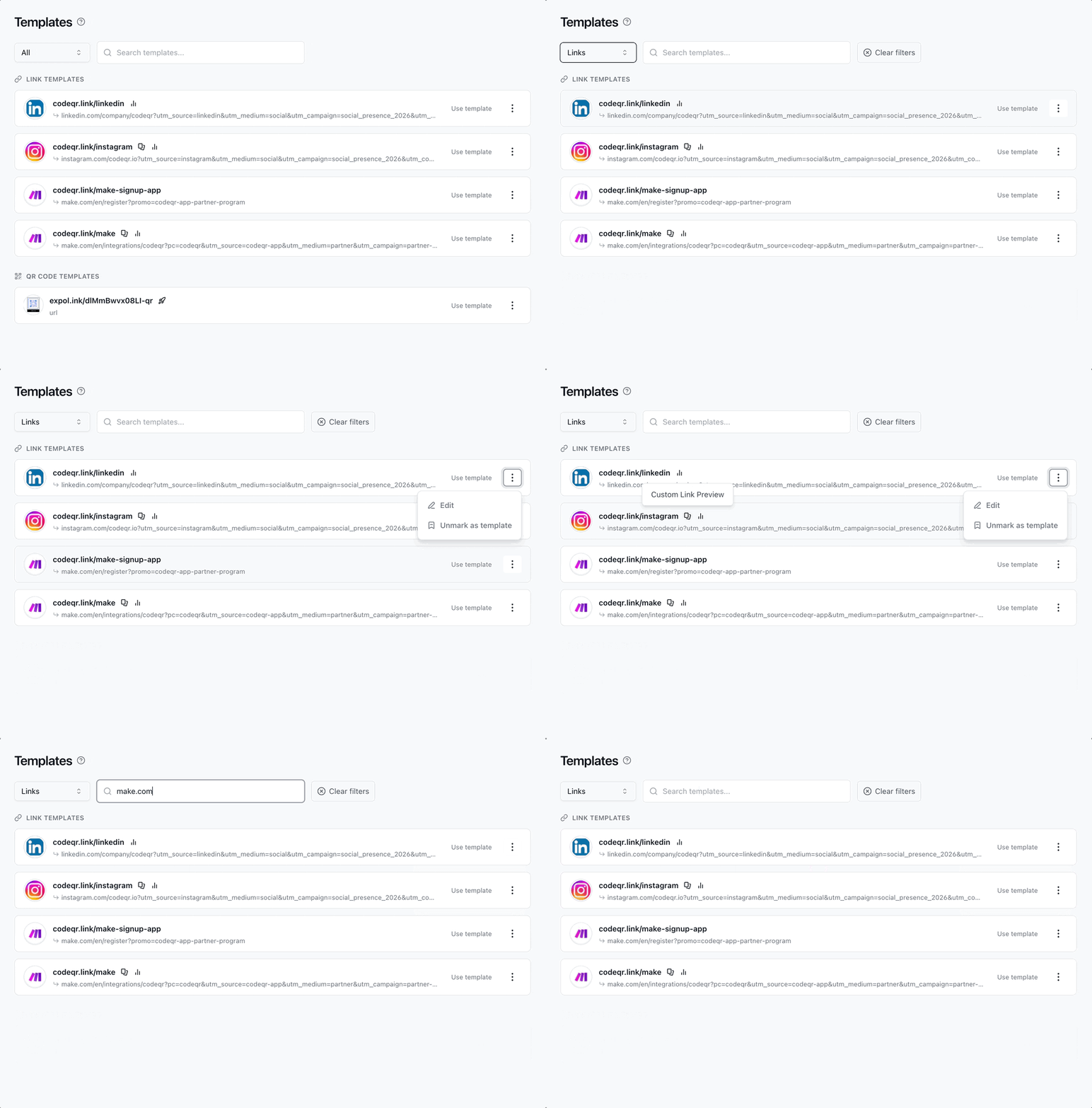
- On the Templates page you see two sections: Link Templates and QR Code Templates.
- Use the filters (All / Links / QR codes) and search if you need to find a specific template.
- On the row of the template you want to use, click Use template.
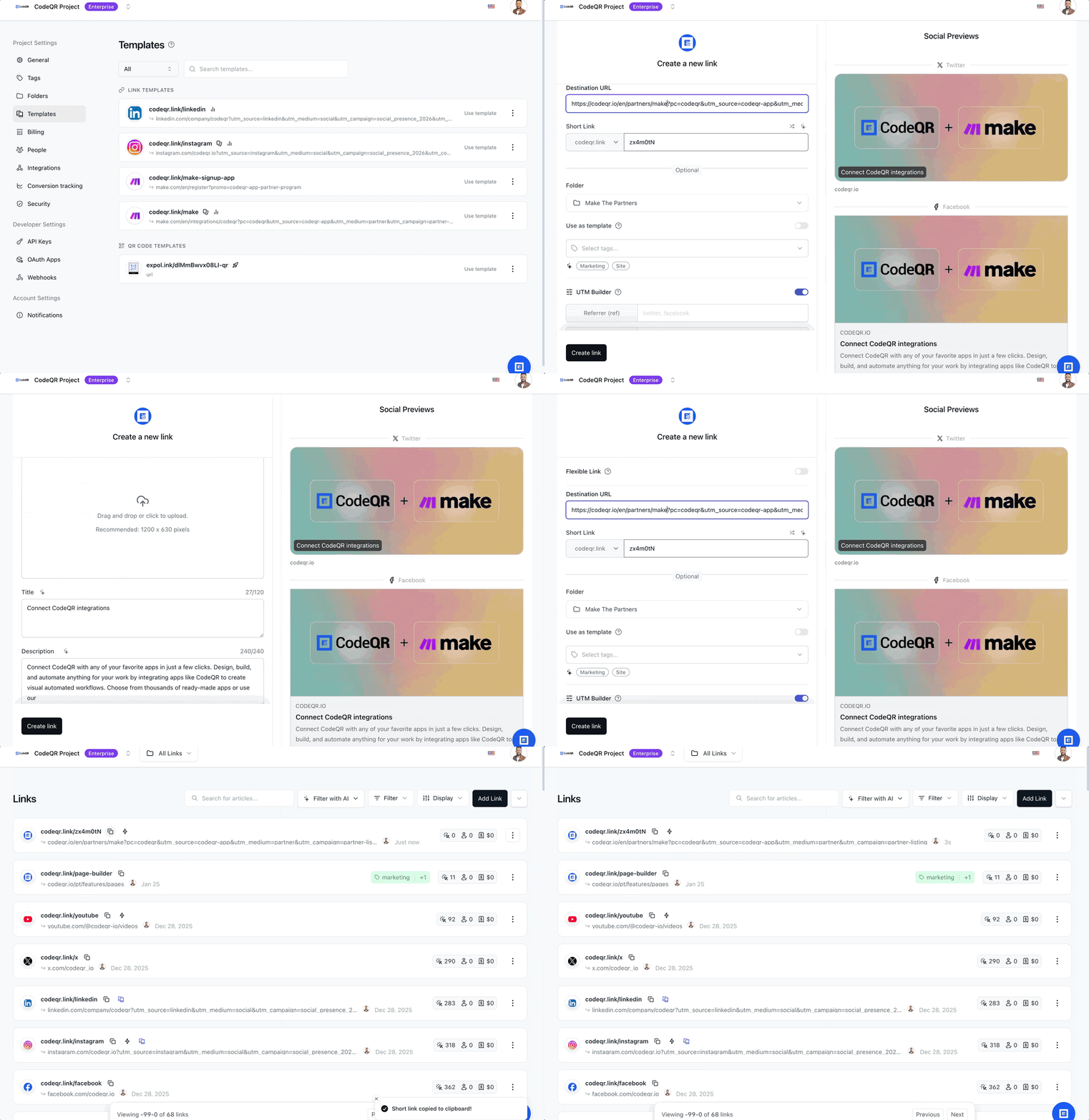
- The create link or create QR code form opens pre-filled with that template’s settings. Change what you need (e.g. destination URL, key, or QR content) and click Save.
Each template row shows a summary of the item (short link, destination URL, QR type) and icons for active features (comments, password, UTM, expiration, etc.). That way you can pick the right template before using it.
Way 2: Duplicate from the Links or QR codes list

- Go to Links or QR codes in the project menu.
- On the row of the link or QR code you want to reuse, click the ⋯ (three dots) menu.
- In the menu that opens, click Duplicate.
- You are taken to the create link or create QR code form with that item’s data already filled in and a new key generated. Adjust as needed and save.
This option works for any item in the list — it does not need to be marked as a template. It’s ideal when you want to quickly clone a specific link or QR code without going to the Templates page.
How to mark a link or QR code as a template
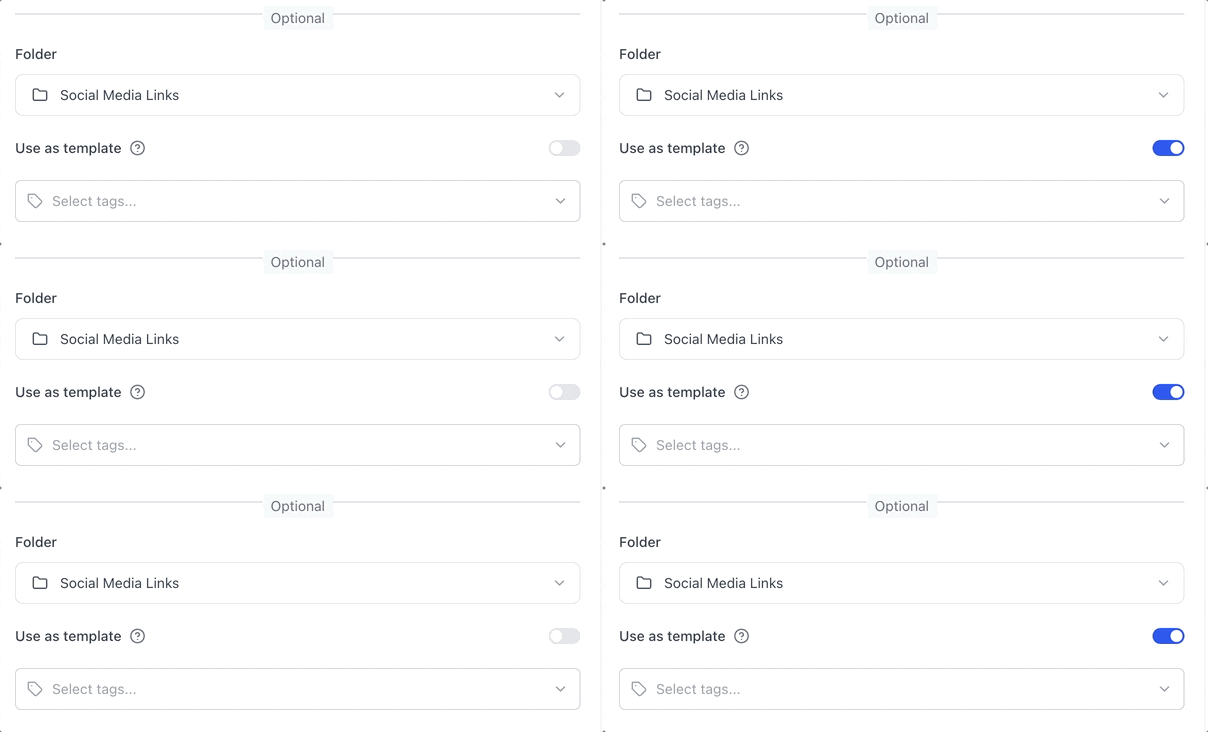
- When creating or editing a link or QR code, scroll to the Use as template option.
- Turn the switch on. The help text next to it explains that the item will then appear on the Templates page for you and your team.
- Save the link or QR code.
From then on, that item is listed under Settings → Templates, and any projects member can click Use template to create a new item from the same base.
To stop using it as a template without deleting the item: on the Templates page, open the ⋯ menu on the row and choose Unmark as template. The link or QR code remains in the Links or QR codes list but is removed from the Templates list.
Filter by templates in the Links or QR codes list
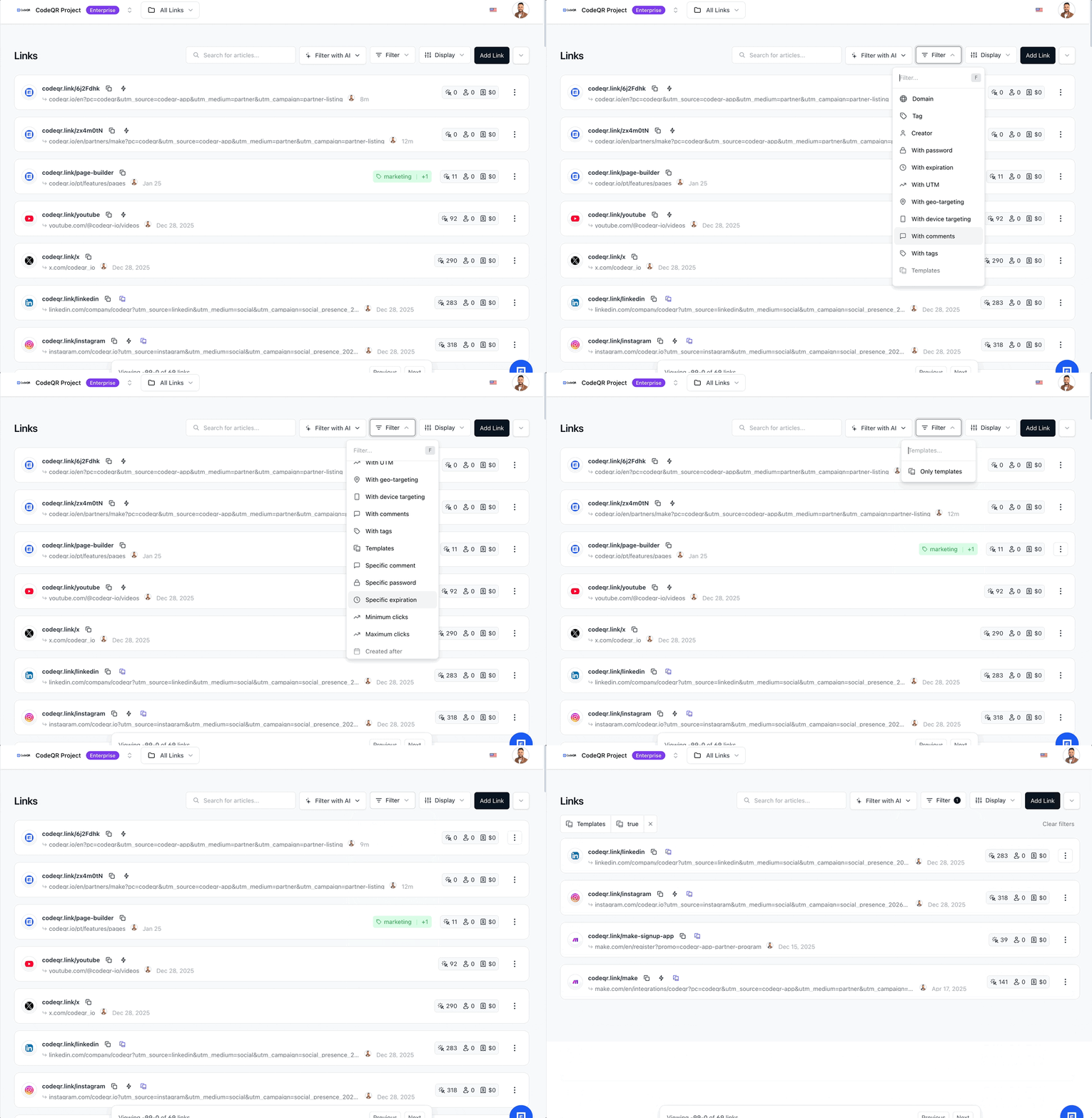
You can see only items marked as templates without leaving the list. In Links or QR codes, open the filters (e.g. the filter bar or filter dropdown) and apply the Templates filter with the option Only templates. The list will show just links or QR codes that have Use as template turned on. From there you can use the ⋯ menu to Duplicate or open the item as usual. To clear the filter and see all items again, remove the Templates filter.
Conclusion
Duplicating links and QR codes and using templates in CodeQR reduces repetitive work and keeps your campaigns consistent. Use the Templates page when you want a catalog of reusable bases for the whole team, and Duplicate from the list menu when you want to clone a specific item on the spot.
Try it on CodeQR: create or edit a link or QR code, turn on Use as template, then go to Settings → Templates and use Use template to create a new one in a few clicks.
Frequently asked questions
The create form (for a link or QR code) opens with the same settings as the original and a new unique key. Nothing is saved until you click Save. You can change any field or cancel without creating a new item.